This is documentation for the next version of Grafana k6 documentation. For the latest stable release, go to the latest version.

Configure your code editor
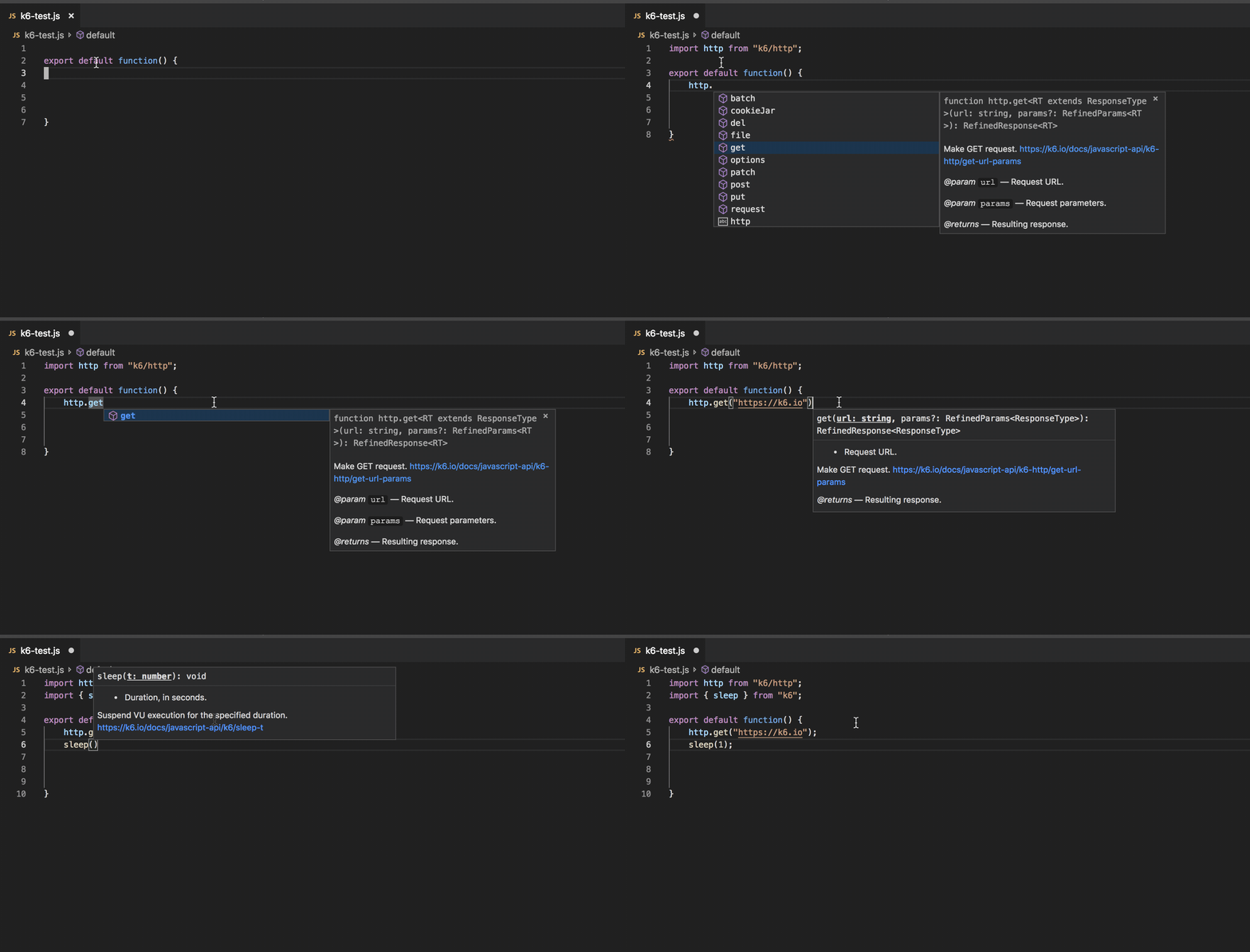
IntelliSense refers to code editing features like intelligent code completion and quick access to documentation. These features can significantly improve the developer experience and productivity when working on k6 scripts in your editor of choice. Notable features are:
- Auto-completion of k6 functions, methods, and classes.
- Auto imports of k6 modules.
- Access to k6 documentation when writing and hovering code.
Install k6 type definitions
k6 has its TypeScript Type Definition that you can configure with your editor to unlock code editing features.
In Visual Studio Code and IntelliJ IDEA Ultimate, you can configure IntelliSense to recognize the k6 JavaScript API by installing the k6 Types with a package manager.
# create a `package.json` file
$ npm init --yes

# install the k6 types as dev dependency
$ npm install --save-dev @types/k6
Code editor extensions
You can also find k6 code editor extensions for Visual Studio Code and IntelliJ IDEA:
AI assistants (MCP)
Connect k6 authoring and execution tools to MCP-compatible editors or assistants through the k6 MCP server. If you already have k6 installed, you can launch it directly with k6 x mcp — no extra install required.
- Configure your AI assistant
- Bootstrap your editor with
k6 x agent— set up skills and the MCP server in one command for supported editors.
Next steps
Now that you have k6 configured in your code editor, you can:
- Head over to Running k6 to learn how to create and run your first test.
- Configure your editor for TypeScript support.
Was this page helpful?
Related resources from Grafana Labs