Configure a test with Grafana Assistant
Guided setup is a step-by-step wizard that uses Grafana Assistant to turn a recording into a configured HTTP test. At each step, the Assistant analyzes your recording and proposes configuration that you review and adjust: the hosts to include, correlation rules for dynamic values, parameterization rules for hard-coded values, and thresholds based on the response times in your recording. The final step summarizes the test plan and runs the test in Grafana Cloud k6.
In this guide, you will:
- Start guided setup from a recording.
- Review and adjust the hosts, correlation rules, parameterization rules, and thresholds that Grafana Assistant proposes.
- Run the configured test in Grafana Cloud k6.
Note
Guided setup is experimental and subject to change.
Guided setup works with HTTP tests. To create a browser test from a recording, refer to Create a browser test.
Before you begin
To use guided setup, make sure you have:
- A Grafana Cloud account. Guided setup uses Grafana Assistant, which requires a Grafana Cloud account. You can sign in, or create a free account, when the wizard prompts you.
- A recording with requests. Complete Record a browser session to create a test recording, or open a HAR file.
- Proxy online. The Autocorrelation step uses the proxy to validate your script. If the proxy is offline, you can skip that step.
Note
Data from your recording is sent to Grafana Assistant for analysis. The configuration it proposes is applied locally in k6 Studio.
Start guided setup
You can start guided setup from a recording or from an existing test generator.
To start from a recording:
- Open the recording and click Create test > HTTP test.
- On the How do you want to configure this test? screen, click Start guided setup. If you’d rather configure every rule yourself, click Open generator to go straight to the Generator.
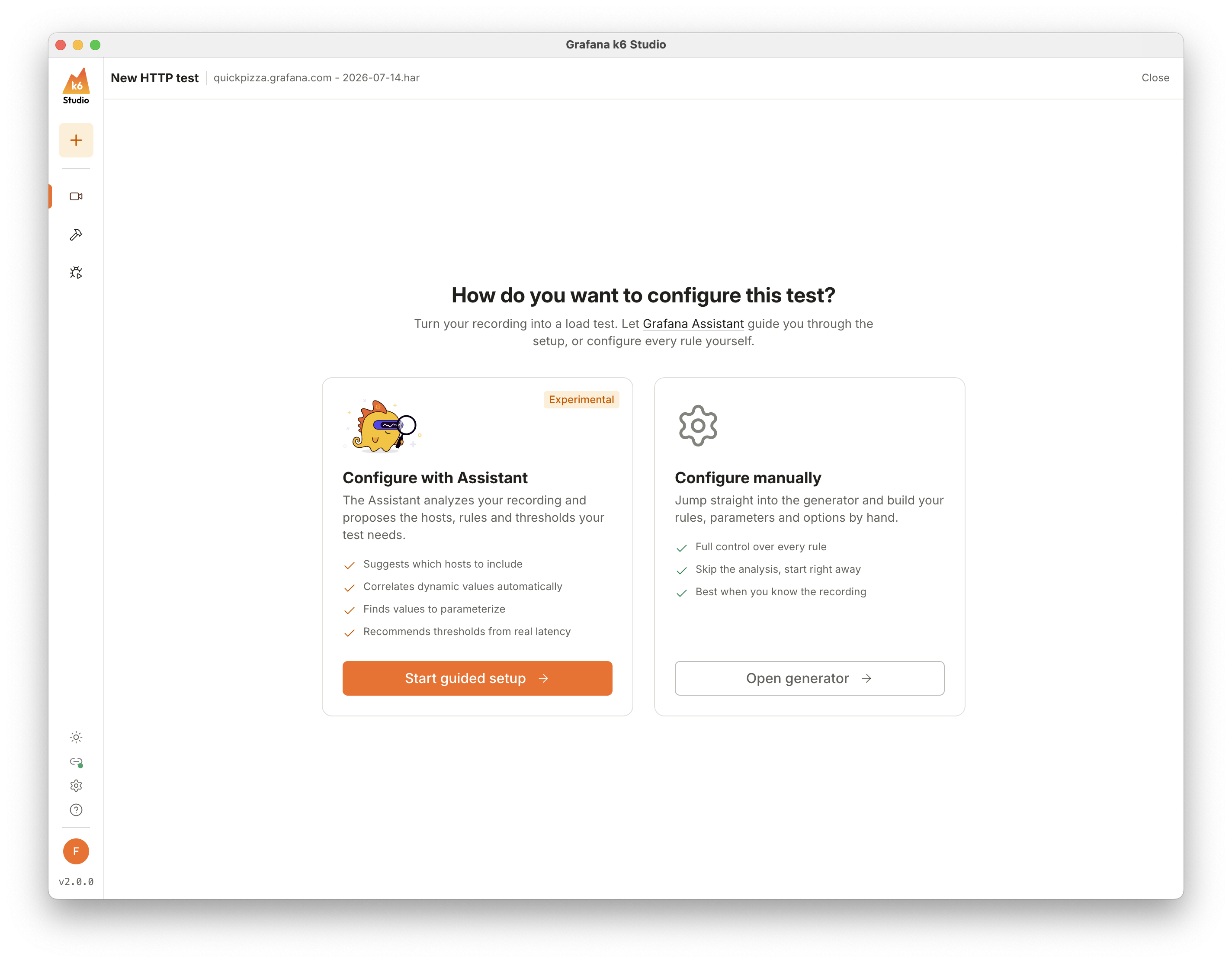
To start from an existing test generator, click Configure with Assistant at the top of the Generator. The wizard opens directly on the first step, so you can use it to reconfigure a test you’ve already created.
If you aren’t signed in yet, the wizard asks you to:
- Click Sign in to Grafana Cloud, complete the sign-in in your browser, and select the Grafana Cloud stack you want to use.
- Click Connect to Grafana Assistant, approve the connection in your browser, and check that the verification code in the browser matches the one shown in k6 Studio.
Work through the steps
The wizard takes you through five steps: Hosts, Autocorrelation, Parameterization, Thresholds, and Test run. Each Assistant step starts automatically and shows an actions log while the Assistant analyzes your recording. When the analysis finishes, review the proposed configuration, adjust it if needed, and click Continue.
You stay in control of the flow:
- Click Back and Continue to move between steps, or click a completed step in the stepper.
- Click Skip step to move on without applying the Assistant’s suggestions for that step.
- Click Run step again on a completed step to start its analysis over. Because later steps build on the result, the steps after it reset and run again.
- Click Close at any time to exit to the Generator. Changes from the steps you’ve completed are kept.
Select hosts
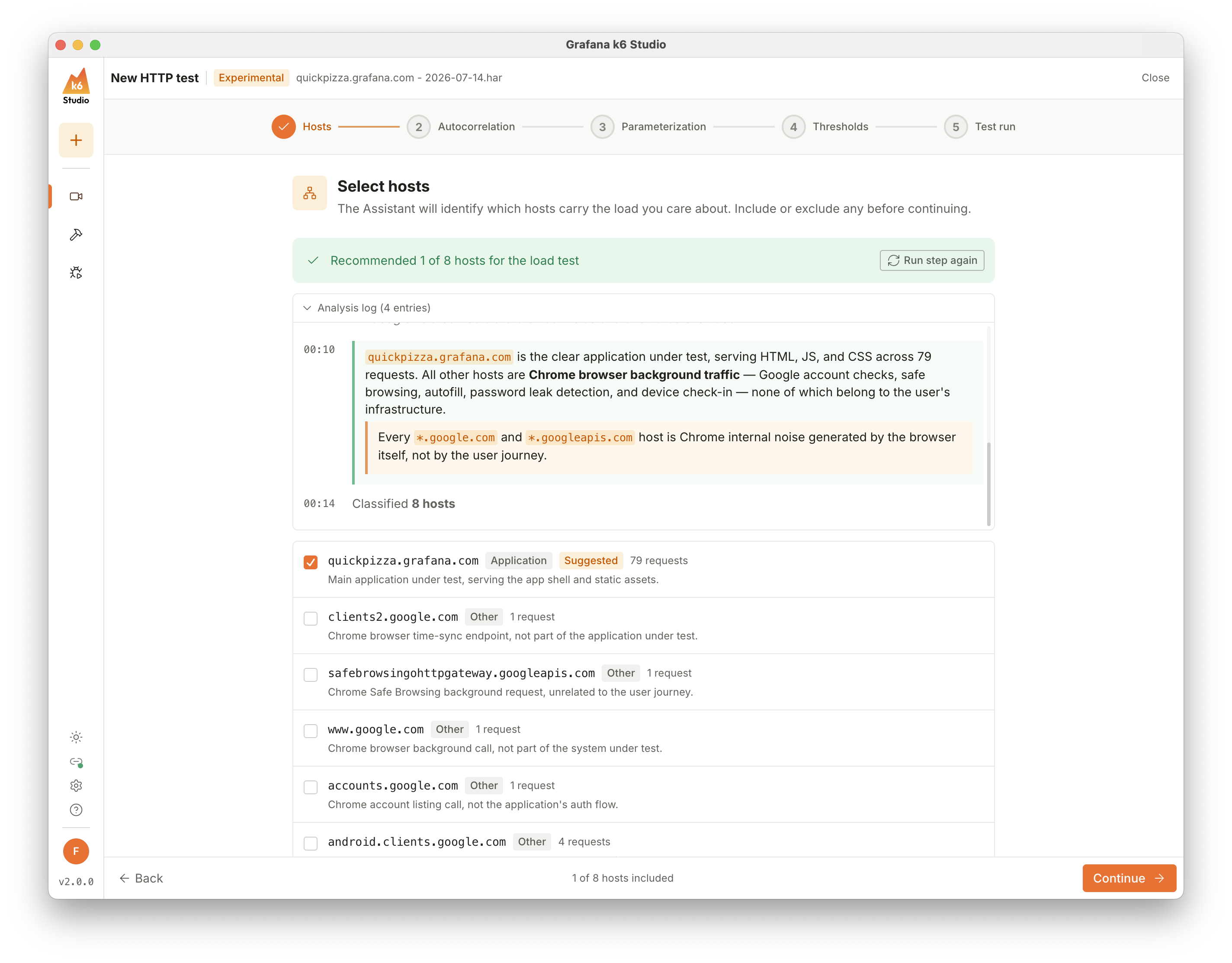
The Assistant identifies which hosts in your recording carry the load you care about, and suggests which ones to include, with a reason for each. Include or exclude hosts before continuing, and use Include requests for static assets (images, fonts, scripts) if you want to keep those requests. The hosts you select become the allowed hosts for the test.
Autocorrelation
Dynamic values, such as session tokens and resource IDs, change every time your application runs, and break scripts that replay recorded values. In this step, the Assistant validates your script, detects values that change between runs, and creates correlation rules to extract and reuse them. Review the created rules and remove any you don’t want before continuing.
This step runs the same analysis as Autocorrelation in the Generator. Refer to that section for details about how it works, the possible outcomes, and troubleshooting.
The proxy must be online for this step. If it’s offline, you can skip the step and add correlation rules later.
Parameterization
Hard-coded values, such as credentials and search terms, are baked into your recording. The Assistant finds them and creates parameterization rules that pull them into variables, so you can change the values in one place. Review the suggested parameters before continuing. After the wizard, you can edit the variable values in the Generator under Test data > Variables.
Thresholds
Thresholds are the pass/fail criteria for your test. The Assistant proposes thresholds tuned to the response times it observes in your recording. Edit any value inline, or remove thresholds you don’t need, before continuing.
Run test
The last step summarizes what your test will do before you launch it:
- The number of requests and the hosts they run against.
- The thresholds that decide whether the test passes or fails.
- The estimated cost of the run in virtual user hours (VUH), calculated by Grafana Cloud from your test options. If the configured load exceeds your project limits, a warning appears instead of the estimate.
- The load profile, with a timeline of the ramp-up, steady, and ramp-down stages.
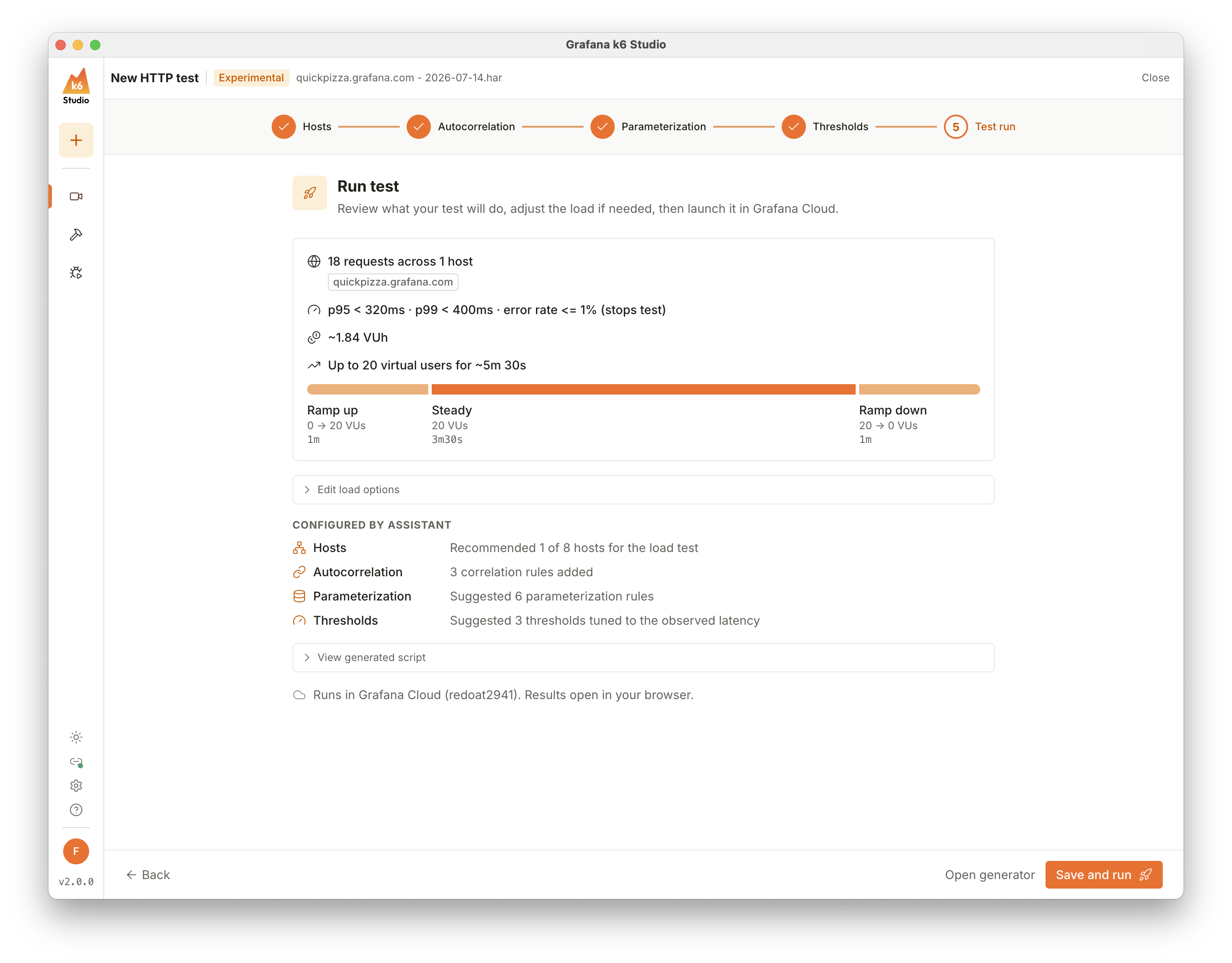
You can also expand Edit load options to adjust the load profile, review the Configured by Assistant summary of the earlier steps, and expand View generated script to inspect the k6 script.
To launch the test, click Save and run. k6 Studio saves the test generator and opens the Run in Grafana Cloud dialog box. When the run starts, the test results open in your browser. Refer to Run in Grafana Cloud k6 for more details.
To finish without running the test, click Open generator.
Next steps
Everything guided setup configures is regular test generator configuration: allowed hosts, correlation and parameterization rules, thresholds, and the load profile. After the wizard, you can keep refining the test in the Generator, validate it with the Debugger, or run it again in Grafana Cloud.
Was this page helpful?
Related resources from Grafana Labs