
This is documentation for the next version of Grafana documentation. For the latest stable release, go to the latest version.

Notebooks
Note
Notebooks is currently in public preview. Grafana Labs offers limited support, and breaking changes might occur prior to the feature being made generally available.
To use this feature, enable the
dashboard.notebooksfeature toggle in your Grafana configuration file or contact Support.
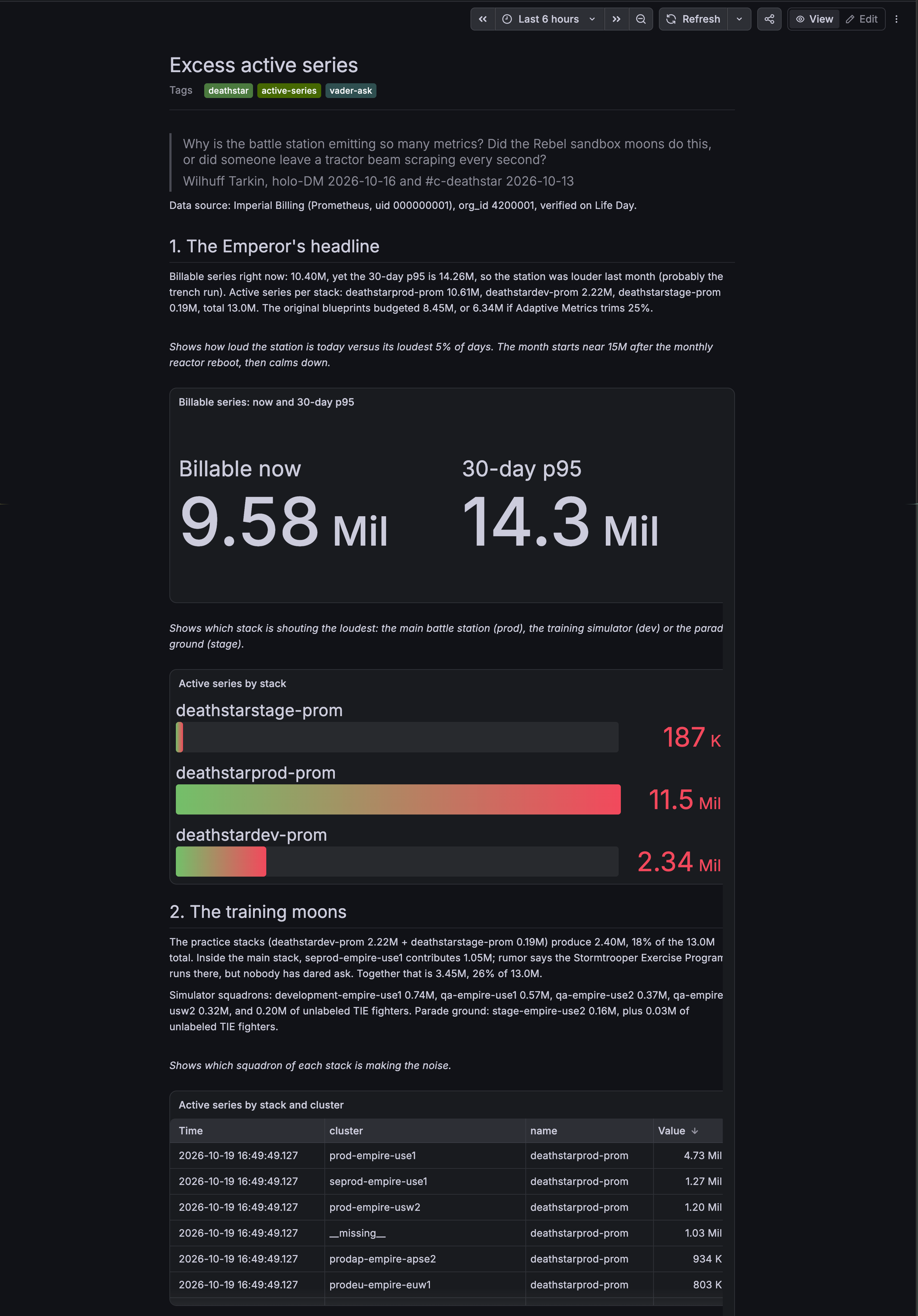
Notebooks combine notes, queries, and visualizations in a single document in Grafana. They provide a way to investigate a problem, explain what you found, and share the supporting data with your team. You can start a notebook yourself or create one with Grafana Assistant.
Text blocks capture notes and context, and you can add panels and queries manually or from Dashboards and Explore. Every block is directly editable, including the queries and visualizations, and you can reorder or remove blocks as your investigation develops.
Notebooks facilitate troubleshooting, investigation handoffs, and post-incident reviews.
Manage notebooks
The Notebooks page lists all of the notebooks in your organization, along with the following details for each notebook:
- Title
- Author username
- Tags
- Creation date
- Date of last update
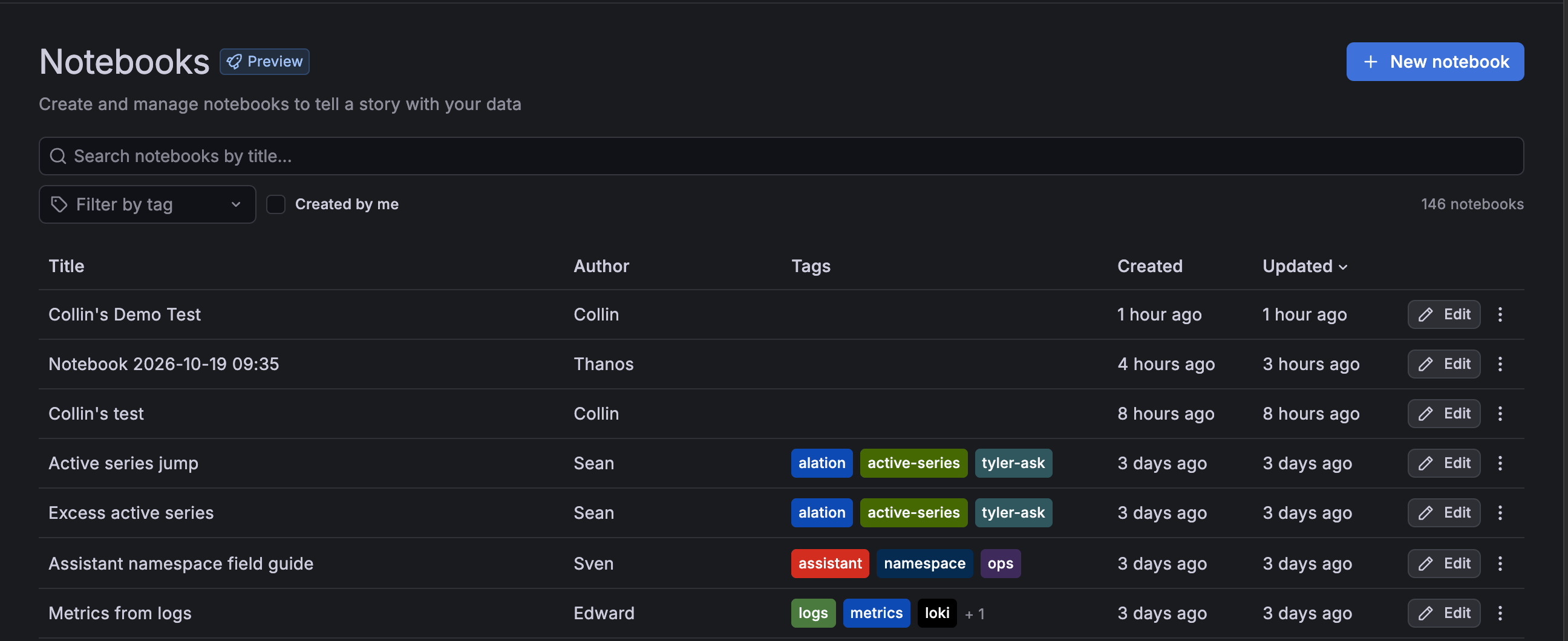
You can search the page by notebook title, and filter by tags or by notebooks you authored.
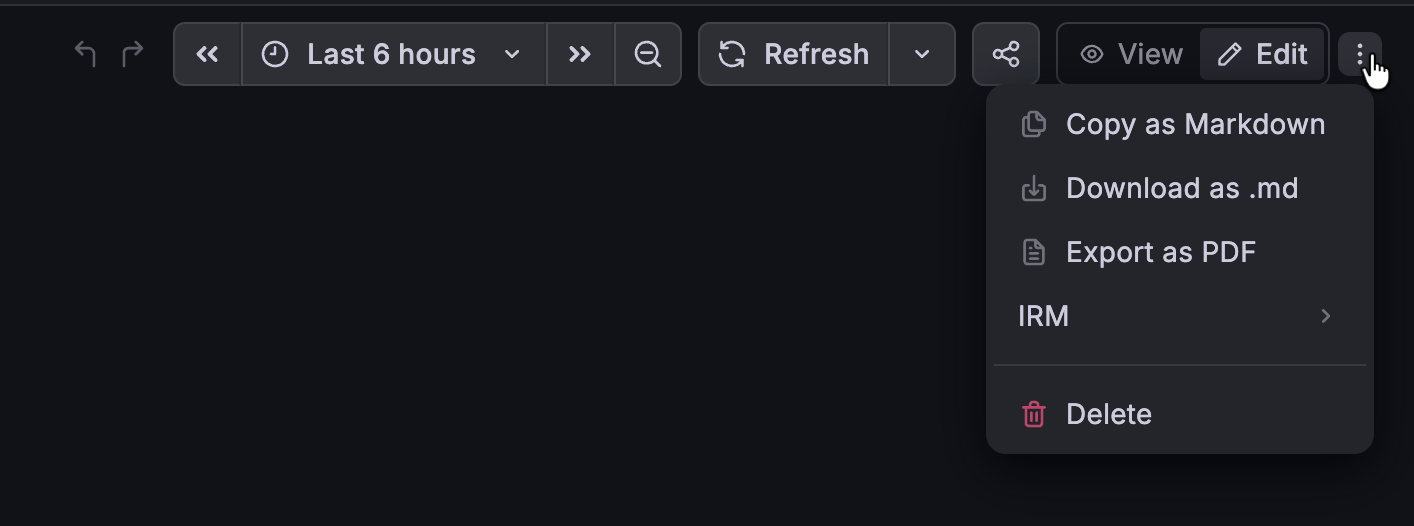
Each notebook row includes an Edit button and a menu where you can access the following actions:
- Copy a shareable link
- Export by copying the raw Markdown
- Export by downloading a .md file
- Export as a PDF, when a compatible image renderer is available
- Delete
You can also access all of these options inside a notebook in the toolbar:
Note
Sharing a notebook link doesn’t grant access to the notebook or its data sources. Recipients need permission to view the notebook and query the data sources used by its panels.
When you export a notebook as raw Markdown or in an .md file, panels render as JSON code blocks rather than as visualizations, like this:
[
  {
    "refId": "A",
    "datasource": "grafanacloud-usage",
    "type": "prometheus",
    "query": {
      "expr": "grafanacloud_org_metrics_billable_series"
    }
  }
]
PDF exports retain the rendered visualizations.
Add notebooks
By default, Viewers can read notebooks. Editors and Admins can create, edit, and delete them.
To create a notebook from the Notebooks page, follow these steps:
Click + New notebook.
You can also create a notebook by clicking New notebook in the drop-down menu at the top of every page in Grafana or by searching for New notebook in the command palette.
(Optional) Update the title of the notebook to something descriptive and searchable.
(Optional) Add tags to further define the subject of your notebook.
Start typing to create a text block or click one of the following buttons below the block:
- Heading: Adds an H1 heading.
- Paragraph: Adds a text block that you can format with Markdown.
- Code: Adds a code block. Select a language, like Go, SQL, or plain text.
- Visualization: Adds an empty visualization with its query editor below it. For more details on configuring visualizations in notebooks, refer to the Visualization blocks section of this page.
You can also type a forward slash (
/) to open a list of block types from which to select.Add as many blocks as you need.
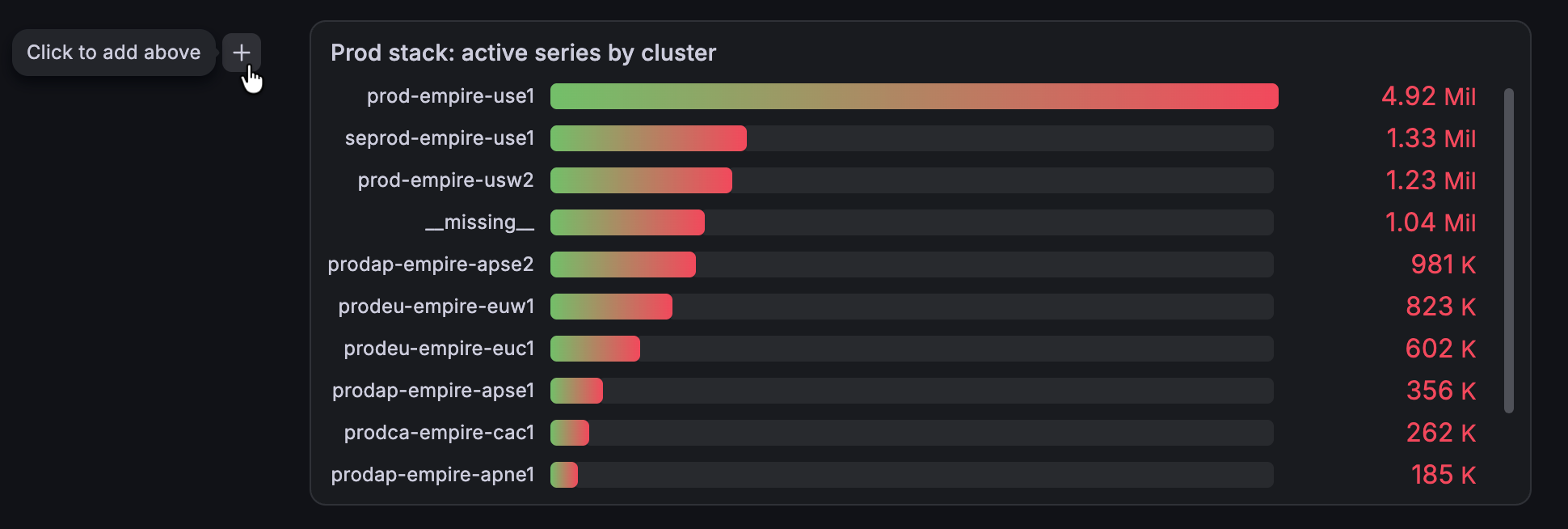
Each new block is automatically added after the previous one. To add a block above a previous one, click the plus icon at the top-left corner of the block:
![Adding a notebook block above the current block]()
Do the following as needed:
- Use the drag-and-drop handles on the left side of each block to reorder them.
- Click the Block actions menu at the top-right corner to access duplicate or delete options.
![Notebook block with actions menu open]()
In the notebook toolbar, take the following actions, as needed:
- Click the undo and redo icons at the top of the notebook to revert or reinstate changes.
- Change the time range of the notebook.
- Change the refresh rate of the notebook.
![Notebook toolbar]()
When you’ve finished making changes, click View in the toolbar to leave edit mode.


Notebooks automatically save your changes. For more information, refer to the Save status section of this page.
Save status
Notebooks save your edits automatically, including changes made with undo and redo. The save status displays at the top of the notebook next to the undo and redo icons. Possible saved statuses are:
- Unsaved changes
- Saving…
- Saved
- Save failed
If a save fails, check the error and use Retry when it’s available before leaving the page.
Edit notebooks
To edit a notebook, follow these steps:
- Navigate to Notebooks.
- Click Edit on the row of the notebook you want to update.
- Make any needed changes.
- When you’ve finished updating the notebook, click View to leave edit mode.
Notebooks automatically save your changes.
Undo and redo changes
You can also edit notebooks by undoing or redoing changes. The undo and redo icons are in the toolbar at the top of a notebook. When you hover your cursor over either of the buttons, a tooltip displays the change being reverted or reinstated.
You can’t restore a deleted notebook using undo or redo.
Visualization blocks
Visualization blocks display query results within your notebook. You can edit the block’s title and queries, choose a suggested visualization, or give the panel its own time range.
In edit mode, hover your cursor over a visualization to display its controls:
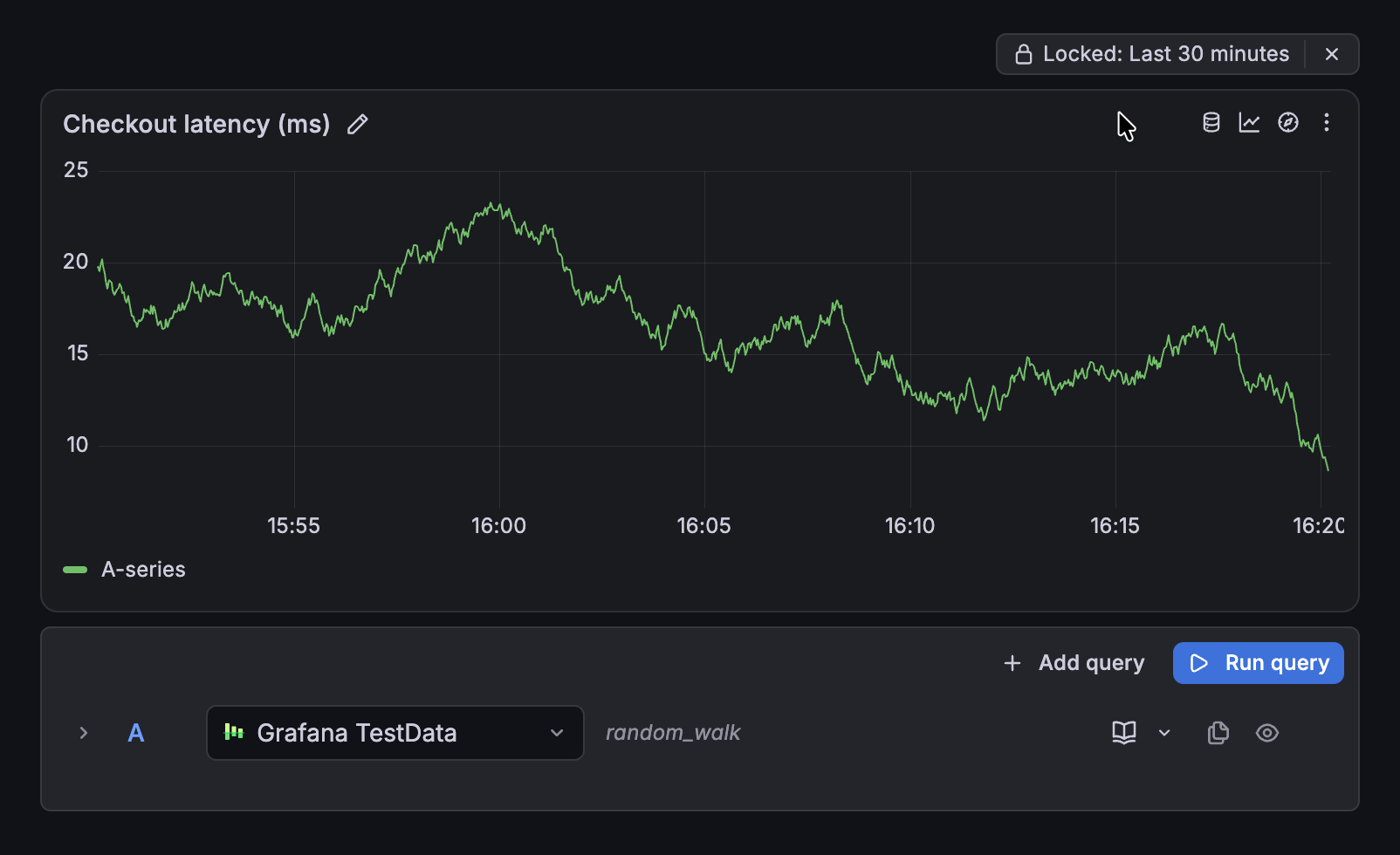
Visualization blocks have the following controls:
Title, query, and visualization editing aren’t available for linked library panels in a notebook.
Panel time range
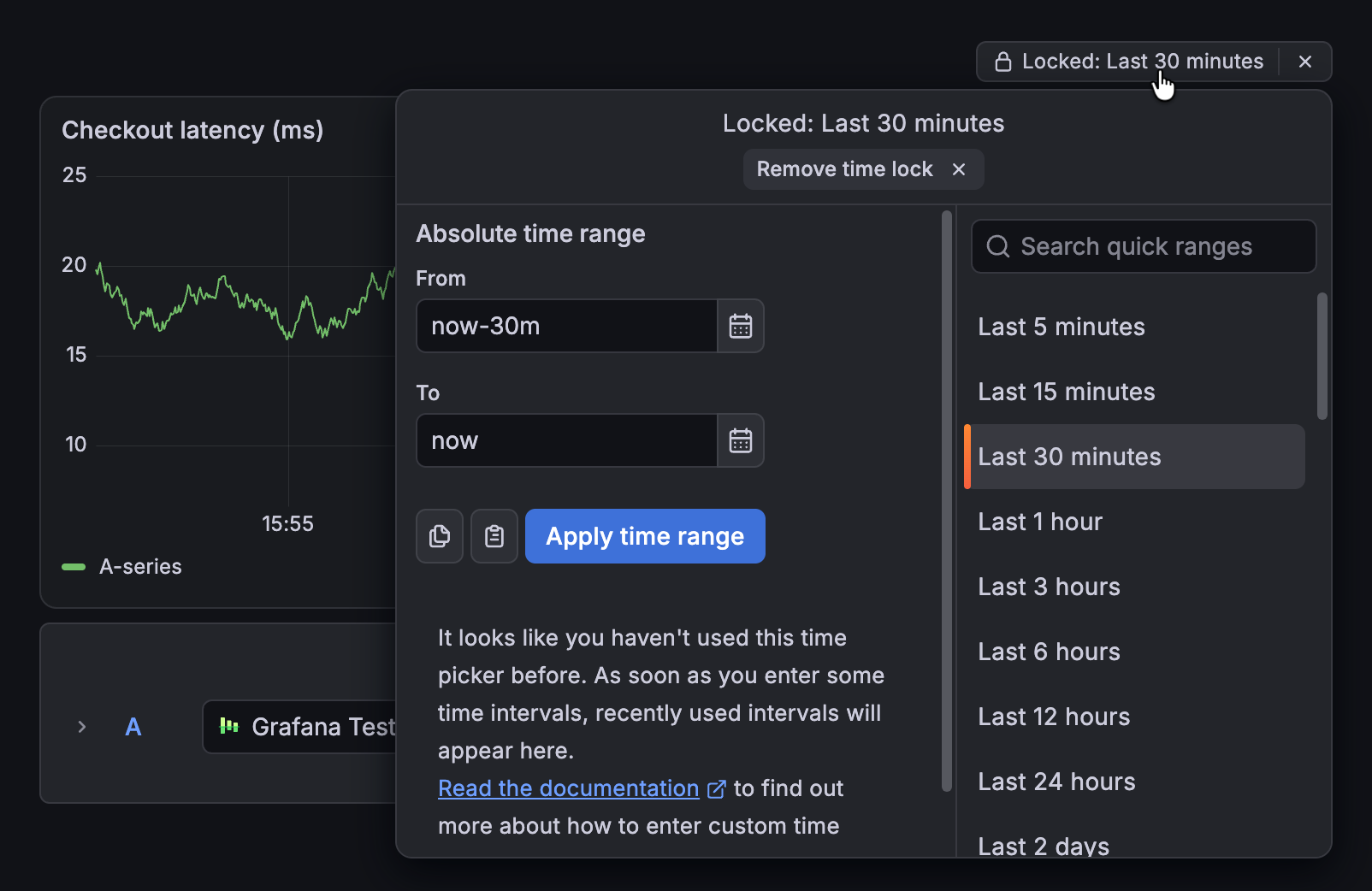
Panels use the notebook’s time range unless you set a separate range for a panel. Use a panel time lock to keep its range independent when you change the notebook’s time range. The locked range displays above the panel and remains visible in view mode.
A relative range, such as Last 30 minutes, remains relative to the current time. To preserve a specific investigation window, use an absolute start and end time. Locking a time range doesn’t save a snapshot of the query results.
To change the panel time range, return to edit mode and click the locked range. Click Remove time lock to make the panel follow the notebook’s time range again:
Add panels from Dashboards or Explore
You can bring a dashboard panel or an Explore query into a notebook without recreating it. To add a panel from Dashboards or a query from Explore, follow these steps:
Do one of the following:
- In Dashboards, click the menu in the top-right corner of a panel and select Add to notebook.
- In Explore, click the Add menu and select Add to notebook.
In the dialog box that opens, choose an existing notebook or create a new one.
Click Add to notebook.
You can then open the notebook to add notes or continue editing the visualization. Updating the added panel in the notebook doesn’t change the panel in the source dashboard or the query in Explore.
Create notebooks from Grafana Assistant Workspace
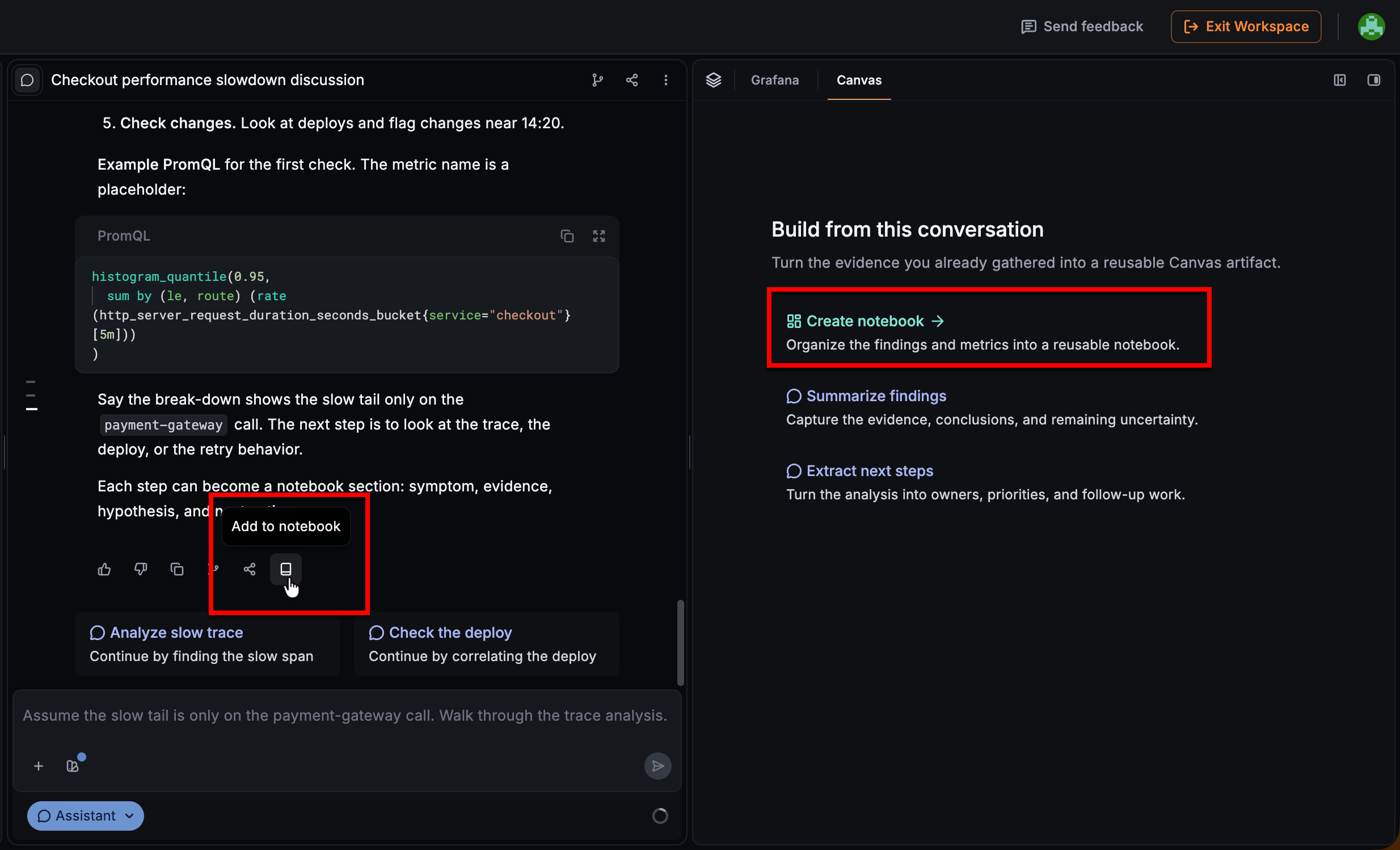
In Grafana Assistant Workspace, you can turn investigation findings into a notebook to continue editing and share with your team.
While you investigate in Workspace, the canvas brings together the work as a collection of questions, panels, and findings. The Assistant builds the canvas autonomously in Investigation mode or through your chat.
As you work, you can add the content of a message, such as text or a visualization, from your Assistant conversation to a notebook by clicking the Add to notebook icon. To create a notebook from the entire canvas, ask Assistant to create one or click Create notebook:
Notebooks and incidents
Notebooks can provide context for incident response, even if you started investigating before declaring an incident. With Grafana IRM, you can attach a notebook to an existing incident or declare an incident based on your notebook.
Both actions add a link to the notebook as incident context, not a copy of its contents or a snapshot of its data. Users opening the link need permission to view the notebook and query its data sources.
Note
To connect notebooks and incidents, you need to have Grafana IRM enabled for your instance with its notebook integration available, as well as the appropriate permissions for both features. If the integration isn’t available, the notebook menu doesn’t include the IRM option.
Attach notebooks to incidents
To attach a notebook to an existing incident, follow these steps:
- Navigate to Notebooks.
- Open the notebook you want to attach.
- Click the More actions menu in the toolbar.
- Select IRM > Attach to incident.
- In the dialog box that opens, select the incident to which you want to attach the notebook.
- (Optional) Update a caption to provide context. By default, the caption is the notebook title.
- Click Attach.
The notebook link is added to the incident’s context.
Declare incidents from notebooks
To declare an incident from a notebook, follow these steps:
Navigate to Notebooks.
Open the notebook you want to use.
Click the More actions menu in the toolbar.
Select IRM > Declare incident.
In the dialog box that opens, review the incident title and update it if needed. By default, it’s the notebook title.
Complete the fields required by your organization.
Click Declare incident.
This opens the incident you’ve just created in IRM > Incidents.
Add any other needed context to the incident.
The notebook link is added to the incident’s context.
Declaring an incident can trigger your configured incident response actions, such as notifying responders. For details about incident fields and response workflows, refer to Declare an incident in Grafana IRM.
Was this page helpful?
Related resources from Grafana Labs



