
This is documentation for the next version of Grafana documentation. For the latest stable release, go to the latest version.

Create dashboards
Dashboards and panels allow you to show your data in visual form. Each panel needs at least one query to display a visualization.
Before you begin:
- Ensure that you have the proper permissions. For more information about permissions, refer to About users and permissions.
- Understand the query language of the target data source.
Create a dashboard
To create a dashboard, follow these steps:
Click Dashboards in the main menu.
Click New and select New dashboard.
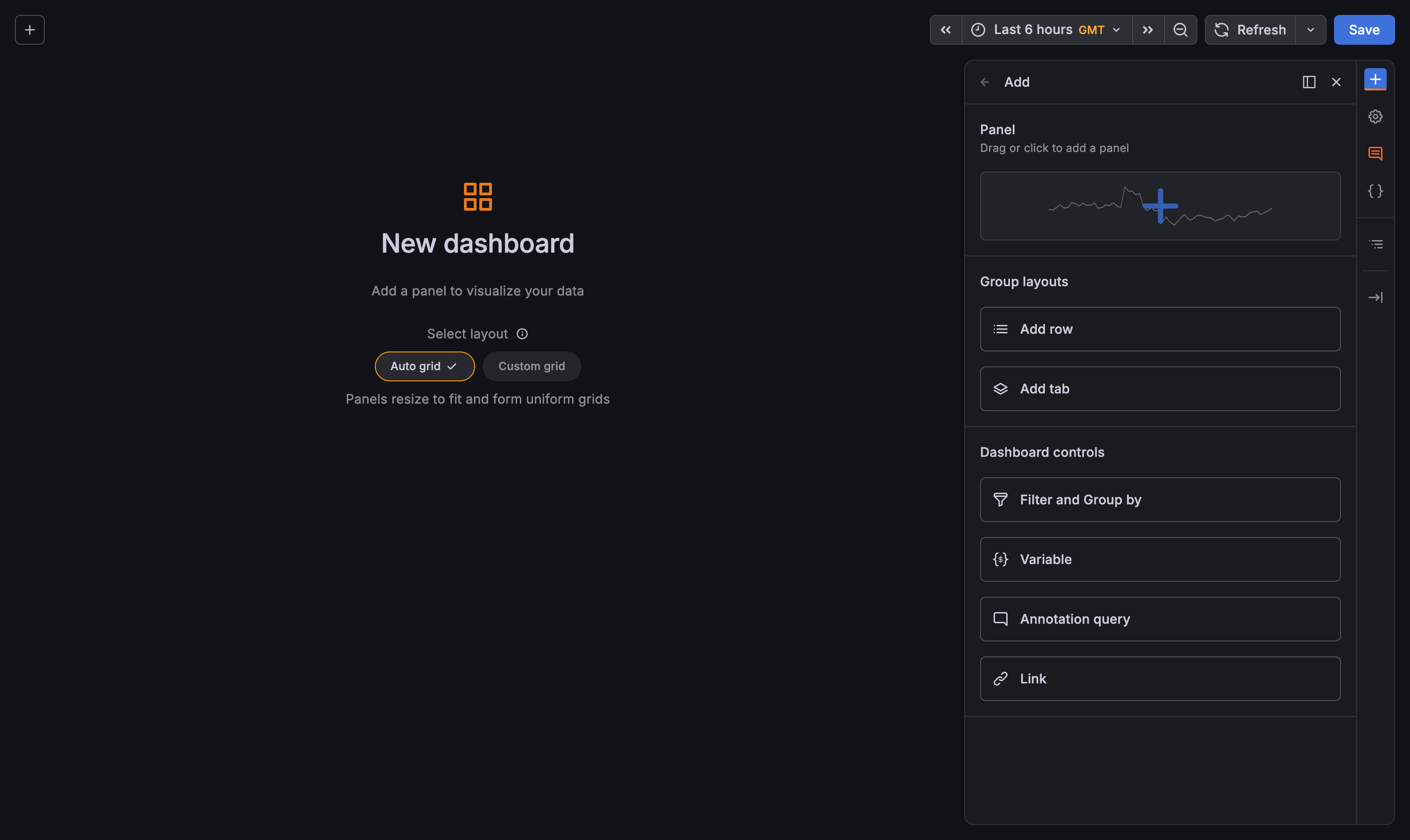
Click the Add new element icon (blue plus sign) and click or drag a panel onto the dashboard.
![Empty dashboard with sidebar open]()
- On the new panel, select one of the following options:
Configure visualization: Opens panel edit mode with the default data source for your instance preselected. Configure a query and set panel and visualization options.
Use saved query: Opens the Saved queries drawer. Select a query, and Grafana adds the panel with suggested visualization applied.
Then, go to step 12.
Use library panel: Opens a drawer with a list of library panels. Select a library panel, and Grafana adds the panel.
Then, go to step 12.
If you want to change the panel data source, in the Queries tab, click the Data source drop-down list and do one of the following:
- Select one of your existing data sources.
- Click Open advanced data source picker to select one of the Grafana built-in special data sources or to configure a new data source (Admins only).
For more information about data sources, refer to Data sources for specific guidelines.
To create a query, do one of the following:
- Write or construct a query in the query language of your data source.
- Open the Saved queries drop-down menu and click Replace query to reuse a saved query.
(Optional) To save the query for reuse, click the Saved queries drop-down menu and select Save query.
Click Refresh to query the data source.
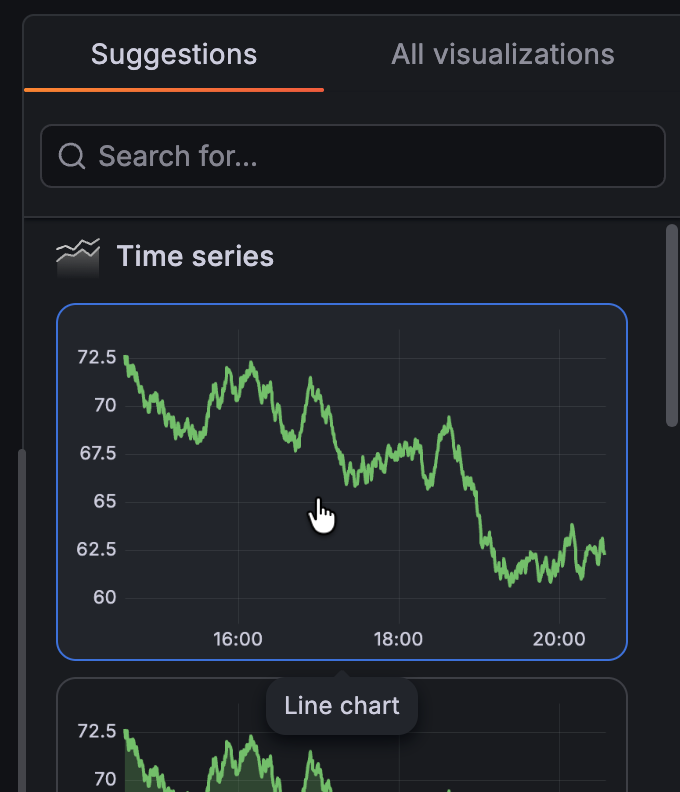
Select a suggested visualization or click All visualizations and select one from the full list.
![Visualization selector]()
Grafana displays a preview of your query results with the visualization applied.
For more information about configuring individual visualizations, refer to Visualizations options.
(Optional) If the panel supports it, choose an option from the Panel styles section in the panel editor sidebar. Each style shows a live preview of how it changes the visualization. Clicking a style applies it to the panel.
For more information about Panel styles, refer to the Panel editor documentation.
Refer to the following documentation for ways you can adjust panel settings.
While not required, most visualizations need some adjustment before they properly display the information that you need.
Enter a title and description for the panel or have Grafana create them using generative AI features.
Click Save.
Enter a title and description for the dashboard or have Grafana create them using generative AI features.
Select a folder, if applicable.
Click Save
Click Back.
Click Exit edit.
Note
Saved queries is only available on Grafana Enterprise and Grafana Cloud.
Dashboard edit
Now that you’ve created a basic dashboard, you can augment it with more options, which is explained in the following sections:
- The sidebar and toolbar: Learn about editing without leaving the dashboard.
- Navigate using the content outline: Learn how to quickly navigate to any dashboard element with the content outline.
- Edit a dashboard: Learn how to edit a dashboard.
The sidebar and toolbar
The sidebar allows you to make changes without leaving the dashboard, by displaying options associated with the part of the dashboard that’s in focus.
The toolbar is next to the sidebar, and it includes options that are useful to have available all the time.
The following image shows the parts of the sidebar and the toolbar. Hover your cursor over the numbers to display descriptions of the toolbar options (descriptions also follow the image):
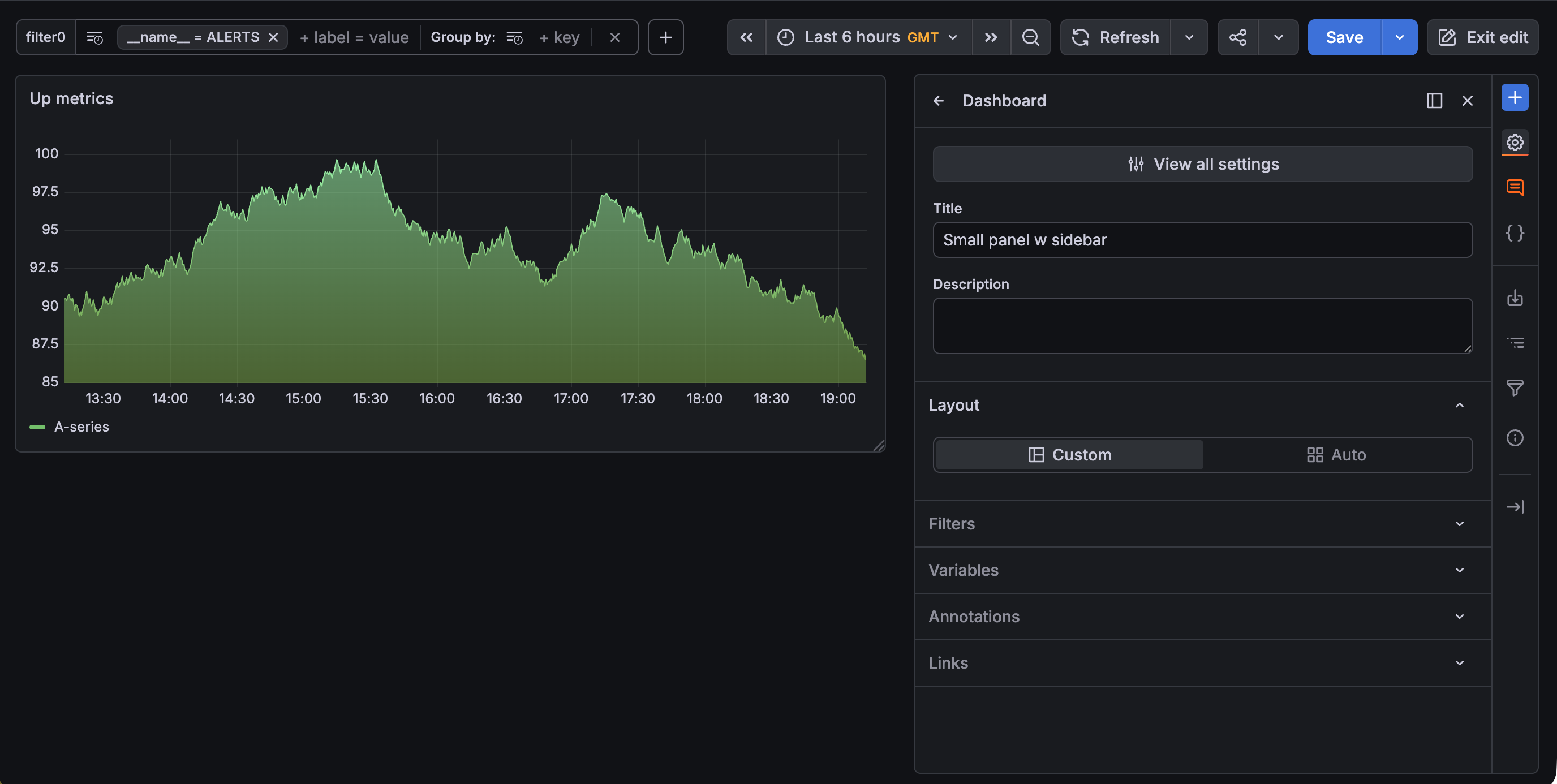
- Add new element: Click to open the sidebar with add options. Click again to close. Edit mode only.
- Dashboard options: Click the icon to open the sidebar and access dashboard options. Click again to close. Edit mode only.
- Feedback: Submit feedback on the new editing experience. Edit mode only.
- Edit as code: Edit the dashboard JSON. Click again to close. Edit mode only.
- Export: Click to display export options.
- Content outline: Navigate a dashboard using the Content outline.
- Filters overview: Open the filters overview drawer.
- Dashboard insights: View dashboard analytics including information about users, activity, and query counts.
- Hide: Click to hide the sidebar and toolbar.
- Dock/Undock: Click to dock or undock the sidebar.
The toolbar is displayed in both edit and view mode, but the Dashboard options and Feedback icons aren’t available in view mode.
The available configuration options in the sidebar differ depending on the selected dashboard element:
- Dashboards: High-level options are in the sidebar and further configuration options are in the Settings page.
- Groupings (rows and tabs): All configuration options are available in the sidebar.
- Panels: High-level options are in the sidebar and further configuration options are in the Edit panel view.
Docked and undocked sidebar
You can choose to use the sidebar docked or undocked by clicking the Dock/Undock icon in the sidebar. When the sidebar is docked, the content of the dashboard resizes to accommodate the sidebar. When it’s undocked, the sidebar floats on top of the dashboard content. In edit mode, the sidebar is docked by default and in view mode, it’s undocked.
Note
On mobile devices, the sidebar is docked by default in edit mode.
The following table describes how the sidebar behaves when docked or undocked in edit mode:
When you dock or undock the sidebar, your choice is persisted for all dashboards you use in that Grafana instance, across sessions, by way of your browser’s local storage. You can clear this selection by clearing the following keys in your local storage:
- For view mode:
grafana.ui.sidebar.dashboard-view.docked - For edit mode:
grafana.ui.sidebar.dashboard.docked
You can also resize both the sidebar and toolbar. You can only resize the toolbar when the sidebar is closed and not docked, however, you can do so in view or edit mode. Your resizing changes persist until you change them.
Navigate using the content outline
The Content outline provides a tree-like structure that shows you all the parts of the dashboard and their relationships to each other, including panels, rows, tabs, and variables. The outline also lets you quickly navigate the dashboard and is available in both view and edit modes (note that variables are only included in edit mode).
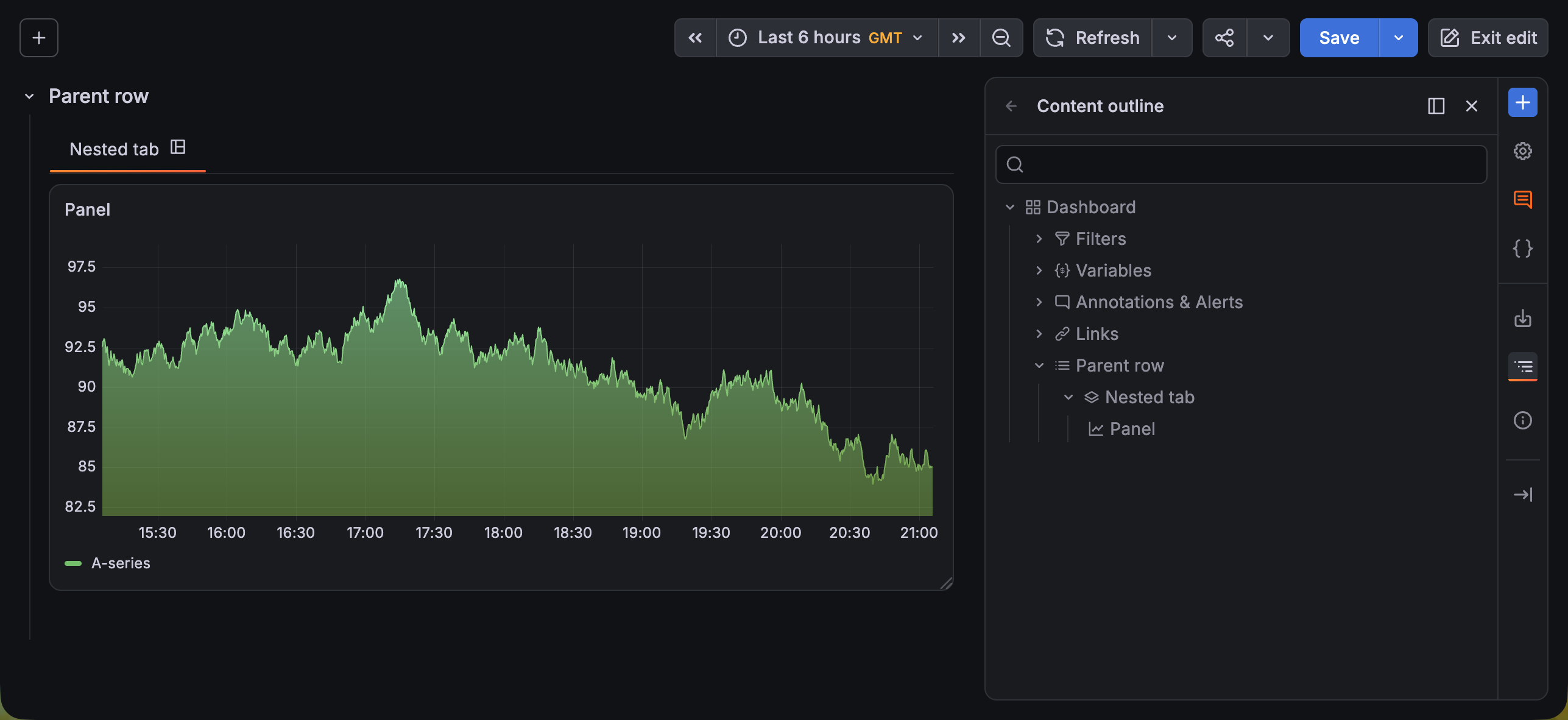
To navigate the dashboard using the outline, follow these steps:
Navigate to the dashboard you want to view or update.
In the right toolbar, click the Content outline icon to open it.
Do one of the following:
- Expand the outline to find the part of the dashboard you want to view or update.
- Enter the name of the element in the outline search bar.
Click the tree item to navigate that part of the dashboard.
Edit a dashboard
To edit a dashboard, follow these steps:
Navigate to the dashboard you want to update.
Click Edit.
Do one of the following:
When you’ve finished making changes, click Save.
(Optional) Enter a description of the changes you’ve made.
Click Save.
Click Back, if needed.
Click Exit edit
Panel layouts
Panel layouts control the size and arrangement of panels in the dashboard. There are two panel layout options:
- Custom: You can position and size panels individually. This is the default selection for a new dashboard. Show/hide rules are not supported.
- Auto grid: Panels resize and fit automatically to create a uniform grid. You can’t make manual changes to this layout. Show/hide rules are supported.
When you first create a dashboard, you select a layout and that selection becomes your the default for rows and tabs that you add to the dashboard. However, you can change this default in the dashboard settings.
Auto grid layout
In the auto grid layout, panels are automatically sized and positioned as you add them. There are default parameters to constrain the layout, and you can update these to have more control over the display:
- Min column width: Choose from Standard, Narrow, Wide, or Custom, for which you can enter the minimum width in pixels.
- Max columns: Set a number up to 10.
- Row height: Choose from Standard, Short, Tall, and Custom, for which you can enter the row height in pixels.
- Fill screen: Toggle the switch on to have the panel fill the entire height of the screen. If the panel is in a row, the Fill screen toggle for the row must also be enabled (refer to grouping configuration options.
If you try to resize a panel in auto grid layout, a dialog box opens with the following options:
- Edit auto layout: Adjust the layout configuration.
- Switch to custom layout: Resize and position panels manually.
If you’re working in a tab, the layout type indicator is automatically displayed. To see which layout type is active for a row, hover your cursor over that row to display the indicator.
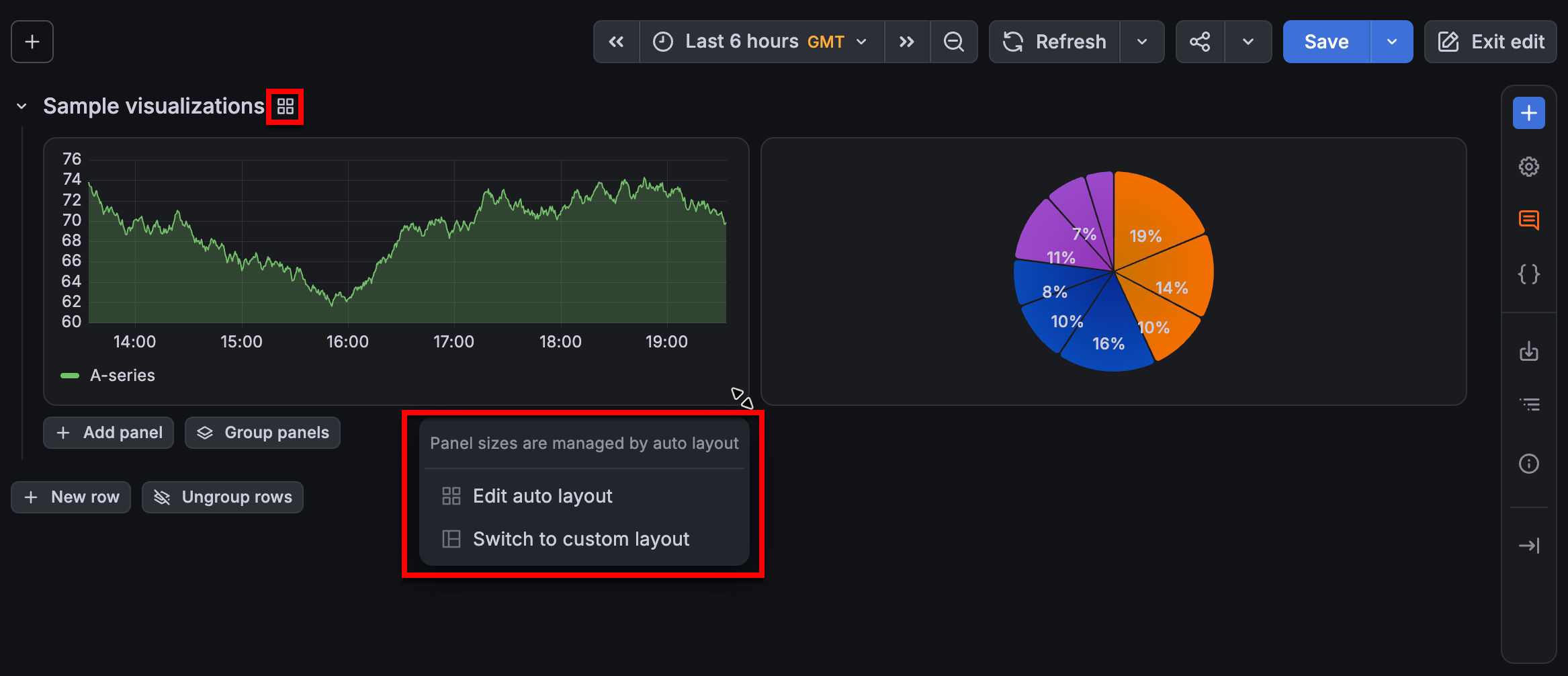
For repeated panels, this interaction is available on the last panel in the group.
Update panel layout
To update the panel layout, follow these steps:
- Navigate to the dashboard you want to update.
- Click Edit.
- Click the dashboard or the grouping that contains the panel layout you want to update.
- Click the Dashboard options icon to open the sidebar, if needed.
- Under Layout, select Custom or Auto.
- Click Save.
- (Optional) Enter a description of the changes you’ve made.
- Click Save.
- Click Exit edit
Configure repeat options
You can configure Grafana to dynamically add panels, rows, or tabs to a dashboard based on the value of a variable. Variables dynamically change your queries across all panels, rows, or tabs in a dashboard.
This only applies to queries that include a multi-value variable.
To configure repeats, follow these steps:
Navigate to the dashboard you want to update.
Click Edit.
Click the panel, row, or tab you want to update to open the sidebar, or click the Dashboard options icon to open it.
If the dashboard is large, open the Content outline and use it to navigate to the part of the dashboard you want to update.
Expand the Repeat options section.
Select the Repeat by variable.
For panels in a custom layout, set the following options:
- Under Repeat direction, choose one of the following:
- Horizontal - Arrange panels side-by-side. Grafana adjusts the width of a repeated panel. You can’t mix other panels on a row with a repeated panel.
- Vertical - Arrange panels in a column. The width of repeated panels is the same as the original, repeated panel.
- If you selected Horizontal, select a value in the Max per row drop-down list to control the maximum number of panels that can be in a row.
(Optional) To provide context to dashboard users, add the variable name to the panel, row, or tab title.
When you’ve finished setting the repeat option, click Save.
(Optional) Enter a description of the changes you’ve made.
Click Save.
Click Exit edit.
Repeating rows and tabs and the Dashboard special data source
If a row includes panels using the special Dashboard data source—the data source that uses a result set from another panel in the same dashboard—then corresponding panels in repeated rows will reference the panel in the original row, not the ones in the repeated rows. The same behavior applies to tabs.
For example, in a dashboard:
Row 1includesPanel 1AandPanel 1BPanel 1Buses the results fromPanel 1Aby way of the-- Dashboard --data source- Repeating row,
Row 2, includesPanel 2AandPanel 2B Panel 2BreferencesPanel 1A, notPanel 2A
Show/hide rules
You can configure panels, rows, and tabs to be shown or hidden based on rules. For example, you can set a panel to be hidden if there’s no data returned by a query or a tab to only be shown if a specific variable value is present.
There are three types of show/hide rules to choose from:
For steps to create show/hide rules, refer to Configure show/hide rules.
Note
You can only configure show/hide rules for panels in the Auto grid layout. Set the panel layout at the dashboard, row, or tab-level.
Query result rule
Show or hide a panel based on whether or not the query returns any results. The rule provides Has data and No data options, so you can choose to show or hide the panel based on the presence or absence of data.
For example, if you have a dashboard with several panels and only want panels that return data to appear, set the rule as follows:
- Panel visibility > Show
- Query result > Has data
Alternatively, you might also want to troubleshoot a dashboard with several panels to see which ones contain broken queries that aren’t returning any results. In this case, you’d set the rule as follows:
- Panel visibility > Show
- Query result > No data
Template variable rule
Show or hide a panel, row, or tab dynamically based on a variable value. You can select any variable that’s configured for the dashboard and choose from the following operators for maximum flexibility:
- Equals
- Not equals
- Matches (regular expression values)
- Not matches (regular expression values)
You can add more variables if you need to without leaving the dashboard.
Time range less than rule
Show or hide a panel, row, or tab if the dashboard time range is shorter than the selected time range. This ensures that as you change the time range of the dashboard, you only see data relevant to that time period.
For example, a dashboard that’s tracking adoption of a feature over time has the following setup:
- Dashboard time range is Last 7 days
- One panel tracks weekly stats
- One panel tracks daily stats
For the panel tracking weekly stats, a rule is set up to hide it if the dashboard time range is less than 7 days. For the panel tracking daily stats, a rule is set up to hide it if the dashboard time range is less 24 hours. This configuration ensures that these time-based panels are only displayed when enough time has passed to make them relevant.
For this rule type, you can select time ranges from 5 minutes to 5 years.
Configure show/hide rules
To configure a show/hide rule, follow these steps:
Navigate to the dashboard you want to update.
Click Edit.
Click the panel, row, or tab you want to update to open the sidebar, or click the Dashboard options icon to open it.
If the dashboard is large, open the Content outline and use it to navigate to the part of the dashboard you want to update.
Expand the Show / hide rules section.
Select Show or Hide to set whether the panel, row, or tab is shown or hidden based on the rules outcome.
Click + Add rule.
Select a rule type:
- Query result: Show or hide a panel based on query results. Choose from Has data and No data.
- Template variable: Show or hide the panel, row, or tab dynamically based on the variable value. Select a variable and operator, and enter a value.
- Time range less than: Show or hide the panel, row, or tab if the dashboard time range is shorter than the selected time range. Select a time range from 5 minutes to 5 years.
If you’ve configured multiple rules, the Match rules option displays. Select one of the following:
- Match all: The panel, row, or tab is shown or hidden only if all the rules are matched.
- Match any: The panel, row, or tab is shown or hidden if any of the rules are matched.
When you’ve finished setting rules, save the dashboard.
(Optional) Enter a description of the changes you’ve made.
Click Save.
Click Exit edit
Hidden panels, rows, or tabs aren’t visible when the dashboard is in view mode. In edit mode, hidden dashboard elements are displayed with an icon or overlay indicating this.
Move a panel
To move a panel, follow these steps:
Navigate to the dashboard you want to update.
Click Edit.
Navigate to the panel you want to move.
If the dashboard is large, open the Content outline and use it to navigate to the panel.
Click the panel title and drag the panel to another row or tab, or to a new position on the dashboard.
If the dashboard has groupings, you can only move the panel to another grouping.
When the new position is highlighted in a solid blue line, drop the panel.
Click Save.
(Optional) Enter a description of the changes you’ve made.
Click Save again.
Click Exit edit
Resize a panel
When your dashboard or grouping has a Custom layout, you can manually resize a panel.
To resize a panel, follow these steps:
Navigate to the dashboard you want to update.
Click Edit.
Navigate to the panel you want to resize.
If the dashboard is large, open the Content outline and use it to navigate to the panel.
Click and drag the lower-right corner of the panel to change the size of the panel.
Click Save.
(Optional) Enter a description of the changes you’ve made.
Click Save.
Click Exit edit.
Copy, duplicate, or delete dashboard elements
You can copy and paste, duplicate, or delete any dashboard elements using the sidebar:
To manage dashboard elements, follow these steps:
Navigate to the dashboard you want to update.
Click Edit.
Do one of the following:
- For panels, rows, or tabs, click the element you want to update to open the sidebar. If the dashboard is large, open the Content outline and use it to navigate to the part of the dashboard you want to update.
- For dashboard controls—filters, variables, annotations, or links— click the control at the top of the dashboard to display the edit and delete options, and then click the edit icon for the control. This opens the sidebar.
At the top of the sidebar, do one of the following:
- Click Copy.
- Click Duplicate. The duplicated element is added next to the original one. Proceed to step 6.
- Click Delete and then confirm you want to delete the control. Proceed to step 7.
If you selected Copy, navigate to the part of the dashboard where you want to add the copied element, and click Paste panel, Paste row, or Paste tab.
Update the copied or duplicated element if needed.
Click Save.
(Optional) Enter a description of the changes you’ve made.
Click Save.
Click Exit edit
Copy a dashboard
To make a copy of a dashboard, follow these steps:
Navigate to the dashboard you want to update.
Click Edit.
Click the Save drop-down list and select Save as copy.
(Optional) Specify the name, folder, description, and whether or not to copy the original dashboard tags for the copied dashboard.
By default, the copied dashboard has the same name as the original dashboard with the word “Copy” appended and is in the same folder.
Click Save.
You’re now in the copied dashboard.
Frequently asked questions
How do I create a dashboard in Grafana?
To create a dashboard, select New → New dashboard, then Add visualization. Choose the data source you want to query, build your query, and pick a visualization type (time series, table, stat, and so on) to display the results. Add as many panels as you need, then click Save dashboard to keep it.
How do I add a panel to a dashboard?
Open the dashboard in edit mode and click Add → Visualization. Select a data source, write or build your query, choose how to visualize the results, and adjust the panel options on the right. Click Apply to add the panel to the dashboard, then Save to persist your changes.
Do I need to know my data source’s query language?
In most cases, yes. Building effective dashboards requires understanding how to query your data source so you can retrieve the information you want to visualize. Grafana provides visualization and editing tools, but the query syntax depends on the data source you’re using.
Was this page helpful?
Related resources from Grafana Labs



