
This is documentation for the next version of Grafana documentation. For the latest stable release, go to the latest version.

Zipkin query editor
This document explains how to use the Zipkin query editor to query and visualize traces. You can look up traces by ID, browse available traces using the cascading service and span selector, or upload a JSON trace file for visualization.
For general documentation on querying data sources in Grafana, refer to Query and transform data.
Query by trace ID
To query a specific trace by its ID:
- Select the TraceID query type.
- Enter the trace ID into the Trace ID field.
- Press Shift+Enter to run the query.
Zipkin trace IDs are 16 or 32 character hexadecimal strings, for example efe9cb8857f68c8f or 463ac35c9f6413ad48485a3953bb6124.
You can also use
template variables in the trace ID field. For example, ${traceId} is replaced with the variable’s current value when the query runs.
Query by trace selector
You can browse and select traces using the Traces cascading selector instead of entering a trace ID manually. This is useful when you want to explore traces without knowing a specific trace ID.
The trace selector has three levels:
- Service: Select the service you’re interested in, such as
frontendorapi-gateway. - Span: Select a specific operation within the selected service, such as
GET /api/users. - Trace: Select a specific trace in which the selected operation occurred, represented by the root operation name and trace duration (for example,
get /api [23 ms]).
When you select a trace at the third level, the trace ID is automatically populated and the query runs.
Note
The trace selector lists traces within the currently selected Explore time range. If you don’t see expected traces, try expanding the time range.
Upload a JSON trace file
You can upload a JSON file that contains a single trace and visualize it. If the file has multiple traces, Grafana visualizes the first trace.
To upload a trace file:
- Click Import trace.
- Drag and drop a JSON file or click to browse for a file.
The file must contain a JSON array of spans in the Zipkin v2 span format.
Single-span trace example
[
  {
    "traceId": "efe9cb8857f68c8f",
    "id": "efe9cb8857f68c8f",
    "kind": "SERVER",
    "name": "get /api",
    "timestamp": 1627975249601797,
    "duration": 23457,
    "localEndpoint": { "serviceName": "backend", "ipv4": "127.0.0.1", "port": 9000 },
    "tags": {
      "http.method": "GET",
      "http.path": "/api"
    }
  }
]
Multi-span trace example
The following example shows a trace with a parent span and a child span, representing a frontend service calling a backend service:
[
  {
    "traceId": "efe9cb8857f68c8f",
    "id": "efe9cb8857f68c8f",
    "kind": "SERVER",
    "name": "get /api",
    "timestamp": 1627975249601797,
    "duration": 23457,
    "localEndpoint": { "serviceName": "frontend", "ipv4": "127.0.0.1", "port": 8080 },
    "tags": {
      "http.method": "GET",
      "http.path": "/api",
      "http.status_code": "200"
    }
  },
  {
    "traceId": "efe9cb8857f68c8f",
    "parentId": "efe9cb8857f68c8f",
    "id": "8608dc6ce5cafe8e",
    "kind": "CLIENT",
    "name": "get /api/data",
    "timestamp": 1627975249602000,
    "duration": 18200,
    "localEndpoint": { "serviceName": "backend", "ipv4": "127.0.0.1", "port": 9000 },
    "tags": {
      "http.method": "GET",
      "http.path": "/api/data",
      "http.status_code": "200"
    }
  }
]
View data mapping in the trace UI
Zipkin annotations appear in the trace view as logs with the annotation value displayed under the annotation key. This lets you view timestamped events that occurred during a span, such as retry attempts or cache misses.
Span filters
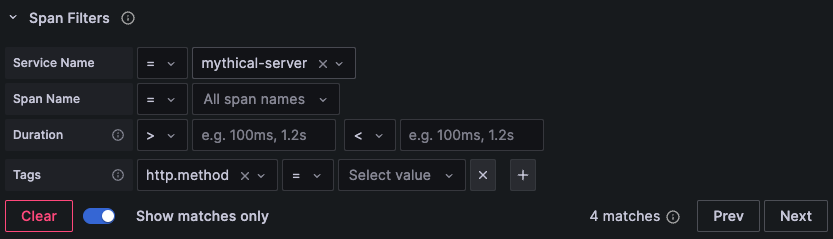
Using span filters, you can filter spans in the trace timeline viewer. The more filters you add, the more specific the filtered spans are.
You can add one or more of the following filters:
To only show the spans you have matched, toggle on Show matches only.
Span filter examples
- Find slow database calls: Set Service name to your database service and Duration minimum to
100ms. - Find errors: Add a Tags filter for
error=trueorhttp.status_code=500. - Isolate a specific service: Set Service name and toggle on Show matches only to hide all other spans.
Link to a trace ID from logs
You can link to Zipkin traces from logs in Loki, Elasticsearch, Splunk, and other logs data sources by configuring an internal link.
To configure this feature, refer to the Derived fields section of the Loki data source docs or the Data links section of the Elasticsearch or Splunk data source docs.
Link to a trace ID from metrics
You can link to Zipkin traces from metrics in Prometheus data sources by configuring an exemplar.
To configure this feature, refer to the introduction to exemplars documentation.
Troubleshoot query issues
If you encounter issues with queries, refer to Troubleshoot Zipkin data source issues.
Was this page helpful?
Related resources from Grafana Labs



