
This is documentation for the next version of Grafana documentation. For the latest stable release, go to the latest version.
 Grafana documentation
As code
Observability as code
Git Sync
Add non-provisioned resources
Copy individual dashboards
Grafana documentation
As code
Observability as code
Git Sync
Add non-provisioned resources
Copy individual dashboardsCherry-pick and copy individual dashboards
Note
At the moment Git Sync only manages dashboards and folders. Alerts, data sources, and library panels are not supported yet.
To migrate your existing dashboards, refer to Migrate existing dashboards.
Use these methods to add a copy of one or more dashboards to a folder provisioned with Git Sync. Each copy is created with a new UID, so the original dashboards stay exactly as they are and nothing needs to be deleted. Existing links continue to point to the original dashboards, not the copies.
Add a dashboard using Import dashboards
You can import dashboards directly into your Git Sync provisioned folders using the Grafana UI or the HTTP API.
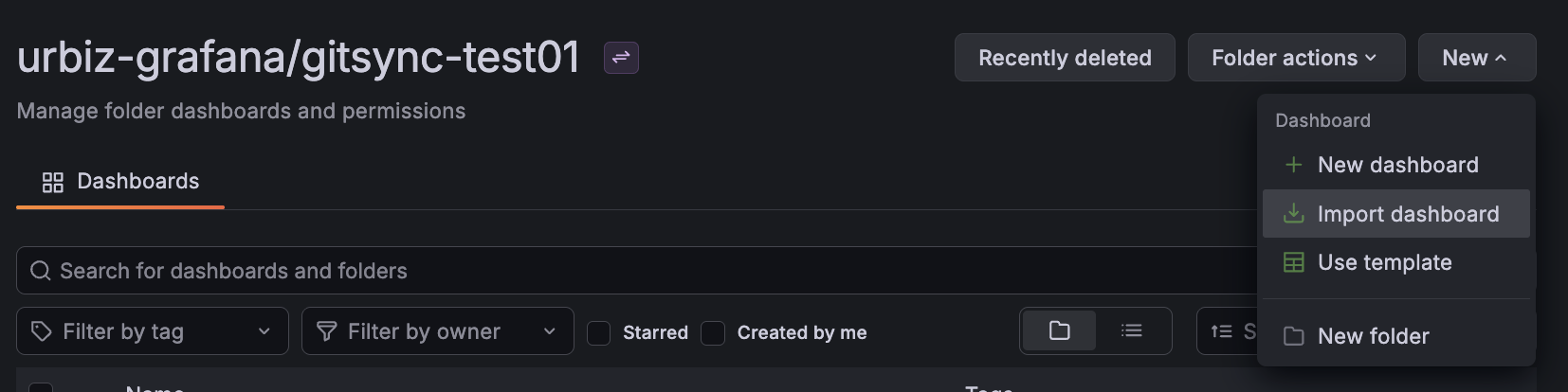
To access the Import dashboard tool from the Git Sync UI:
- Go to the Dashboards tab of you connection.
- On the top right corner, click New.
- Select Import dashboard and you’ll be redirected to the wizard.
- Upload or paste the dashboard JSON.
- Fill in the relevant fields, including the branch and repository folder, and press Import.
- Open the pull request, follow your regular workflow, and merge. Note that it could take a few minutes until the imported dashboard appears.
Keep in mind the following:
- Importing an ordinary dashboard JSON creates a new dashboard with a new UID. To preserve the original UID instead (for a migration), provide a UID in the wizard or import a resource file that already sets
metadata.name. Refer to Migrate existing dashboards. - UIDs are globally unique per org. Two repositories with dashboards sharing a UID will conflict.
- Two dashboards can share a title as long as they live at different paths in the repository. If a file with the same name already exists at the target path, the import is stopped before it overwrites anything.
For more information refer to Import dashboards in the Data Visualization documentation.
Note
It may take a few minutes for your changes to reflect on your screen. If they don’t, refresh the UI manually.
Copy an existing dashboard from the Grafana UI
You can also save a copy of dashboard directly from the Grafana UI to your provisioned folder. This creates a new dashboard with a new UID and leaves the original in place.
To do so, follow these steps:
- Make sure the dashboard is in Editable mode.
- Select Save or Save as from the top-right corner.
- In the menu:
- Target folder: Select the provisioned folder from your Grafana UI where you want to save the dashboard in.
- Branch: Type in the name of the branch of the provisioned repository you want to work in, or create a new branch. Committing directly to
mainis not supported. - Folder: Type in the folder in your sync repository, if any.
- Fill in the rest of the fields accordingly.
- Click Save.
- In your synced GitHub repository, merge the branch with the dashboard you want to sync.
Was this page helpful?
Related resources from Grafana Labs



