
This is documentation for the next version of Grafana documentation. For the latest stable release, go to the latest version.

Correlations
You can create interactive links for Explore visualizations by setting up Correlations. These links can either run queries or generate external URLs related to presented data.
A correlation defines how data in one data source is used to query data in another data source or to generate an external URL. Some examples:
- an application name returned in a logs data source can be used to query metrics related to that application in a metrics data source, or
- a user name returned by an SQL data source can be used to query logs related to that particular user in a logs data source
- a customer ID in a logs data source can link to a different platform that has a profile on that customer.
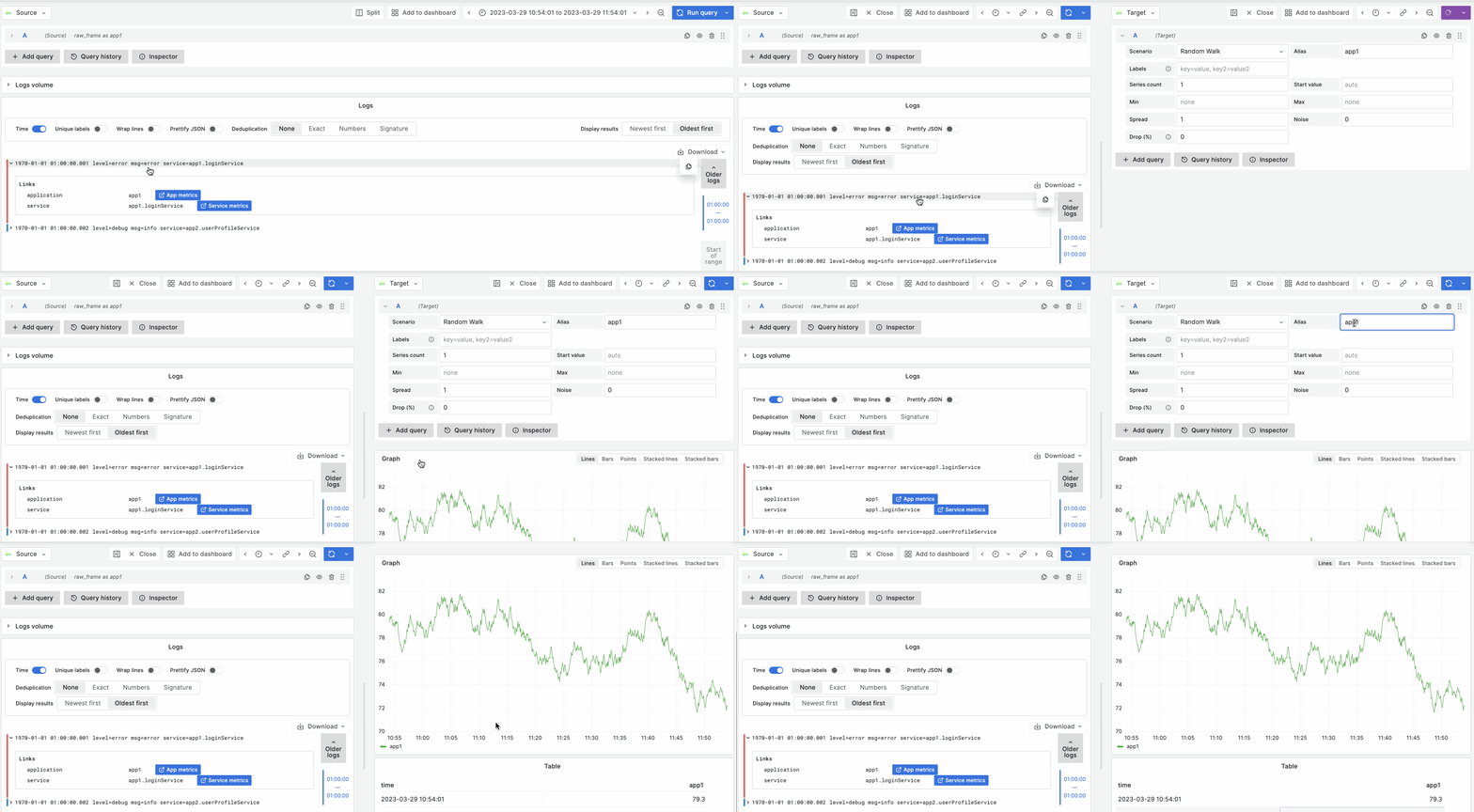
Explore takes user-defined correlations to display links inside the visualizations. If a correlation links to a query, you can click on that link to run the related query and see results in Explore Split View. If a correlation links to an external URL, you can click on the link to open the URL in a new tab in your browser.
Explore visualizations that currently support showing links based on correlations:
You can configure correlations using provisioning, the Administration > Plugins and data > Correlations page in Grafana or directly in Explore.
Example of how links work in Explore once set up
See also:
Was this page helpful?
Related resources from Grafana Labs



