

Manage team folders
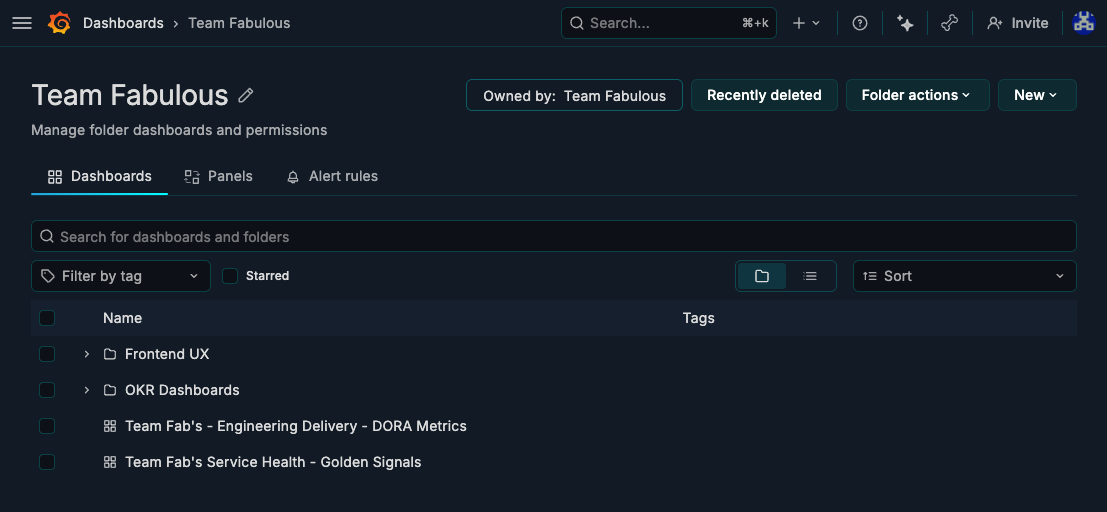
Team folders help you associate folders with teams so admins and team members can find the right dashboards, library panels, and alert rules faster. They streamline setup by letting admins create and assign a dedicated folder when creating a team, establishing clear ownership from the start. A team folder is still a regular folder—the team association adds ownership metadata and team-aware navigation, but it doesn’t change or replace folder permission.
Team folders is in public preview.
Before you begin, ensure you have the following:
- The
foldersAppPlatformAPIfeature toggle enabled. - Permission to create root-level folders, or permission to create subfolders in the parent folder you want to use.
- Permission to manage folder permissions and read teams if you want to assign or change a folder owner in the UI.
Enable team folders
To enable team folders in Grafana OSS or Grafana Enterprise, the foldersAppPlatformAPI feature toggle must be enabled.
For more information about feature toggles, refer to Configure feature toggles.
Create a team folder when you create a team
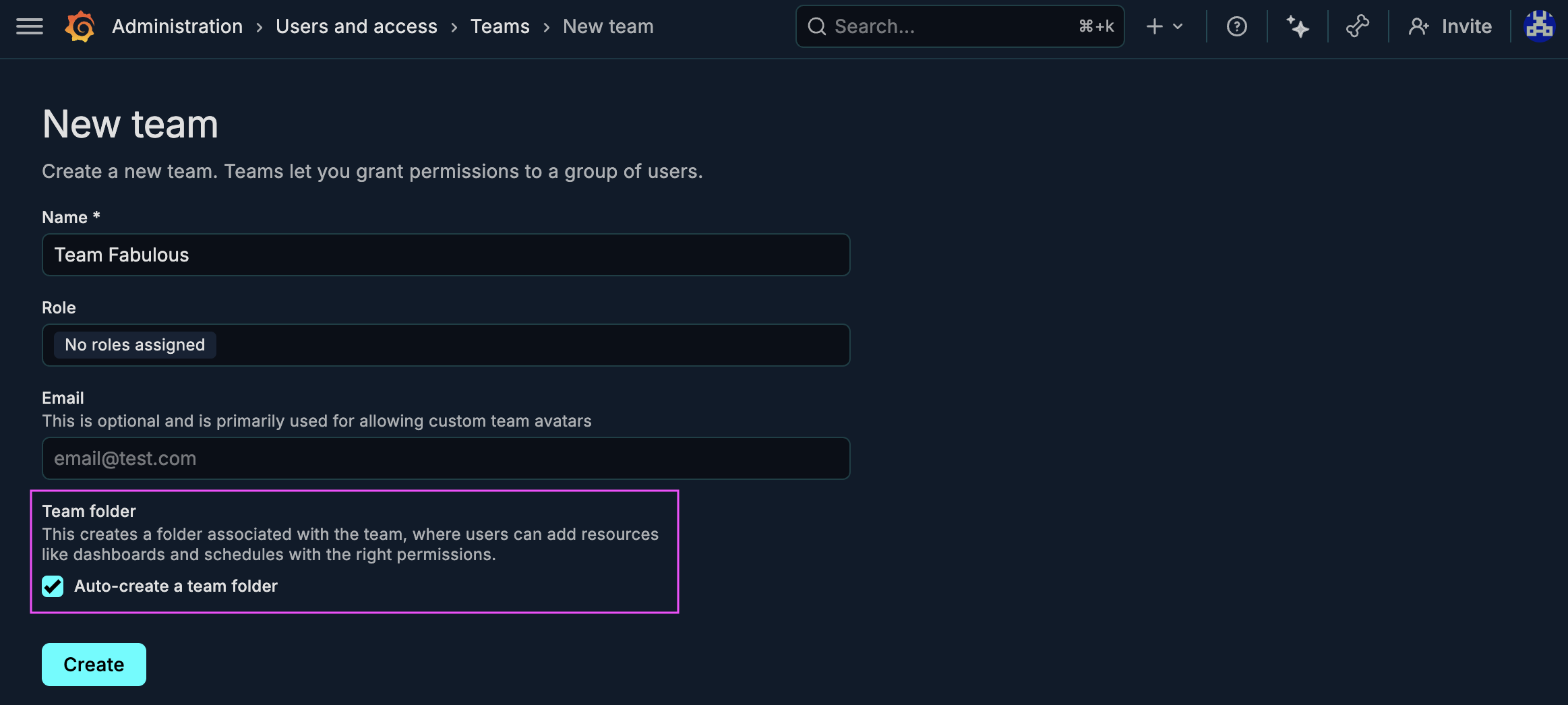
When team folders are enabled, the New team page includes an option to create a team folder automatically.
To create a team and its folder, complete the following steps:
- Open Administration and go to Users and access > Teams.
- Click New team.
- Enter the team details.
- Under Team folder, select Auto-create a team folder.
- Click Create.
Grafana creates a folder with the same name as the team and assigns that team as the folder owner. After the folder is created, review the folder permissions and update them if needed.
For more information about creating teams, refer to Configure Grafana Teams.
Create or assign a team folder from Dashboards
You can create a new folder for a team or assign ownership to an existing folder.
Create a new team folder
To create a new team folder, complete the following steps:
- Click Dashboards in the primary menu.
- Click New and select New folder.
- Enter a unique folder name.
- Select Assign an owner to the folder.
- In Team dropdown, select the team that should own the folder.
- Click Create.
Grafana creates a regular folder and stores the selected team as the folder owner.

Assign or change the owner of an existing folder
To assign or change the owner of an existing folder, complete the following steps:
- Click Dashboards in the primary menu.
- Open the folder that you want to update.
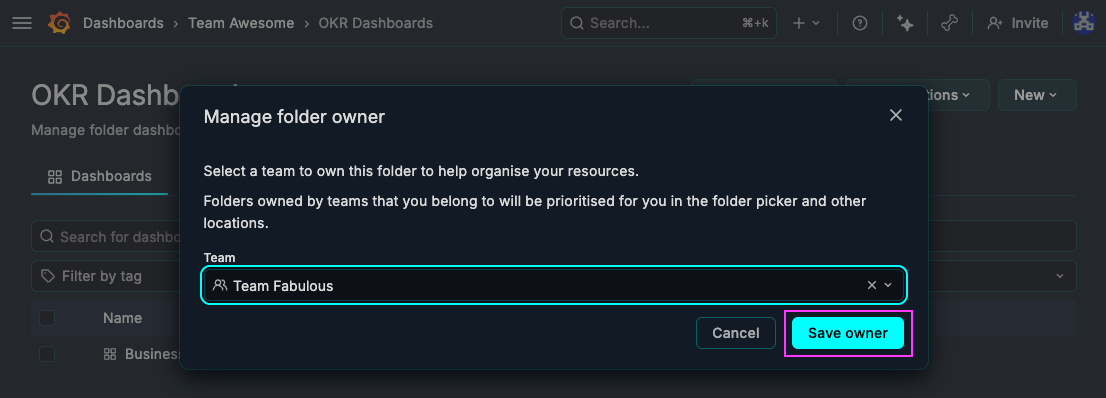
- Click Folder actions and select Manage folder owner.
- Select a team, or clear the current value if you want to remove the owner.
- Click Save owner.
If a folder has a team owner, Grafana displays an Owned by label in the folder header.
Find team folders
When team folders are enabled, Grafana surfaces them in the browse dashboards page and in team details.
Browse dashboards
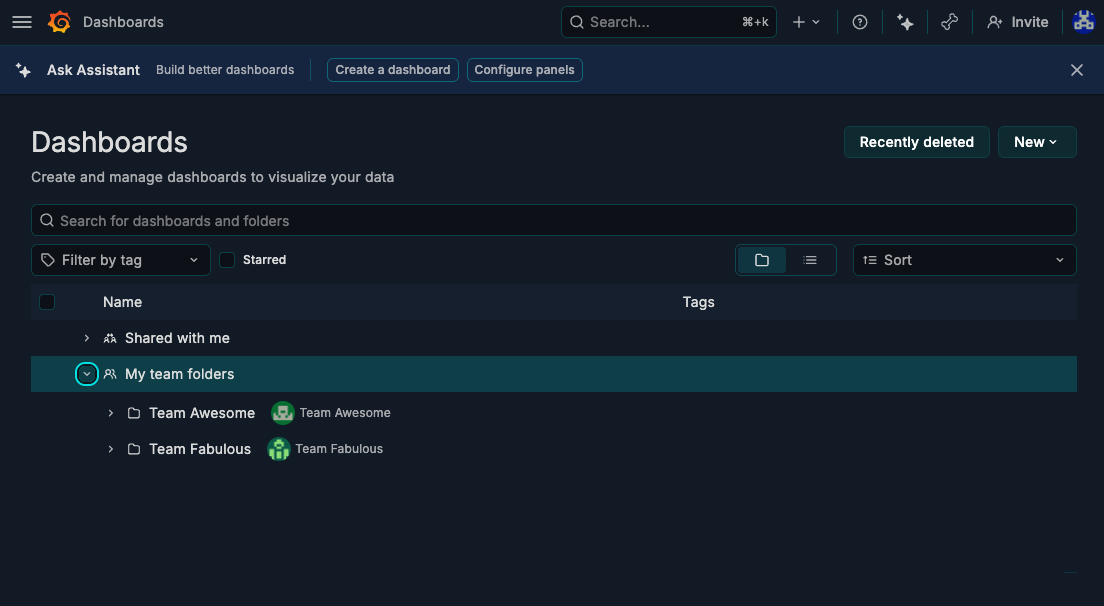
The Dashboards page displays a My team folders section near the top when you belong to teams that own folders. Expand that section to open the folders owned by your teams.
Save or move dashboards
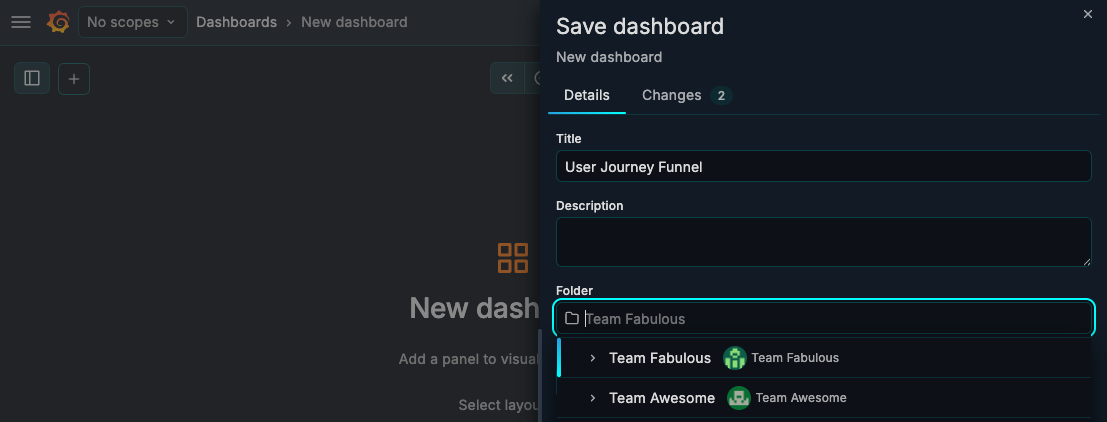
When you are saving or moving dashboard the folder picker shows a Team folders section at the top of the folder tree. Your first teams folder will be preselected by default.
Review folders owned by a team
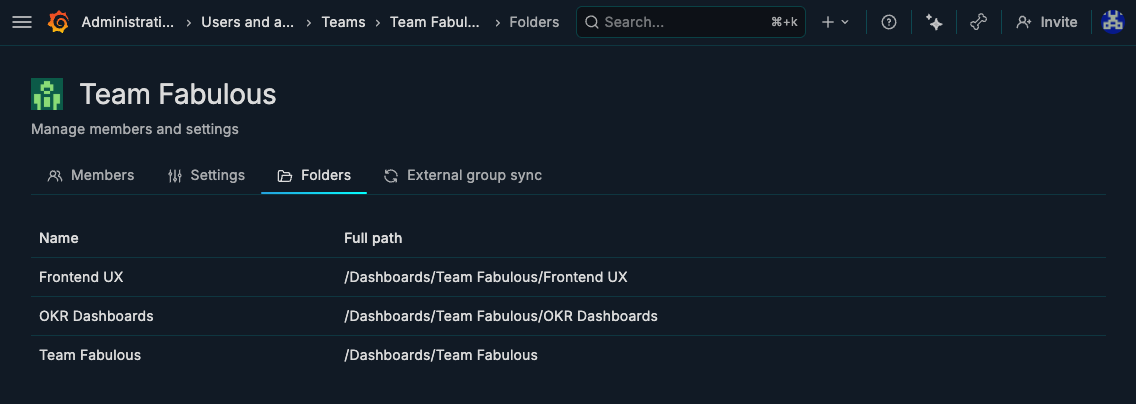
Each team page includes a Folders tab that lists all the folders owned by that team.
Manage access for team folders
Folder ownership does not replace folder permissions. Team folders use the same permission model as any other folder.
If team members need access to the folder, configure folder permissions for the team or for the users, roles, or service accounts that should use it. For more information, refer to Manage dashboard permissions.
Limitations
Team folders currently have the following limitations:
- You can select only one team owner per folder.
- You can’t assign or change a team owner for repository-managed folders.
Next steps
- Refer to Manage dashboards for the rest of the dashboards management workflow.
- Refer to Manage dashboard permissions to control access to team folders.
Was this page helpful?
Related resources from Grafana Labs



