

Data source management
Grafana supports many different storage backends, called data sources, for your time-series data. This document explains how administrators manage data sources in Grafana, including data source permissions, Label Based Access Control (LBAC), provisioned data sources, and query and resource caching.
Only users with the organization administrator role can add data sources. To add a data source, refer to Add a data source. For more information about configuring and using individual data sources, refer to Data sources.
Data source permissions
You can configure data source permissions to allow or deny certain users the ability to query, edit, or administrate a data source. Each data source’s configuration includes a Permissions tab where you can restrict data source permissions to specific users, service accounts, teams, or basic roles.
- The
querypermission allows users to query the data source. - The
editpermission allows users to query the data source, edit the data source’s configuration and delete the data source. - The
adminpermission allows users to query and edit the data source and change permissions on the data source.
Note
Available in Grafana Enterprise and Grafana Cloud.
By default, any user in an organization can query the data sources in that organization. For example, a user with the Viewer role can issue any possible query to a data source, not just queries that exist on dashboards to which they have access. By default, only users with the Admin role can edit data sources.
Assign data source permissions to users, service accounts, teams, or basic roles
You can assign data source permissions to users, service accounts, teams, and basic roles. These permissions allow access to query, edit, or administrate the data source.
The Role option on the Permissions tab is limited to the basic roles Viewer, Editor, and Admin. Custom roles and fixed RBAC roles don’t appear in this list. To grant access to users who have custom or fixed roles, assign the permission to the user, service account, or team. You can also grant datasources:query through
role-based access control.
- Click Connections in the left-side menu.
- Click Data sources.
- Select the data source to which you want to assign permissions.
- On the Permissions tab, click Add a permission.
- Select User, Service Account, Team, or Role.
- Select the entity for which you want to modify permissions. If you selected Role, choose a basic organization role: Viewer, Editor, or Admin.
- Select the Query, Edit, or Admin permission.
- Click Save.
Edit data source permissions for users, service accounts, teams, or basic roles
- Click Connections in the left-side menu.
- Click Data sources.
- Select the data source for which you want to edit permissions.
- On the Permissions tab, find the User, Service Account, Team, or Role permission you want to update.
- Select a different option in the Permission drop-down.
Remove data source permissions for users, service accounts, teams, or basic roles
- Click Connections in the left-side menu.
- Click Data sources.
- Select the data source from which you want to remove permissions.
- On the Permissions tab, find the User, Service Account, Team, or Role permission you want to remove.
- Click the X next to the permission.
LBAC for data sources
Label Based Access Control (LBAC) for data sources lets you control access to logs, metrics, and traces based on team memberships, so users can only query the data their team can access. LBAC works with Loki and Prometheus data sources, with traces support in public preview on Grafana Cloud. For more information, refer to Label Based Access Control (LBAC) for data sources.
Provisioned data sources
Data sources added through provisioning, which defines data sources in configuration files, and Grafana-managed data sources on Grafana Cloud are read-only in the UI. You can’t change their configuration from the data source settings page, regardless of your data source permissions. This is separate from data source permissions: no permission level makes a provisioned data source editable in the UI. A read-only data source’s settings page shows only a Test button instead of Save & test.
To change a provisioned data source, use the method that matches how it’s managed:
- Self-managed Grafana: Edit the data source’s provisioning file, then restart Grafana or reload provisioning. For more information, refer to Provision Grafana.
- Grafana Cloud managed data source: You can’t edit these directly. Create an editable copy that points at the same backend, as described in Create an editable copy of a provisioned data source.
Create an editable copy of a provisioned data source
If you need a data source you can edit in the UI, add another data source manually that connects to the same backend, then manage it independently of the provisioned data source:
- Click Connections in the left-side menu.
- Click Add new connection.
- Search for and select the same data source type as the provisioned data source.
- Click Add new data source.
- Enter the same connection settings as the provisioned data source so both point at the same backend. The exact settings depend on the data source type. For a URL-based data source, use the same URL.
- Configure authentication. For a Grafana Cloud-hosted backend, use basic authentication with your Grafana Cloud user ID as the user name and a Cloud Access Policy token as the password. The token’s access policy must include the scope required to query the backend.
- Click Save & test.
After you create the copy, update your dashboards, panels, and alert rules to query the new data source. Existing queries continue to use the provisioned data source until you point them at the copy.
Note
The copy is independent of the provisioned data source. Later changes to the provisioned data source, such as credential rotations or URL updates, don’t propagate to your copy. Update the copy manually if the backend configuration changes.
Query and resource caching
Query and resource caching temporarily stores the results of data source queries and resource requests in Grafana. When you or another user submit the same query or resource request again before the cached result expires, Grafana returns the result from the cache instead of sending the request to the data source. Serving results from the cache is faster than querying the data source and reduces the number of requests the data source has to handle.
In Grafana, a query is a request for data frames, the structured results that Grafana displays or transforms. A resource is any HTTP request a plugin makes, such as the Amazon Timestream plugin requesting a list of available databases from AWS. For more information on data source queries and resources, refer to the developer documentation on backend plugins.
The caching feature works for most backend data sources. For details on which data sources support it, refer to Data sources that work with query caching. You can enable the cache globally in the Grafana configuration, and configure a cache duration (also called Time to Live, or TTL) for each data source individually.
Note
Available in Grafana Enterprise and Grafana Cloud.
Grafana supports the following cache backends: in-memory, Redis, and Memcached.
Note
Storing cached queries in-memory can increase the Grafana memory footprint. In production environments, a Redis or Memcached backend is highly recommended.
For time series queries, when a panel queries a data source with cached data, it either fetches fresh data or uses cached data depending on the panel’s interval. Grafana uses the interval to round the query time range to a nearby cached time range, which increases the likelihood of cache hits. As a result, wider panels and dashboards with shorter time ranges fetch new data more often than narrower panels and dashboards with longer time ranges.
A panel’s interval is visible in the
query options. Grafana calculates it as time range / max data points, where max data points depends on the panel’s width. For example, a wide panel with 1000 data points on a dashboard with a time range of last 7 days retrieves fresh data every 10 minutes: 7d / 1000 = 10m. In this example, Grafana serves cached data for this panel for up to 10 minutes before it queries the data source again for new data.
You can configure a panel to retrieve data more often by increasing the Max data points setting in the panel’s query options.
How caching differs for time series and non-time series queries
Grafana builds each cache key from three parts: the data source instance, the query, and the time range. How effective caching is depends on how the query uses that time range.
- Time series queries: Grafana rounds the requested time range to the panel’s interval, as described previously. Because relative time ranges, such as
last 6 hours, shift slightly on every refresh, this rounding snaps successive requests into the same cached time range, so repeated dashboard loads frequently hit the cache. - Non-time series queries: Queries that don’t scale with the panel’s width or max data points, such as table results or SQL queries that ignore the dashboard time range, gain little from interval rounding. Grafana reuses a cached result only when a later request produces the same cache key, that is, an identical query and time range within the configured TTL. Grafana doesn’t reuse subsets of a cached result: if you query
t0tot1and thent0tot2, Grafana runs a fresh query for the fullt0tot2range.
For non-time series data sources, the TTL is the primary control over how long results are served from the cache. If results change more or less often than the configured TTL, override the TTL for individual panels in the panel’s query options.
Benefits of caching
By reducing the number of queries and requests sent to data sources, caching can provide the following benefits:
- Faster dashboards: Load times improve, especially for popular dashboards.
- Lower data source load: Fewer queries reach the backend, helping it stay responsive under heavy dashboard usage.
- Reduced API costs: Fewer requests to metered or paid data source APIs lowers usage-based charges.
- Fewer rate-limit errors: Reducing request volume lowers the likelihood that data sources rate-limit or throttle Grafana.
Data sources that work with query caching
Query caching works for the Grafana
built-in data sources, and backend data source plugins that extend the DataSourceWithBackend class in @grafana/runtime.
Note
Logs Insights for the CloudWatch data source doesn’t support query caching due to the way logs are requested from AWS.
To verify that a data source works with query caching, follow the steps in Enable and configure query caching. If caching is enabled in Grafana but the Cache tab isn’t visible for the given data source, then query caching isn’t available for that data source.
Note
Some data sources, such as Elasticsearch, Prometheus, and Loki, cache queries themselves, so Grafana query caching doesn’t significantly improve performance. However, resource caching may help. Refer to plugin resources for details.
Enable and configure query caching
You must be an organization administrator or Grafana server administrator to enable query caching for a data source. For more information on Grafana roles and permissions, refer to About users and permissions.
By default, data source queries aren’t cached. To enable query caching for a single data source:
- Click Connections in the left-side menu.
- Click Data sources.
- In the data source list, click the data source that you want to turn on caching for.
- Go to the Cache tab.
- Click Enable.
- (Optional) Choose custom TTLs for the data source’s queries and resources caching. If you skip this step, then Grafana uses the default TTL.
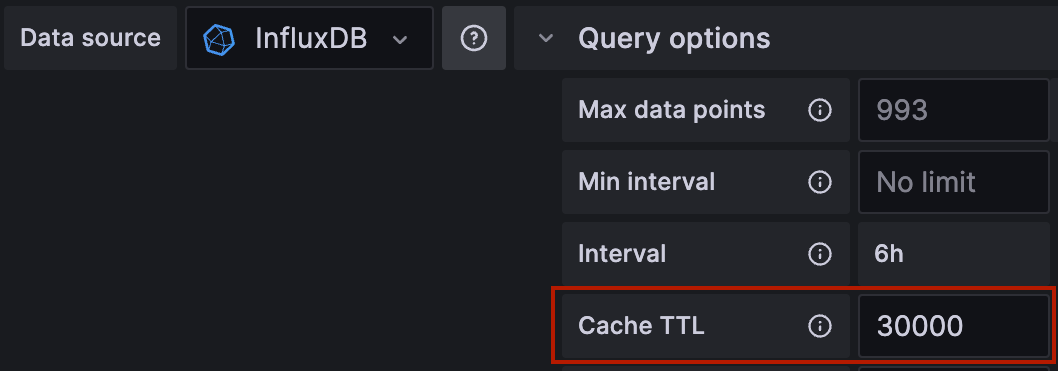
You can optionally override a data source’s configured TTL for individual dashboard panels. This can be useful when you have queries whose results change more or less often than the configured TTL. In the Edit Panel view, select the caching-enabled data source, expand Query options, and enter the TTL in milliseconds.
Note
If query caching is enabled and the Cache tab isn’t visible in a data source’s settings, then query caching isn’t available for that data source.
To configure global settings for query caching, refer to the caching section of
Configure Grafana Enterprise.
Disable query caching
To disable query caching for a single data source:
- Click Connections in the left-side menu.
- Click Data sources.
- In the data source list, click the data source that you want to turn off caching for.
- On the Cache tab, click Disable.
To disable query caching for an entire Grafana instance, set the enabled flag to false in the caching section of
Configure Grafana Enterprise. The Cache tab no longer appears on any data source, and Grafana stops caching data source queries.
Clear cache
If you experience performance issues or repeated queries become slower to execute, consider clearing your cache.
Note
This action impacts all cache-enabled data sources. If you are using Memcached, Grafana clears all data from the Memcached instance.
- Click Connections in the left-side menu.
- Click Data sources.
- In the data source list, click the data source that you want to clear the cache for.
- In the Cache tab, click Clear cache.
Send a request without cache
If a data source query request contains the X-Cache-Skip: true header, then Grafana skips the caching middleware, and doesn’t search the cache for a response. This can be particularly useful when debugging data source queries using cURL.
Next steps
Was this page helpful?
Related resources from Grafana Labs



