
Menu
Documentation Grafana Cloud
Instrument and send data
Traces
Set up tracing
Locate URL, user, and password
Grafana Cloud
Instrument and send data
Traces
Set up tracing
Locate URL, user, and password
Grafana Cloud
Instrument and send data
Traces
Set up tracing
Locate URL, user, and passwordGrafana Cloud
Locate your stack’s URL, user, and password
In some cases, you may need to provide the URL, user, and password for your Grafana Cloud stack. This information is located in the Tempo section of your Grafana Cloud stack.
- Sign in to your Grafana Cloud stack.
- Navigate to your stack.
- Select Details next to your stack.
- Locate the Tempo section and select Send Traces or Details.
- Copy the User and Password values in the Configure the client and data source using Grafana credentials.
![Locate the user number and password for your stack]()
- Locate the URL for your stack. The URL is in the format
https://<your-stack-id>.grafana.net.- If you are using the Tempo data source, then the URL is in the format
https://<your-stack-id>.grafana.net/tempo. - If you are sending data to Grafana Cloud using Grafana Alloy, then the URL is in the format
https://<your-stack-id>.grafana.net:443. You can also use thehttpprotocol if you are not using HTTPS.
- If you are using the Tempo data source, then the URL is in the format
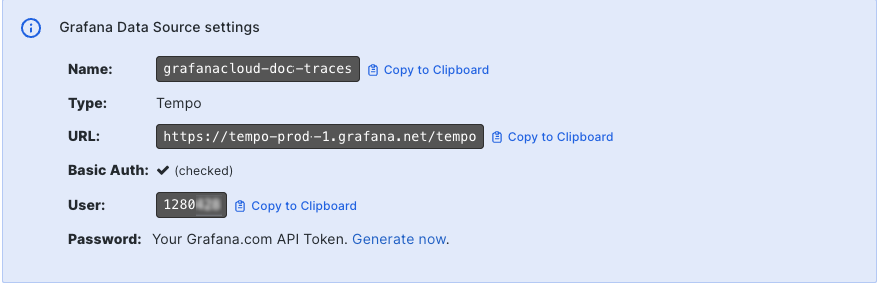
Use these values to configure Alloy, an SDK, MCP server, or other features that require access to tracing data.
As an alternative, you can also create a Cloud Access Policy and generate a token to use instead of the user and password. For more information, refer to Create a Cloud Access Policy.
To find the username or generate a token for any default Cloud data source, refer to Manage credentials for Cloud data sources.
Was this page helpful?
Related resources from Grafana Labs

Video

Getting started with managing your metrics, logs, and traces using Grafana
In this webinar, we’ll demo how to get started using the LGTM Stack: Loki for logs, Grafana for visualization, Tempo for traces, and Mimir for metrics.
Video

Start with Grafana Assistant
Learn how Grafana Assistant helps teams get answers faster using AI—without writing PromQL. Join this webinar to discover prompting best practices and security FAQs.
Video

Building advanced Grafana dashboards
In this webinar, we’ll demo how to build and format Grafana dashboards.