
 Grafana Cloud
Platform
Security and account management
Security and access
Manage secrets
Configure AWS keeper
Grafana Cloud
Platform
Security and account management
Security and access
Manage secrets
Configure AWS keeperConfigure an AWS Secrets Manager keeper
You can configure an AWS Secrets Manager keeper to store and manage sensitive values outside of Grafana using your own AWS infrastructure.
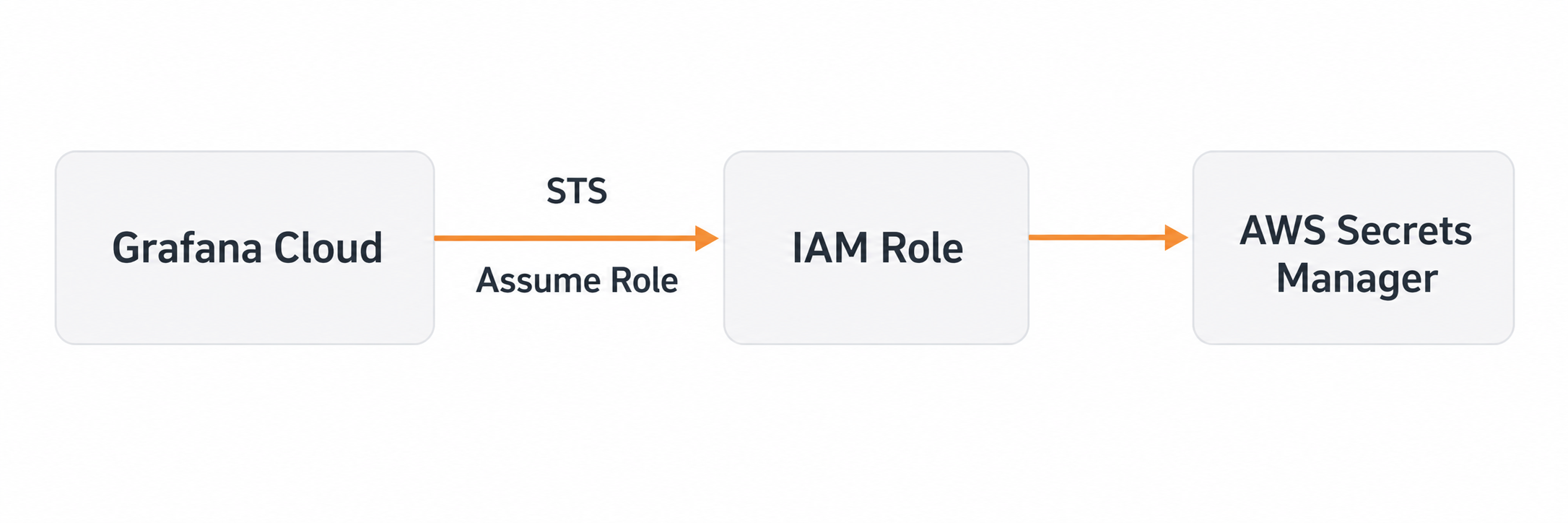
Grafana connects to your AWS Secrets Manager using cross-account role assumption through AWS Security Token Service (STS). Grafana never stores your AWS credentials. You create an IAM role in your AWS account, and Grafana assumes that role to read and write secrets on your behalf.
Before you begin
To configure an AWS Secrets Manager keeper, you need:
- A Grafana Cloud account with Admin permissions.
- An AWS account with permissions to create IAM roles and policies.
- AWS Secrets Manager enabled in your target region.
Set up AWS IAM
Configure an IAM policy and role in your AWS account so Grafana can access your Secrets Manager.
Create the permissions policy
Create an IAM policy that defines which Secrets Manager actions Grafana can perform.
To create the permissions policy, follow these steps:
Sign in to the AWS IAM Console.
In the navigation pane, choose Policies, then Create policy.
Select the JSON tab.
Paste the following policy:
{
  "Version": "2012-10-17",
  "Statement": [
    {
      "Sid": "GrafanaManagedSecrets",
      "Effect": "Allow",
      "Action": [
        "secretsmanager:CreateSecret",
        "secretsmanager:UpdateSecret",
        "secretsmanager:PutSecretValue",
        "secretsmanager:GetSecretValue",
        "secretsmanager:DescribeSecret",
        "secretsmanager:DeleteSecret",
        "secretsmanager:TagResource"
      ],
      "Resource": "arn:aws:secretsmanager:*:*:secret:grafana-secrets-manager/*"
    },
    {
      "Sid": "ListSecretsForValidation",
      "Effect": "Allow",
      "Action": ["secretsmanager:ListSecrets"],
      "Resource": "*"
    },
    {
      "Sid": "ReadExistingSecrets",
      "Effect": "Allow",
      "Action": ["secretsmanager:DescribeSecret", "secretsmanager:GetSecretValue"],
      "Resource": "*"
    }
  ]
}
Click Next.
Name the policy
GrafanaSecretsManagerPolicy.Click Create policy.
The following table describes the purpose of each statement in the policy:
Restrict access to specific secrets
By default, the ReadExistingSecrets statement grants Grafana access to all secrets in your account.
To limit access, replace the statement with a resource-scoped policy.
To restrict by Amazon Resource Name (ARN), use the following policy:
{
  "Sid": "ReadExistingSecrets",
  "Effect": "Allow",
  "Action": ["secretsmanager:DescribeSecret", "secretsmanager:GetSecretValue"],
  "Resource": [
    "arn:aws:secretsmanager:<REGION>:<ACCOUNT_ID>:secret:<SECRET_NAME_1>-*",
    "arn:aws:secretsmanager:<REGION>:<ACCOUNT_ID>:secret:<SECRET_NAME_2>-*"
  ]
}
Alternatively, use tag-based access control:
{
  "Sid": "ReadExistingSecrets",
  "Effect": "Allow",
  "Action": ["secretsmanager:DescribeSecret", "secretsmanager:GetSecretValue"],
  "Resource": "*",
  "Condition": {
    "StringEquals": {
      "aws:ResourceTag/grafana-accessible": "true"
    }
  }
}
Restrict Grafana to read-only access
If you want to manage all secret creation directly in AWS and only allow Grafana to read existing secrets, remove the GrafanaManagedSecrets statement from the permissions policy entirely.
Use only the ReadExistingSecrets and ListSecretsForValidation statements:
{
  "Version": "2012-10-17",
  "Statement": [
    {
      "Sid": "ListSecretsForValidation",
      "Effect": "Allow",
      "Action": ["secretsmanager:ListSecrets"],
      "Resource": "*"
    },
    {
      "Sid": "ReadExistingSecrets",
      "Effect": "Allow",
      "Action": ["secretsmanager:DescribeSecret", "secretsmanager:GetSecretValue"],
      "Resource": "*"
    }
  ]
}
With this policy, Grafana users can only create reference-based secure values that point to existing secrets in AWS. Any attempt to create a value-based secure value fails because the IAM role doesn’t have permission to create secrets in AWS Secrets Manager.
This approach is useful when you want to:
- Maintain full control over secret creation and lifecycle in AWS.
- Use your existing AWS processes for provisioning and rotating secrets.
- Limit Grafana to a read-only consumer of secrets you manage.
Create the IAM role
After you create the permissions policy, create an IAM role in the same AWS account. Grafana assumes this role to access your Secrets Manager.
To create the IAM role, follow these steps:
In the IAM Console navigation pane, choose Roles, then Create role.
For Trusted entity type, select AWS account.
Select Another AWS account.
Enter the Grafana Account ID:
008923505280.Check Require external ID.
Enter an external ID value of your choice. This value prevents confused deputy attacks. Keep it confidential and don’t share it in public repositories or logs. This is recommended if you don’t own or have administrative access to the account that can assume this role.
Click Next.
Search for and select
GrafanaSecretsManagerPolicy.Click Next.
Enter the role name:
grafana-secrets-manager.Caution
The role must be named
grafana-secrets-manager. The Grafana AWS account is configured to only assume a role with this name.Click Create role.
Verify the trust policy
After you create the role, verify that the trust policy is configured correctly.
Open the newly created role in the IAM Console.
Select the Trust relationships tab.
Verify the policy includes the Grafana Account ID in the Principal and the correct external ID in the Condition:
{
  "Version": "2012-10-17",
  "Statement": [
    {
      "Effect": "Allow",
      "Principal": {
        "AWS": "arn:aws:iam::008923505280:user/grafana-secrets-manager"
      },
      "Action": "sts:AssumeRole",
      "Condition": {
        "StringEquals": {
          "sts:ExternalId": "<YOUR_EXTERNAL_ID>"
        }
      }
    }
  ]
}
Copy the Role ARN from the Summary section. You need this value when you configure the keeper in Grafana.
Configure the keeper in Grafana
After you create the IAM role in AWS, configure and activate the keeper in Grafana.
To configure the keeper, follow these steps:
- Go to Administration > Secrets Management > Keepers.
- Click Add keeper.
- Click AWS Secrets Manager.
- Click Configure Keeper to expand the section.
- Enter the required configuration fields.
Configuration reference
The following table describes the general keeper fields:
The following table describes the AWS configuration fields:
Activate the keeper
Creating a keeper registers the configuration but doesn’t start using it. To start storing secrets in AWS Secrets Manager, you need to activate the keeper:
- Go to Administration > Secrets Management > Keepers.
- Click Activate next to the keeper you created.
Create secrets
After your keeper is configured and activated, you can create secrets in two ways: by storing a new value or by referencing an existing secret in AWS.
Grafana retrieves secret values from AWS Secrets Manager as-is. It doesn’t parse, unpack, or extract fields from the value. If your secret is a JSON object, Grafana returns the entire JSON string rather than a specific key within it. Store each secret as a plain string containing only the value Grafana needs.
Create a value-based secret
A value-based secret stores a new secret value in AWS Secrets Manager.
To create a value-based secret, follow these steps:
- Go to Administration > Secrets Management > Values.
- Click Create secure value.
- In the Create secret dialog box, enter the Name and Description.
- For Secret type, leave Store a new value selected.
- In Value, enter the secret value.
- Optionally, select Decrypters and add Labels.
- Click Create.
The Value field is write-only and is never returned in read or list responses. The Decrypters field controls which Grafana services can decrypt the secret.
Grafana creates the secret in AWS Secrets Manager with the following naming pattern:
grafana-secrets-manager/<NAMESPACE>/<SECURE_VALUE_NAME>/<VERSION>For example, a secure value named db-password with namespace stacks-12345 at version 1 becomes:
grafana-secrets-manager/stacks-12345/db-password/1The namespace value depends on your Grafana instance deployment.
Grafana also tags each secret with namespace, name, managedBy, and version metadata.
Create a reference-based secret
A reference-based secret points to an existing secret in AWS Secrets Manager without creating or modifying it. The Secret type options appear in the create form only when an AWS Secrets Manager keeper is active.
To create a reference-based secret, follow these steps:
- Go to Administration > Secrets Management > Values.
- Click Create secure value.
- In the Create secret dialog box, enter the Name and Description.
- For Secret type, select Reference existing secret. The Value field is replaced by AWS secret name or ARN.
- In AWS secret name or ARN, enter the AWS secret name or the full Amazon Resource Name (ARN).
- Optionally, select Decrypters and add Labels.
- Click Create.
You can reference an existing secret using either the AWS secret name, for example, grafana-secrets-manager/stacks-023456/api-token/1, or the full ARN, for example, arn:aws:secretsmanager:eu-central-1:123456789012:secret:grafana-secrets-manager/stacks-023456/api-token/1-GR1SI2.
Note
Reference-based secrets don’t create or modify secrets in AWS. They only store a pointer to an existing secret.
For reference-based secrets, you can continue to use your standard AWS secret rotation methods, such as automatic rotation with AWS Lambda. Because Grafana reads the secret value from AWS at access time, rotated values are automatically reflected without any changes in Grafana.
Understand deletion behavior
The behavior when you delete a secure value depends on the type of secret:
- Value-based secrets: The secret is permanently deleted from AWS Secrets Manager immediately. There is no recovery window.
- Reference-based secrets: Only the reference in Grafana is deleted. The AWS secret isn’t affected.
Permissions
The following table describes the RBAC permissions for keepers:
Grafana includes two fixed roles for keepers:
Permissions are managed through Grafana role-based access control (RBAC). For more information, refer to Role-based access control.
Security best practices
Follow these practices to secure your AWS Secrets Manager integration.
Use the external ID
The external ID prevents confused deputy attacks where a malicious actor could trick Grafana into accessing your AWS resources on their behalf. Always set an external ID when you create the IAM role, and keep it confidential. Don’t share it in public repositories or logs, and use a unique value for each integration.
Apply least privilege
- Scope the
ReadExistingSecretsstatement to only the secrets Grafana needs. - Use separate IAM roles for different Grafana environments, for example, development, staging, and production.
- Regularly audit which secrets Grafana accesses using AWS CloudTrail.
Enable AWS CloudTrail logging
To monitor all Secrets Manager API calls, follow these steps:
- Enable CloudTrail in your AWS account.
- Filter events by
eventSource: secretsmanager.amazonaws.com. - Set up alerts for unexpected access patterns.
Related resources
Was this page helpful?
Related resources from Grafana Labs



