
 Grafana Cloud
Observe and act
Monitor infrastructure
Cloud Provider Observability
GCP observability
Dashboards and alerts
View and refine dashboards
Grafana Cloud
Observe and act
Monitor infrastructure
Cloud Provider Observability
GCP observability
Dashboards and alerts
View and refine dashboardsView and refine dashboards
After you configure GCP metrics, preconfigured dashboards appear automatically in the Google Cloud observability section of Cloud Provider Observability on the Services tab. These dashboards visualize the metrics collected for your Google Cloud services, so you can monitor performance and investigate issues without building dashboards yourself.
This page describes how to find and open your dashboards, refine the data they show with filters and time ranges, view resource usage predictions, and drill down into Database Observability for supported services.
View dashboards
After you configure metrics, preconfigured dashboards appear automatically in the Cloud Provider Observability app. You don’t need to install them.
Note
If you are not assigned a Grafana Cloud basic role, you must have the
Datasources:Readerfixed role to see dashboard data. For more information on assigning roles, refer to Assign RBAC roles.
To view a preconfigured dashboard:
- Click the Services tab.
- Use the Service or Source filters to help you find the source or service you want to see.
- Optionally, click the Services with firing alerts checkbox to limit the services displayed to only those with firing alerts.
- Locate the specific service in the list, and click the name of the service in the Service column of the table to open the preconfigured dashboard for that service. If a Service’s name is not a link it means there is not a preconfigured dashboard for that service. To add a link to the Service’s name for a dashboard, refer to Dashboards and views settings.
- Optionally, click the Configure button to add a dashboard to the Service name.
- Optionally, click the Explore button to view links for custom dashboards, drilldown metrics, or to explore metrics. Refer to Dashboards and views settings for more information on adding custom dashboards.
Refine dashboard data
Use dashboard filters to refine data. Available filters depend on the dashboard and can include:
- Data source
- Job
- Project ID
- Instance
- Database ID
- Bucket name
- Country
- Backend target
- Subscription ID
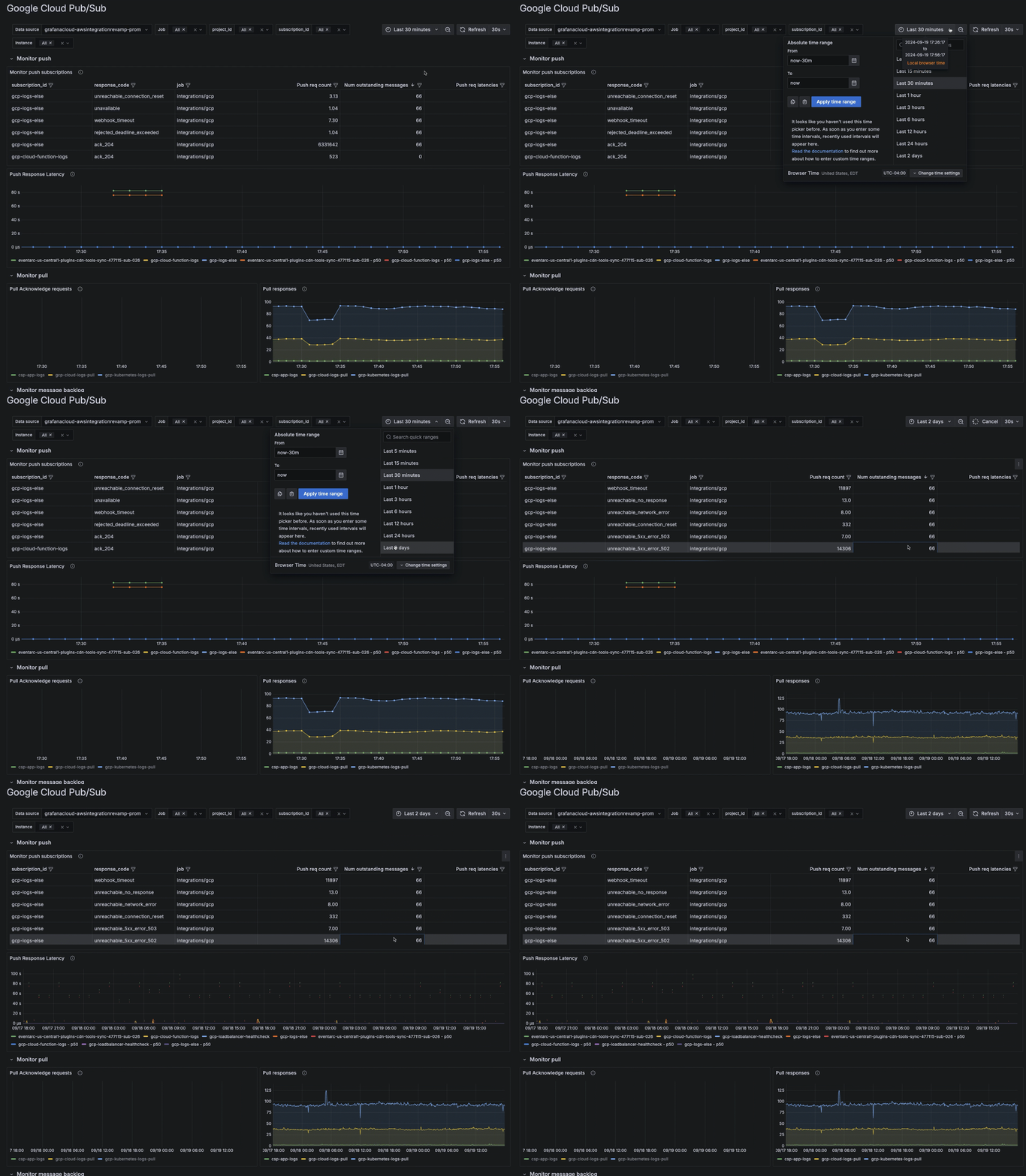
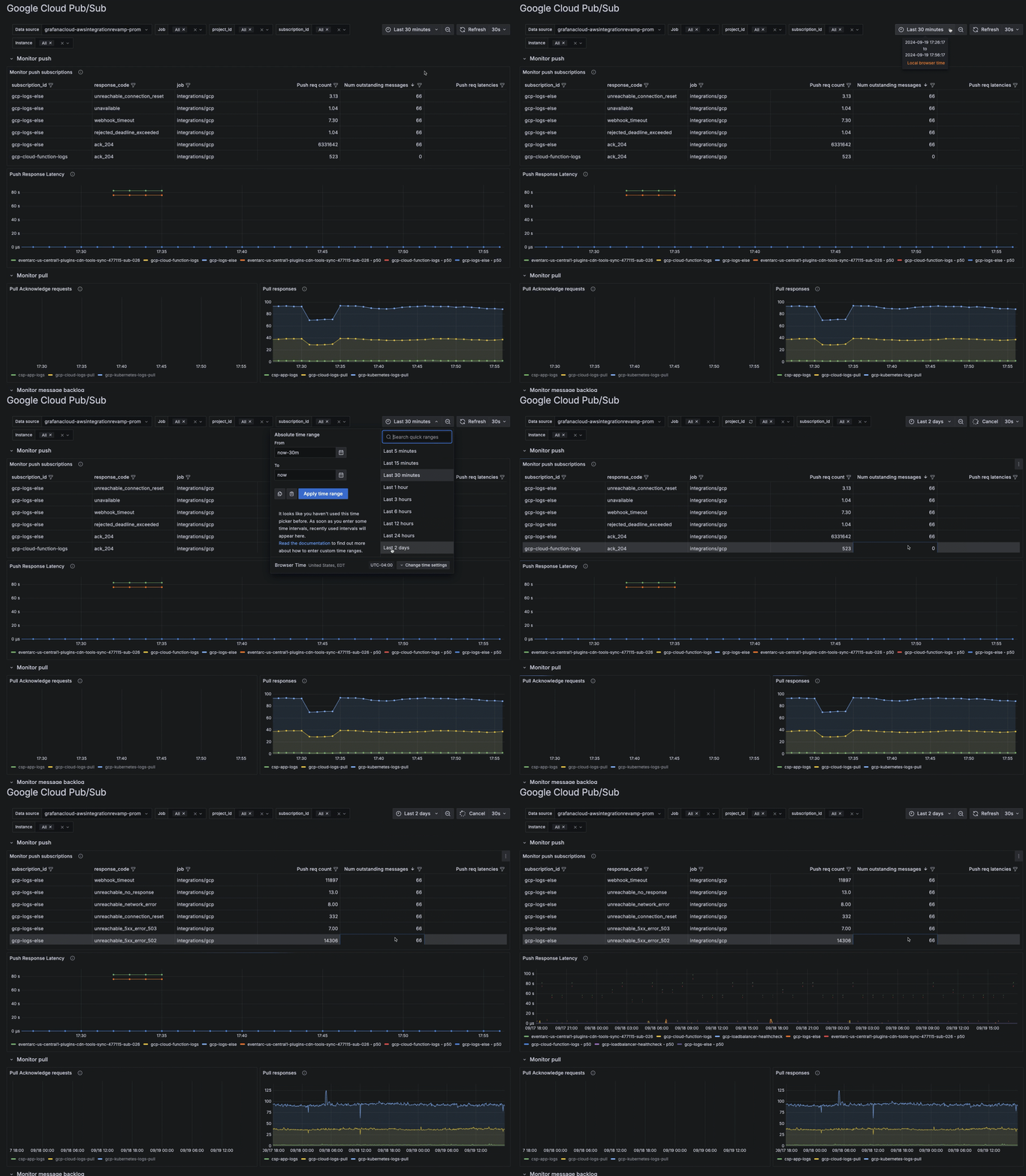
Use the time range selector to change the period shown in a dashboard.
View predictions
For the preconfigured dashboards that include drilldown information for specific instances, Cloud Provider Observability includes machine learning predictions. Predictions can help you ensure resources are available during spikes in usage, as well as help you decrease the amount of unused resources due to over provisioning. To use prediction tools, first enable LLM features for your Grafana instance.
You can view the prediction model for various metrics by clicking the Predict button in the top right corner of the panel.
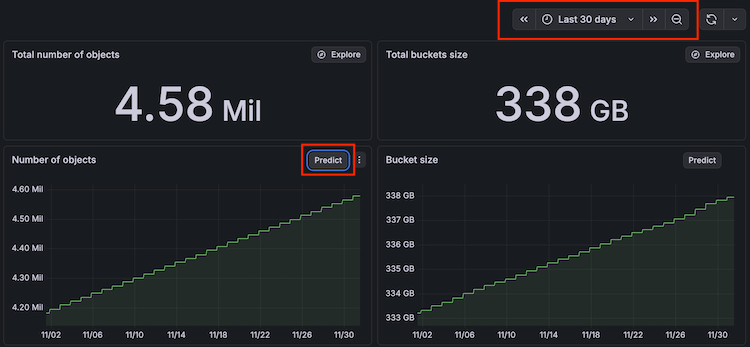
Use the time range filter to adjust the time range to show more advanced predictions. The time range you select must be at least two hours to use the prediction tool.
For more information on the terminology included and how machine learning works in the prediction graph, refer to the Query Metrics page in the AI and machine learning documentation.
Access Database Observability
For preconfigured dashboards with drilldown information for GCP Cloud SQL instances, Cloud Provider Observability integrates with Database Observability.
You can move between infrastructure metrics on a cloud database instance and query-level performance in Database Observability.
Note
This integration requires configuring the
cloud_providerblock in Grafana Alloy. Refer to Add cloud provider integrations for setup instructions.
To navigate to Database Observability from a cloud database instance page in Cloud Provider Observability:
- On the instance page, click the MySQL or PostgreSQL dropdown in the upper right.
- Select a database instance from the list to open Queries Overview in Database Observability, filtered to that instance and schema.
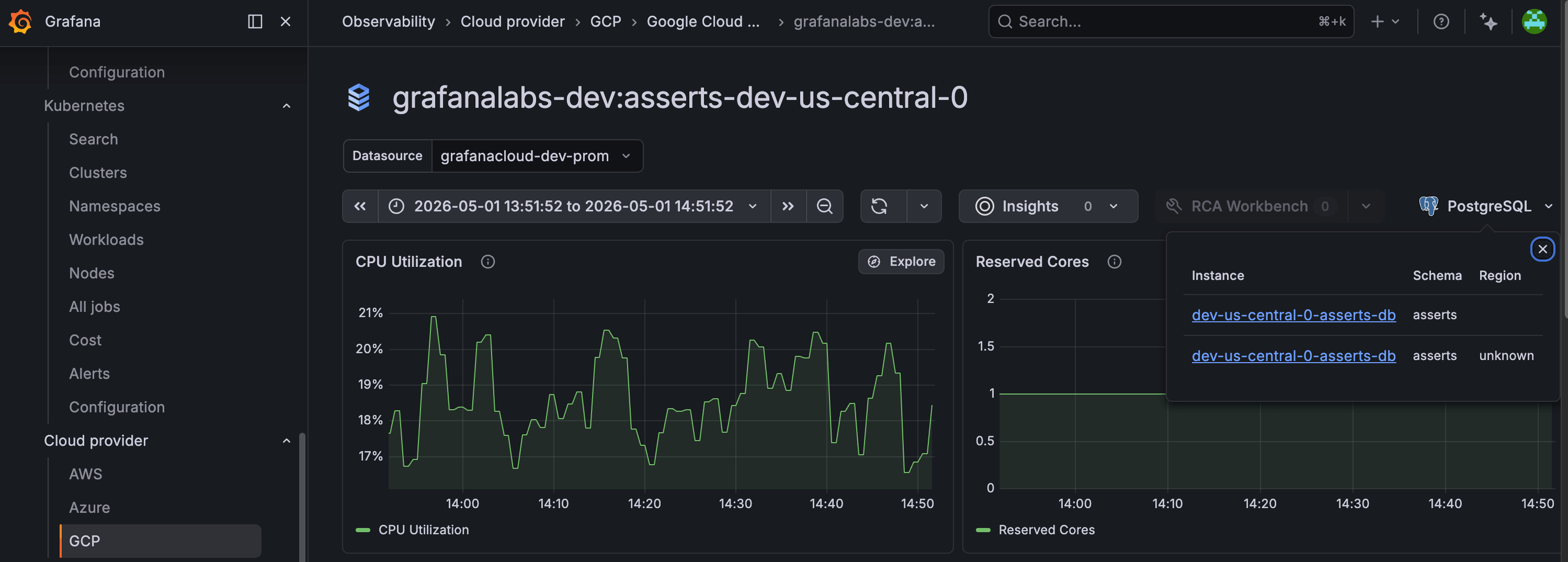
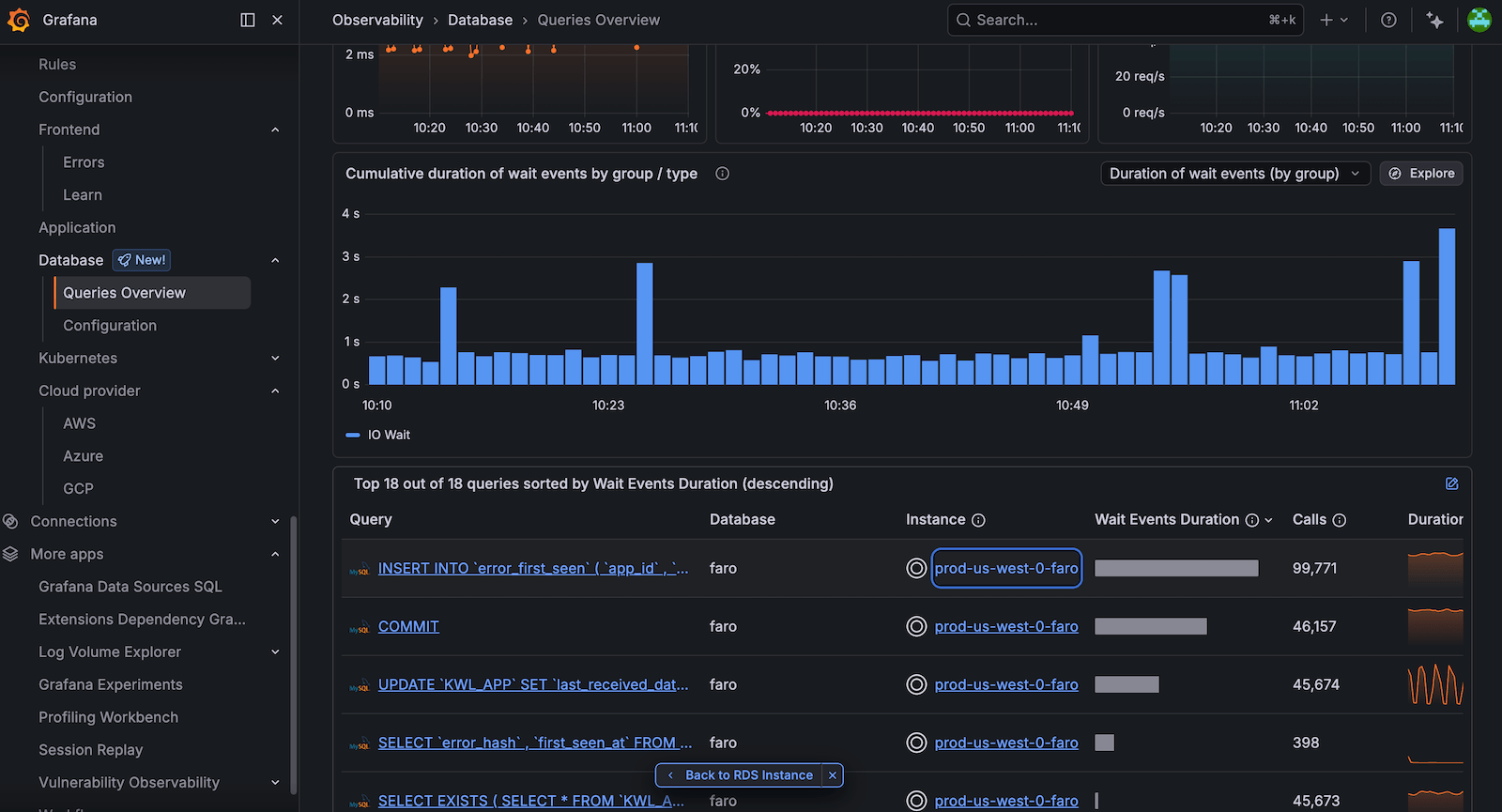
To return to Cloud Provider Observability from Queries Overview in Database Observability, use either of the following options:
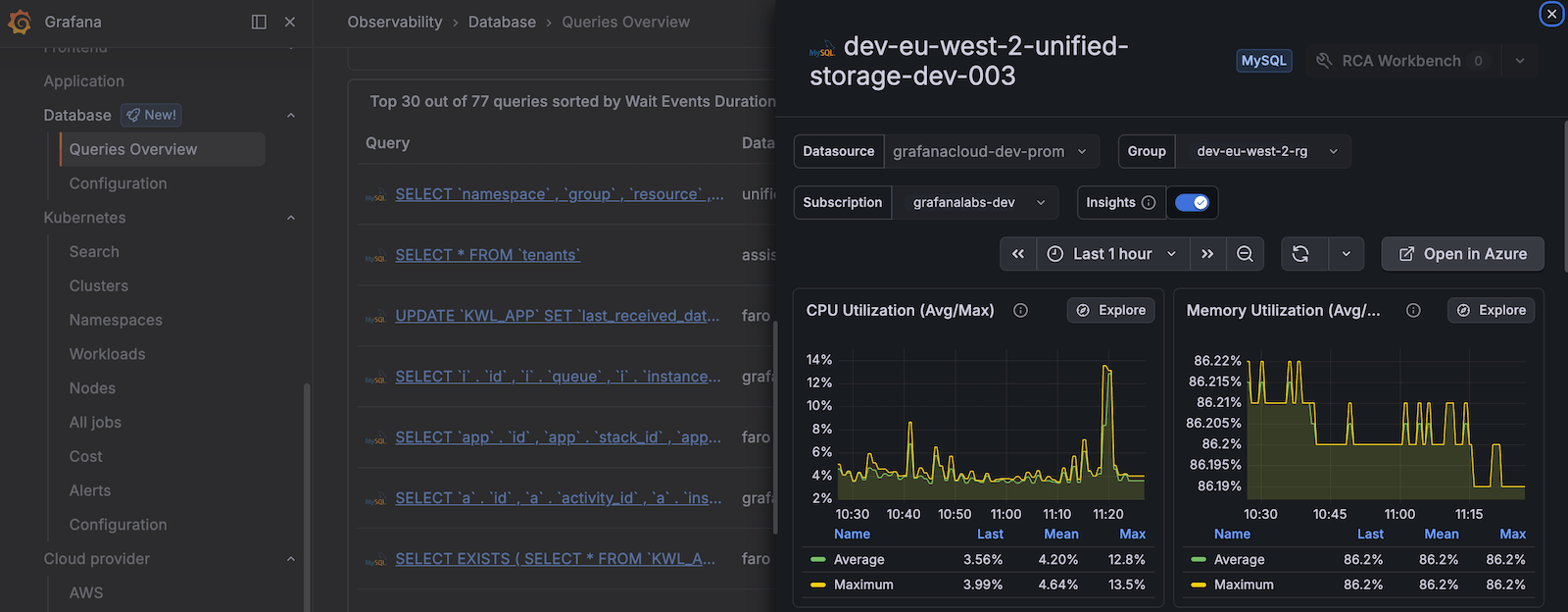
- Instance column: In the query table, click an instance name in the Instance column. In the side panel, review infrastructure metrics for that instance, such as CPU utilization and read/write latency. Click Open in AWS, Open in Azure, or Open in GCP to open the matching Cloud Provider instance dashboard.
- Back to button: At the bottom of Queries Overview, click Back to (the label matches your cloud service, for example Back to RDS Instance or Back to Google Cloud SQL).
For more information on monitoring query performance and infrastructure metrics together, refer to View query performance.
Was this page helpful?
Related resources from Grafana Labs



