
 Grafana Cloud
Observe and act
Alert and measure reliability
Alerting
Configure notifications
Alert enrichment
Grafana Cloud
Observe and act
Alert and measure reliability
Alerting
Configure notifications
Alert enrichmentAlert enrichment
Alert enrichment adds context to your alert notifications so they’re more actionable. Instead of a bare notification with labels and annotations, you can attach query results, annotations, AI-generated explanations, investigations, and links to related tooling before the notification is sent.
You configure enrichments as one or more enrichers that run when an alert fires. Each enricher adds data to the enrichment context, which is then included in the notification. You can scope enrichments to all alerts, to alerts that match labels or annotations, or to individual alert rules.
Enrichment runs for every contact point. When an alert notification is generated, the enrichment applies regardless of which contact point delivers it.
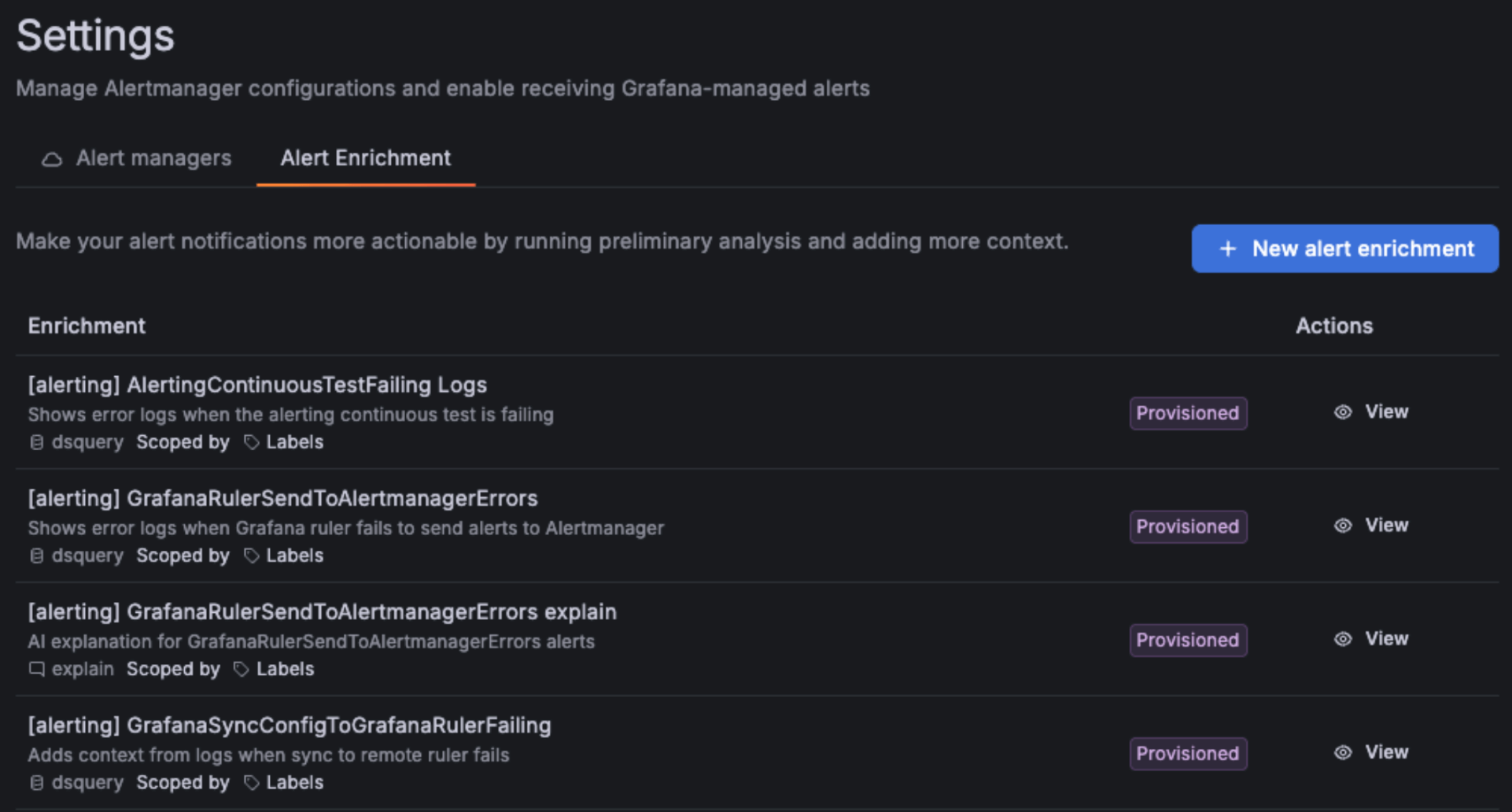
Manage access to enrichments
Where you can manage enrichments, and which scopes you can set, depends on your role and permissions.
Manage global enrichments as an admin
Only organization admins can access the global Alert Enrichment page. To open it, go to Alerting > Settings > Alert Enrichment.
On this page, admins create and manage enrichments and choose the scope that decides which alerts each enrichment applies to:
- All alerts: Apply the enrichment to every alert.
- Label scoped: Apply the enrichment to alerts that match the labels you specify.
- Annotation scoped: Apply the enrichment to alerts that match the annotations you specify.
Manage rule-level enrichments as a standard user
Users who aren’t admins manage enrichments per alert rule instead of on the global page. This requires the following role-based access control (RBAC) permissions:
alert.enrichments:readto view enrichments.alert.enrichments:writeto create, update, and delete enrichments.
With these permissions, you view and manage enrichments from the alert rule edit page. Enrichments you add there apply only to that alert rule. You can’t open the global Alert Enrichment page or change an enrichment’s scope, and global enrichments appear as read-only on the rule.
Choose an enricher type
Each enrichment runs one enricher. Choose the enricher type that matches the context you want to add.
- Data Source Query: Query any Grafana data source to pull additional context for the alert. Any data source is supported, including metrics, logs, and tabular data sources. Results are added to the enrichment context and surfaced in the notification. For more detail on the results, refer to Data source query output types.
- Assign: Add one or more annotations, as name and value pairs, to the alert.
- External: Call an external service URL to enrich the alert. The service receives the alert payload and returns the enrichment data to add.
- RCA Workbench: Add a link to an RCA in Asserts Workbench so responders can start root cause analysis from the notification.
- Sift: Create a Sift investigation for the alert and add a link to it.
- Explain: Generate an LLM explanation for the alert and store it in an annotation key that you configure. This requires the LLM plugin to be enabled. You can view the AI/LLM-assisted explanation annotation in IRM > Alert Groups.
- Assistant Investigations: Start a Grafana Assistant investigation and add a link to it in the notification.
Warning
Assistant Investigations has its own pricing conditions and shouldn’t be run on the all alerts scope or any scope that includes a large number of alerts. For more information, refer to the Grafana Assistant pricing page.
Data source query output types
The Data Source Query enricher works with any data source. It inspects the query response and adds the result to the notification as one of the following output types.
- Metrics: For numeric or time series results, the enricher extracts label values from the result and adds them as annotations on the alert.
- Logs: For logs results, the enricher adds a preview of the most recent log lines along with a link to open the query in Explore.
- Table: For any other data source, the enricher adds a small tabular preview of the result, with a limited number of columns and rows.
The output type is determined automatically from the query response, so you don’t need to select it.
Create a global enrichment
Create a global enrichment when you want it to apply beyond a single alert rule. This requires admin access. For more information, refer to Manage access to enrichments.
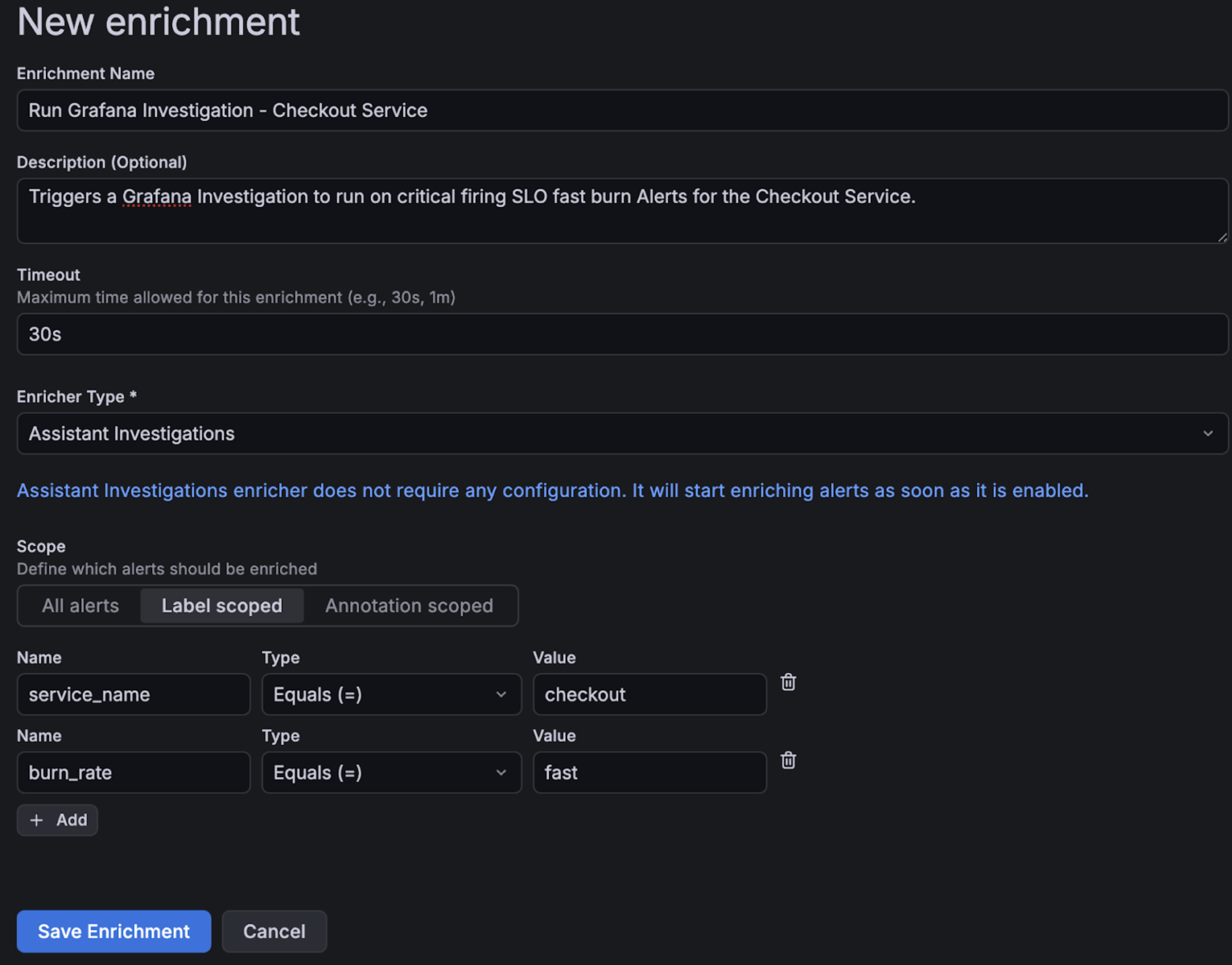
Go to Alerting > Settings > Alert Enrichment, then click + New alert enrichment.
Give your enrichment a name and an optional description.
Enter a timeout for the enrichment. This is the maximum amount of time the enrichment runs before the alert notification is sent.
Select an enricher type and configure it. For a description of each type, refer to Choose an enricher type.
Define the scope of the enrichment. You can apply it to all alerts, or scope it by labels or annotations. For a description of each scope, refer to Manage global enrichments as an admin.
Click Save Enrichment to save and apply the new enrichment.
Create a rule-level enrichment
Create a rule-level enrichment when you want it to apply to a single alert rule. This requires the alert.enrichments:write permission.
On the alert rule list page, find the alert rule and click Edit.
At the bottom of the alert rule edit page, view or edit the alert enrichments for that rule.
An enrichment you add here applies only to that alert rule. Global enrichments also appear here as read-only.
Was this page helpful?
Related resources from Grafana Labs



