
 Grafana Cloud
Observe and act
Monitor infrastructure
Cloud Provider Observability
Analyze cloud resources
Grafana Cloud
Observe and act
Monitor infrastructure
Cloud Provider Observability
Analyze cloud resourcesAnalyze cloud resources with the Knowledge graph
Cloud Provider Observability integrates with the Knowledge graph so you can understand relationships between cloud resources, such as AWS RDS, Azure Virtual Machines, and GCP Compute Engine. You can move from identifying a problem on a cloud resource to investigating root cause using RCA workbench, view connections in the Entity graph, and explore connected entities without leaving Cloud Provider.
Note
To access root cause analysis tools from Cloud Provider Observability, activate the Knowledge graph on your stack.
Supported cloud resources
The following cloud resources include the Knowledge graph integration:
- Amazon Elastic Compute Cloud (AWS EC2)
- Amazon API Gateway (AWS API Gateway)
- Amazon DynamoDB (AWS DynamoDB)
- Amazon ElastiCache (AWS ElastiCache)
- Amazon Elastic Load Balancing(ELB) Application Load Balancers (AWS ELB Application Load Balancer)
- Amazon Elastic Load Balancing(ELB) Network Load Balancer (AWS Network Loadbalancer)
- Amazon Relational Database Service (AWS RDS)
- Amazon Simple Storage Service (AWS S3)
- AWS Lambda (AWS Lambda)
- Azure Virtual Machines (Azure Virtual Machines)
- Azure Storage (Blob and Queue) Storage
- Azure PostgreSQL Flexible Servers (PostgreSQL Flexible Servers)
- GCP Compute Engine (Compute Engine)
- GCP Cloud SQL (Cloud SQL)
- GCP Cloud Storage (Storage (GCS))
Access root cause analysis from service overviews
From overview pages for the supported cloud services, you can open RCA workbench or see entity health and connected entities for a specific resource.
To access root cause analysis from a service overview page:
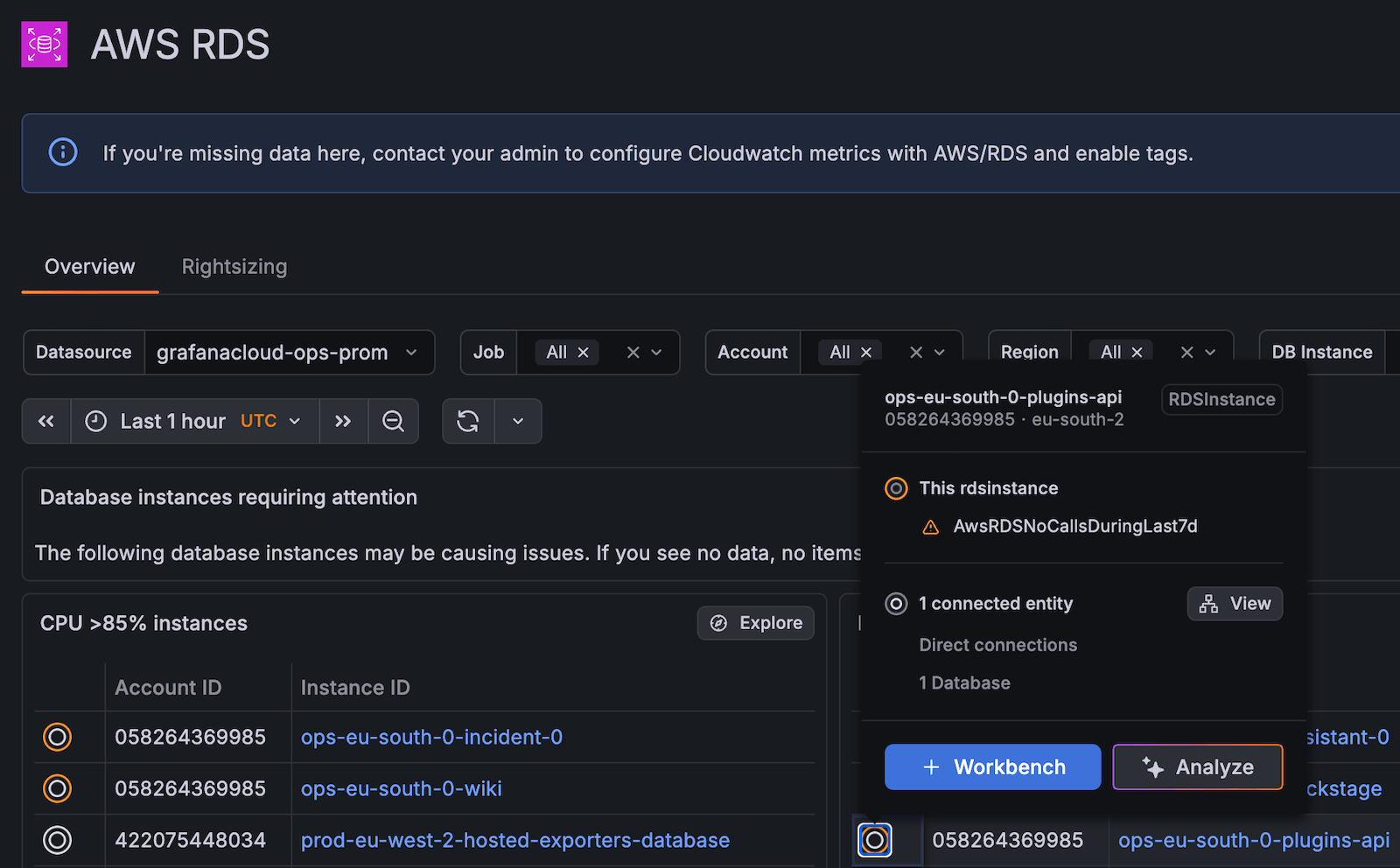
Hover over or click the Insights rings icon beside the instance Account ID.

Insights dialog box revealed when hovering over Insights rings The dialog box displays either This entity looks healthy or the current health state, and under Direct connections the number of connected entities (for example, 1 Database).
Click + Workbench to add the resource to RCA workbench and start an investigation.
Optionally click Analyze to run analysis using Grafana Assistant for that entity.
Access root cause analysis from an instance
When you are on the instance page for a specific cloud resource (for example, an AWS RDS instance), you can open RCA workbench or see entity health and connected entities for a specific resource.
To access root cause analysis from an instance page:
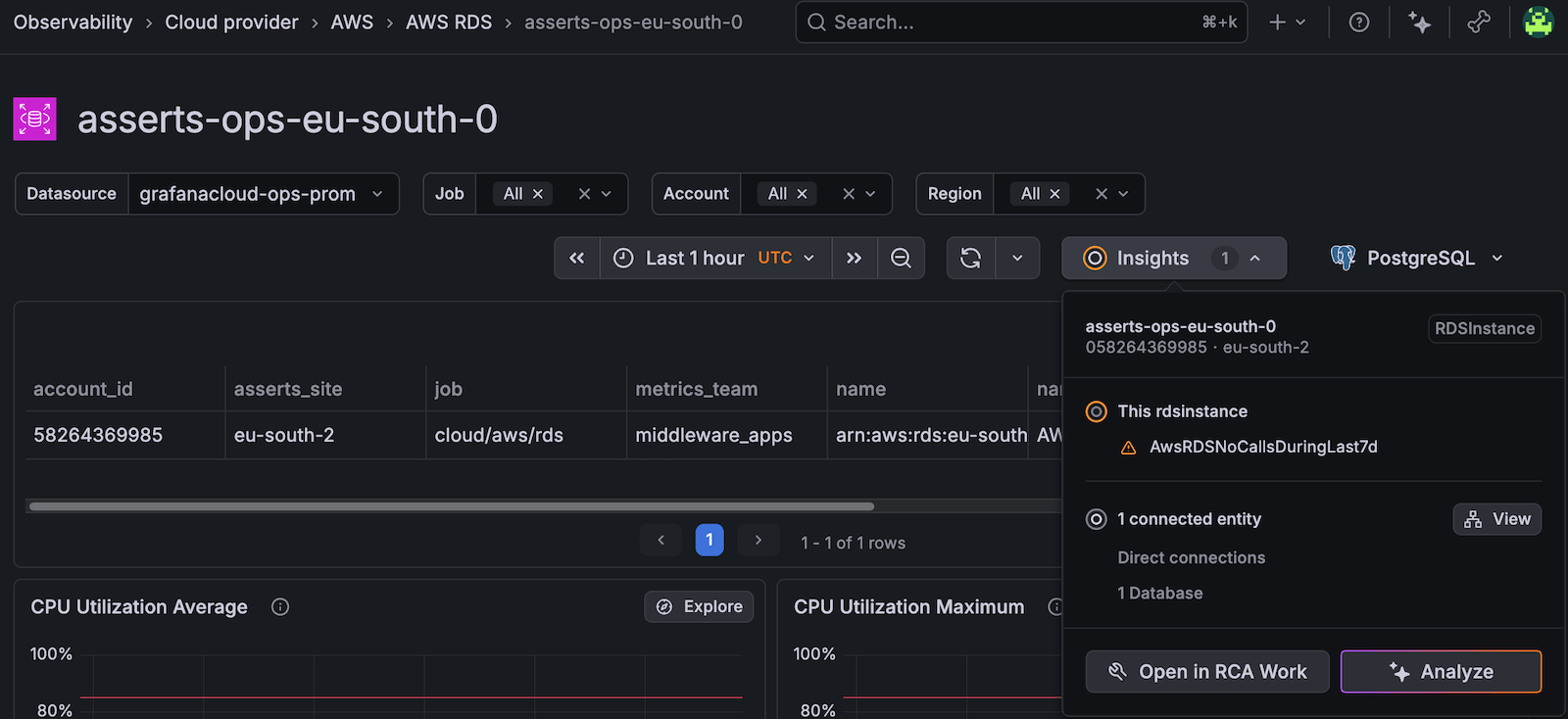
At the top of the page next to the time range selector, click Insights (a badge may show the number of insights).
In the Insights dropdown, review the entity type (for example, RDSInstance) and any listed alerts or insights.

Insights dialog box revealed when clicking the Insights dropdown Click Open in RCA Workbench to open RCA workbench with this resource already loaded.
Optionally click Analyze run analysis using Grafana Assistant for that entity.
You can then use RCA workbench Timeline, graph, and mind map views to correlate events and dependencies.
Explore connected entities
To see which services or other entities are connected to a cloud resource (for example, which application uses an RDS instance):
- From an AWS service overview in Cloud Provider, hover over the Insights rings next to an instance.
- Click the View button next to the connected entity section in the Insights dialog box.
The View button only displays if the entity is connected to another entity.

Insights dialog box revealed when clicking the Insights dropdown - Expand the sections below the selected resource name at the top of the Explore connected entities dialog box to see connected entities.
- For each connected entity you can:
- Click Open KPIs to open Knowledge Graph dashboards.
- Click RCA Workbench to add that entity to RCA workbench.
- Click See in entity graph to open the Entity graph with this resource and its connections in a visual graph.
This flow helps you move from a cloud resource (for example, a database) to the application services that use it, and then into RCA workbench or Entity graph for full context.
Was this page helpful?
Related resources from Grafana Labs



