

Introduction to Grafana Assistant
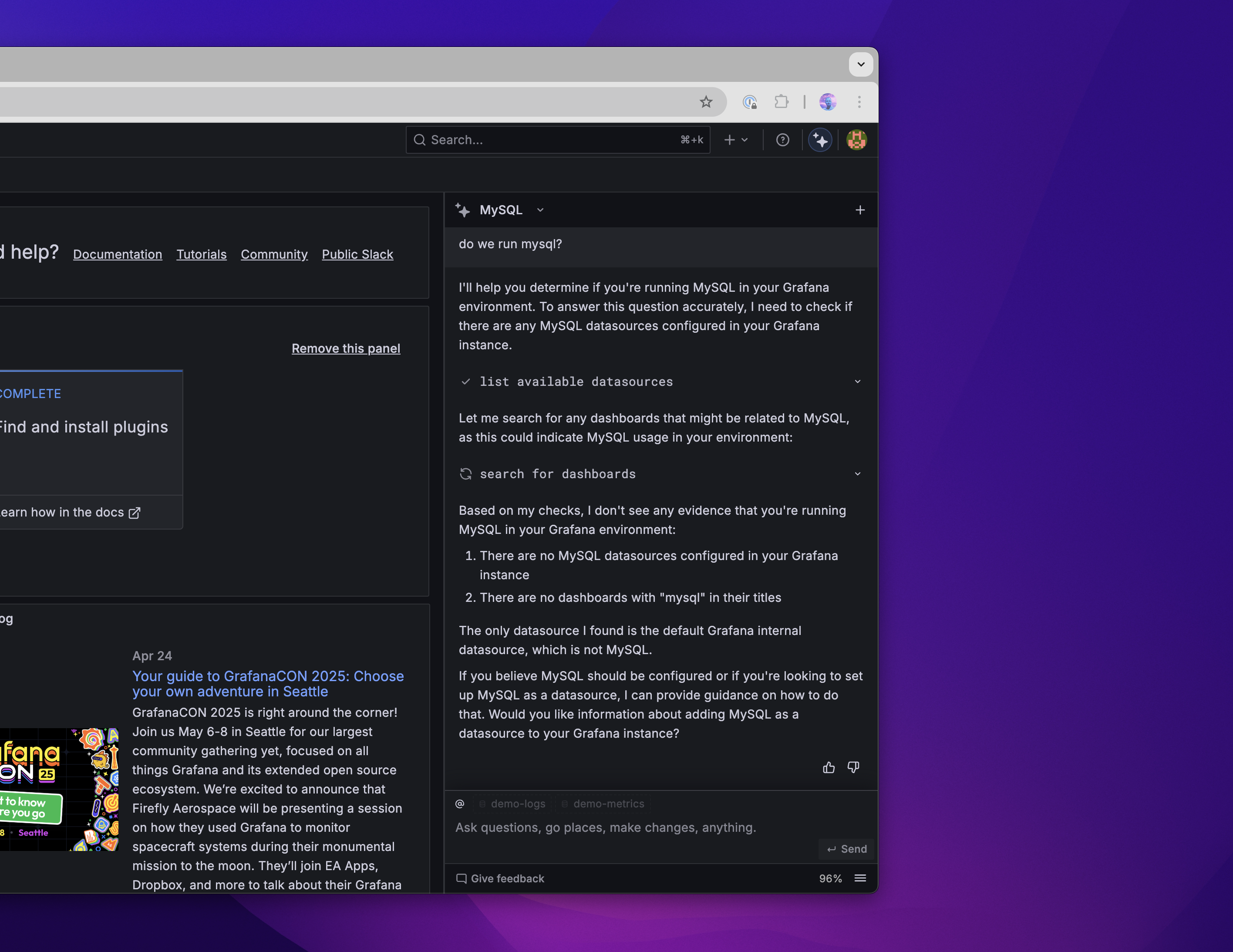
Grafana Assistant brings natural-language intelligence to Grafana. You can explore telemetry, build dashboards, and, when available, launch investigations without memorizing syntax. Every action passes through existing security, auditing, and RBAC layers, and respects your permissions.
This article explains how Assistant works. You’ll learn to write effective prompts, query data sources, launch investigations, and provide feedback.
Grafana Labs processes Assistant conversations using third-party AI providers while keeping your data secure. Conversation content is not used to train external models, and all requests flow through Grafana Cloud’s standard security controls, including when the Assistant UI is running in a self-managed Grafana instance connected to Grafana Cloud. For complete details about data handling, encryption, and access controls, refer to Privacy and security.
Understand deployment models
Assistant is available in two deployment models:
- Grafana Cloud: Assistant runs directly in your stack with the full feature set enabled according to your entitlements and feature flags.
- Self-managed Grafana: The Assistant app runs in your own Grafana deployment but connects to a Grafana Cloud Assistant backend. Core chat, dashboarding, querying, and navigation workflows remain available, while Grafana Cloud-dependent features such as investigations, infrastructure memory, and Grafana Cloud MCP connections are hidden.
Some Grafana Cloud features require Assistant to be enabled even though you use them outside Assistant chat.
Agentic testing is launched from Testing & synthetics > Agentic testing and uses plain-language browser journeys without requiring k6 script authoring.
Grafana Assistant on the mobile app is launched from the Grafana mobile app and provides the Assistant chat experience in a phone layout.
Write effective prompts
Assistant responds best to clear, action-oriented prompts. Follow these practices to get better results:
- Start prompts with action verbs like Create, Explain, or List.
- Add timeframe and scope after the verb.
- Use
@to mention specific data sources, dashboards, or panels. - Break complex requests into smaller prompts.
- Start a new conversation when you switch topics.
Configure quickstart prompts
Quickstart prompts let you trigger common prompts with one click. You can save your own quickstarts. Your Grafana administrator can publish team quickstarts in Assistant settings.
To configure quickstart prompts:
- Navigate to Grafana Assistant > Settings > Quickstart prompts.
- Click Create Quickstart Prompt.
- Set Scope to Just me or Everybody.
- Add a Title and enter the Prompt.
- Leave Enabled on to show the prompt in chat.
- Click Create.
To manage quickstarts, click Edit or Delete, or toggle Enabled on each quickstart card.
Learn and onboard
Use Assistant to learn Grafana features, concepts, and best practices. You can ask for step-by-step instructions, clarify observability concepts, or request monitoring strategies for new services. For more information, refer to Get onboarding support.
Query data
Assistant queries your data sources including Prometheus, Loki, Tempo, and SQL databases. It helps you write, explain, and optimize queries in PromQL, LogQL, TraceQL, and SQL. You can draft queries, refine them, and visualize results directly in chat. For more information, refer to Query data.
Manage dashboards
Find, understand, create, and edit dashboards. Assistant can explain visualizations, scaffold new dashboards based on your goals, and help you modify panels and queries. For more information, refer to Manage dashboards.
Navigate resources
Locate dashboards, data sources, and metrics without browsing folders manually. You can search by content or tags, discover available data sources, and launch Explore views with pre-loaded queries. For more information, refer to Navigate Grafana resources.
Launch investigations
Answer quick questions about your telemetry or launch investigations. Infrastructure memory automatically builds context about your services, helping the Assistant resolve issues faster. Use investigation mode for complex incidents to analyze multiple data sources and generate structured reports. For more information, refer to Assistant Investigations.
Note
Investigations, infrastructure memory, and related features are not available in self-managed deployments.
Collaborate with your team
Assistant helps you share findings without rewriting them by hand.
Share findings using Copy on any response to move summaries into incident channels or tickets.
Ask Assistant for audience-specific updates, for example:
Summarize these findings for the incident channel
Share a full conversation as a read-only link by opening the menu icon (three dots) in the chat header and selecting Share conversation. Recipients must be able to sign in to the same Grafana deployment.
Provide feedback
Provide feedback using the thumbs-up or thumbs-down so Assistant gets better over time. Add a short note explaining what worked or what went wrong. The Grafana Cloud Assistant backend stores feedback securely. Engineers review it to refine prompts and tune query handlers.
Next steps
Was this page helpful?
Related resources from Grafana Labs



