
 Grafana Cloud
Learn and build
Visualize data
Dashboards
Variables
Cross-dashboard variables
Grafana Cloud
Learn and build
Visualize data
Dashboards
Variables
Cross-dashboard variablesNote
Cross-dashboard variables is currently in public preview. Grafana Labs offers limited support, and breaking changes might occur prior to the feature being made generally available.
To use this feature, enable the
grafana.dashboardGlobalVariablesfeature toggle in your Grafana configuration file or contact Support.
Unlike variables that are specific to the dashboard in which you build them, you can create cross-dashboard variables for use across multiple dashboards. These variables help ensure consistent naming across your organization and eliminate the need to re-create the same variables every time you add a new dashboard.
You can scope cross-dashboard variables in two ways:
- Globally: Available to all dashboards in the organization.
- By folder: Available only to the dashboards in the same folder as the variable.
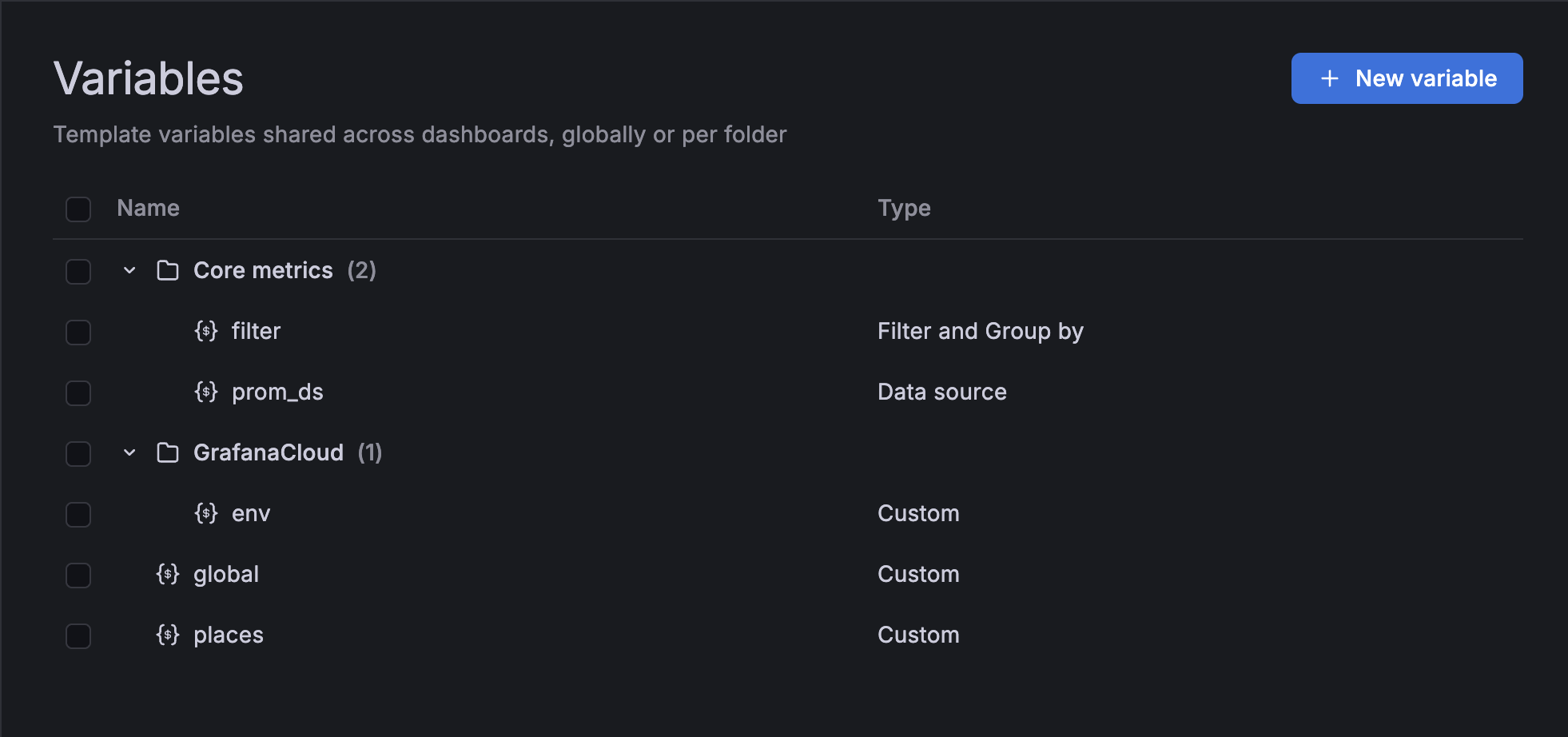
The Dashboards > Variables page lists cross-dashboard variables, showing which ones are available globally or by folder. In the following image, there are variables in “Core metrics” and “Grafana Cloud” folders and then a number of variables that aren’t in any folders; these ones are global:
When you add cross-dashboard variables to a dashboard, only the ones that share the same scope as your dashboard are available for you to select.
For example, in the preceding image, there are two variables in the “Core metrics” folder. The following image shows a dashboard in the “Core metrics” folder. As a result, the variables in the “Core metrics” folder are available to that dashboard, as well as all the global variables:
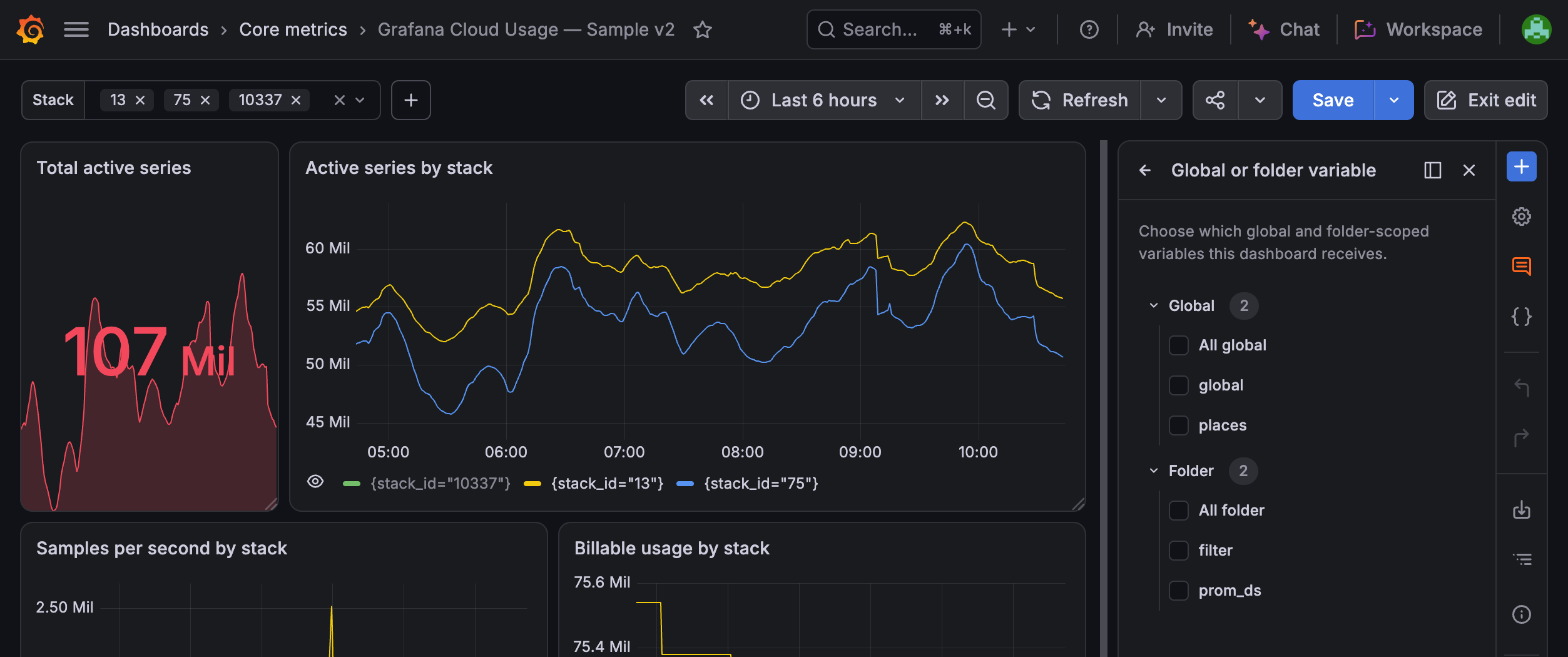
Variables in other folders aren’t available to that dashboard.
Create cross-dashboard variables
To create cross-dashboard variables, follow these steps:
Navigate to Dashboards > Variables.
Click + New variable.
Set the following general variable properties:
Click one of the following links to complete the steps for adding your selected variable type:
Add cross-dashboard variables to a dashboard
You can choose which cross-dashboard variables to add to dashboards you create. Only variables that share the same scope as your dashboard are available for you to select.
To add cross-dashboard variables to a dashboard, follow these steps:
Navigate to the dashboard you want to update.
Click Edit.
Click the Add new element icon in the sidebar and select Variable.
You can also click the Add (plus sign) icon at the top of the dashboard and select Variable.
Select the Global or folder variable variable type.
Select the variables you want to add to the dashboard:
![Cross-dashboard variable selected and added above dashboard]()
To add every global variable available, select All global and to add every folder variable available, select All folder.
Update variable values as needed.
Click Save.
Enter an optional description of your changes and click Save.
Click Exit edit.
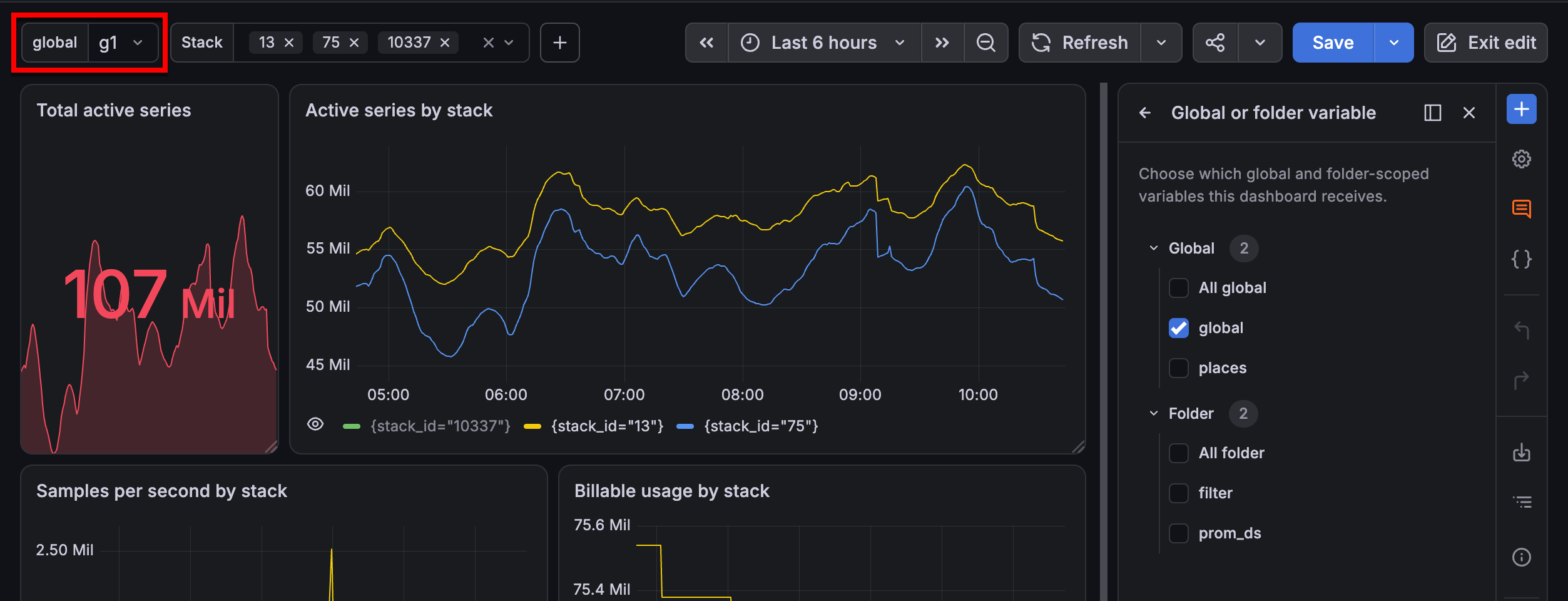
After you’ve added cross-dashboard variables to a dashboard, you can view its settings or remove it by way of the dashboard sidebar. To edit the variable, go to Dashboards > Variables.
Was this page helpful?
Related resources from Grafana Labs



