
 Grafana Cloud
Learn and build
As code
Infrastructure as code
Terraform
Manage Fleet Management in Grafana Cloud using Terraform
Grafana Cloud
Learn and build
As code
Infrastructure as code
Terraform
Manage Fleet Management in Grafana Cloud using TerraformManage Fleet Management in Grafana Cloud using Terraform
Learn how to create Grafana Fleet Management collectors and pipelines in Grafana Cloud using Terraform. This guide shows you how to create an access policy and a token for Fleet Management, preregister a collector with remote attributes, and create a configuration pipeline.
Fleet Management supports Grafana Alloy and the OpenTelemetry Collector. The two collector types connect to Fleet Management differently and use different configuration syntax, so this guide shows both paths side by side. Follow the Alloy steps, the OpenTelemetry Collector steps, or both if you’re managing a mixed fleet.
Before you begin
Before you begin, ensure you have the following:
- A Grafana Cloud account, as shown in Get started
- Administrator permissions in your Grafana instance
- Terraform installed on your machine
- One of the following collectors installed on your machine:
- Alloy
- A supported OpenTelemetry Collector distribution that includes the OpAMP extension (for example,
otelcol-contrib) If using the OpenTelemetry Collector, you must also install the OpAMP Supervisor.
Note
All of the following Terraform configuration files should be saved in the same directory.
Configure a provider for Grafana Cloud
This Terraform configuration configures the Grafana provider to provide necessary authentication when interacting with the Cloud API.
The grafana_cloud_stack (Data Source) is used to retrieve the user ID and URL details of your instance.
Create a Grafana Cloud access policy and token. To create a new one, refer to Grafana Cloud Access Policies. Add your stack to the realms list. The scopes needed for the examples in this guide are:
accesspolicies:readaccesspolicies:writeaccesspolicies:deletestacks:read
Create a file named
cloud-provider.tfand add the following code block:terraform { required_providers { grafana = { source = "grafana/grafana" version = ">= 3.19.0" } } } provider "grafana" { alias = "cloud" cloud_access_policy_token = "<CLOUD_ACCESS_POLICY_TOKEN>" } data "grafana_cloud_stack" "stack" { provider = grafana.cloud slug = "<STACK_SLUG>" }Replace the following field values:
<CLOUD_ACCESS_POLICY_TOKEN>with the access policy token you created in the first step<STACK_SLUG>with your stack slug, which is the subdomain where your Grafana Cloud instance is available:https://<STACK_SLUG>.grafana.net
Create an access policy and token for Fleet Management
This Terraform configuration creates the following:
- An access policy named
fleet-management-policywithfleet-management:readandfleet-management:writescopes, usinggrafana_cloud_access_policy(Resource) - A token named
fleet-management-token, usinggrafana_cloud_access_policy_token(Resource)
Create a file named
fm-access-policy.tfand add the following code block:resource "grafana_cloud_access_policy" "fm_policy" { provider = grafana.cloud name = "fleet-management-policy" region = data.grafana_cloud_stack.stack.region_slug scopes = [ "fleet-management:read", "fleet-management:write" ] realm { type = "stack" identifier = data.grafana_cloud_stack.stack.id } } resource "grafana_cloud_access_policy_token" "fm_token" { provider = grafana.cloud name = "fleet-management-token" region = grafana_cloud_access_policy.fm_policy.region access_policy_id = grafana_cloud_access_policy.fm_policy.policy_id }
Configure a provider for Fleet Management
This Terraform configuration configures the Grafana provider to provide necessary authentication when interacting with the Fleet Management API.
Create a file named
fm-provider.tfand add the following code block:locals { fm_id = data.grafana_cloud_stack.stack.fleet_management_user_id fm_token = grafana_cloud_access_policy_token.fm_token.token fm_url = data.grafana_cloud_stack.stack.fleet_management_url } provider "grafana" { alias = "fm" fleet_management_auth = "${local.fm_id}:${local.fm_token}" fleet_management_url = local.fm_url }
Create an access policy and token for your collector
Alloy and the OpenTelemetry Collector need properly scoped access to read remote configuration from Fleet Management and write telemetry to Grafana Cloud.
The Terraform provider creates the alloy_token for you when you run terraform apply later in this guide.
OpenTelemetry Collectors require an access token before you can successfully apply the Terraform configurations.
You create the otel_token manually in this step, but you won’t need it until later in the guide.
Alloy
This Terraform configuration creates the following:
- An access policy named
alloy-policywithset:alloy-data-writescope, usinggrafana_cloud_access_policy(Resource) - A token named
alloy-token, usinggrafana_cloud_access_policy_token(Resource)
Create a file named
alloy-access-policy.tfand add the following code block:resource "grafana_cloud_access_policy" "alloy_policy" { provider = grafana.cloud name = "alloy-policy" region = data.grafana_cloud_stack.stack.region_slug scopes = [ "set:alloy-data-write" ] realm { type = "stack" identifier = data.grafana_cloud_stack.stack.id } } resource "grafana_cloud_access_policy_token" "alloy_token" { provider = grafana.cloud name = "alloy-token" region = grafana_cloud_access_policy.alloy_policy.region access_policy_id = grafana_cloud_access_policy.alloy_policy.policy_id } output "alloy_token" { value = grafana_cloud_access_policy_token.alloy_token.token sensitive = true }
OpenTelemetry Collector
This Terraform configuration creates the following:
- An access policy named
otel-policywithset:otel-data-writescope, usinggrafana_cloud_access_policy(Resource) - A token named
otel-token, usinggrafana_cloud_access_policy_token(Resource)
Create a file named
otel-access-policy.tfand add the following code block:resource "grafana_cloud_access_policy" "otel_policy" { provider = grafana.cloud name = "otel-policy" region = data.grafana_cloud_stack.stack.region_slug scopes = [ "set:otel-data-write" ] realm { type = "stack" identifier = data.grafana_cloud_stack.stack.id } } resource "grafana_cloud_access_policy_token" "otel_token" { provider = grafana.cloud name = "otel-token" region = grafana_cloud_access_policy.otel_policy.region access_policy_id = grafana_cloud_access_policy.otel_policy.policy_id }
Create a configuration file for your collector
In this step, you create a local configuration file for Alloy or the OpAMP Supervisor.
Alloy
This Terraform configuration creates an Alloy configuration file with the remotecfg block for Fleet Management, using local_file (Resource).
Create a file named
config.alloy.tftpland add the following content:remotecfg { id = "${collector_id}" url = "${fm_url}" poll_frequency = "60s" basic_auth { username = "${fm_id}" password = sys.env("GCLOUD_RW_API_KEY") } }Create a file named
alloy-config.tfand add the following code block:resource "local_file" "alloy_config" { filename = "<ALLOY_CONFIG_PATH>" content = templatefile( "config.alloy.tftpl", { collector_id = "prod_alloy_collector", fm_id = local.fm_id, fm_url = local.fm_url, }, ) directory_permission = "0644" file_permission = "0644" }Replace the following field values:
<ALLOY_CONFIG_PATH>with the path the Alloy configuration file should be written to, for exampleconfig.alloy
OpenTelemetry Collector
This Terraform configuration creates a Supervisor configuration file that connects the OpenTelemetry Collector to Fleet Management over OpAMP, using local_file (Resource).
Create a file named
supervisor.yaml.tftpland add the following content:server: endpoint: '${fm_url}/v1/opamp' headers: Authorization: 'Basic ${fm_auth_base64}' capabilities: reports_effective_config: true accepts_remote_config: true agent: executable: '<OTELCOL_EXECUTABLE_PATH>' instance_id: '${collector_id}' storage: directory: '<STORAGE_DIRECTORY>'Create a file named
otel-supervisor-config.tfand add the following code block:resource "local_file" "otel_supervisor_config" { filename = "${path.module}/supervisor.yaml" content = templatefile( "supervisor.yaml.tftpl", { collector_id = "<COLLECTOR_ID>" fm_auth_base64 = base64encode("${local.fm_id}:${grafana_cloud_access_policy_token.otel_token.token}"), fm_url = local.fm_url, }, ) directory_permission = "0644" file_permission = "0644" }Replace the following field values:
<OTELCOL_EXECUTABLE_PATH>with the path to your OpenTelemetry Collector executable<STORAGE_DIRECTORY>with the path to a writable directory to use for persistent data storage<COLLECTOR_ID>with the universally unique identifier (UUID) of the Collector.
Create a Fleet Management collector
This step registers a collector with a remote attribute, using grafana_fleet_management_collector (Resource).
The collector_type argument tells Fleet Management which configuration syntax and validation to expect for the collector: ALLOY (the default) or OTEL.
The following configurations only preregister the collector. You must complete the Run the collector step for the collector to connect to Fleet Management and be assigned remote attributes.
Alloy
Create a file named
fm-collector-alloy.tfand add the following code block:resource "grafana_fleet_management_collector" "fm_collector_alloy" { provider = grafana.fm id = "prod_alloy_collector" collector_type = "ALLOY" remote_attributes = { "env" = "PROD" } enabled = true }
OpenTelemetry Collector
Create a file named
fm-collector-otel.tfand add the following code block:resource "grafana_fleet_management_collector" "fm_collector_otel" { provider = grafana.fm id = "<COLLECTOR_ID>" collector_type = "OTEL" remote_attributes = { "env" = "PROD" } enabled = true }Replace
<COLLECTOR_ID>with the same unique identifier used in the Supervisor configuration.
Create a Fleet Management pipeline
The following Terraform configurations create pipelines with matchers for the collectors declared in the previous step, using grafana_fleet_management_pipeline (Resource).
The config_type argument tells Fleet Management how to parse and validate the contents argument: ALLOY (the default) expects Alloy configuration syntax, and OTEL expects OpenTelemetry Collector YAML.
Fleet Management delivers a pipeline only to collectors of the matching collector_type, so an ALLOY pipeline and an OTEL pipeline can safely share the same matchers.
Alloy profiling pipeline
This pipeline profiles Alloy itself and writes the profiles to Grafana Cloud Profiles.
Create a file named
profiling.alloy.tftpland add the following content:// This pipeline scrapes pprof Go profiles from Alloy and sends them to Pyroscope. // // It requires the following environment variables to be set where Alloy is running: // Required: // * GCLOUD_RW_API_KEY: The Grafana Cloud API key with write access to Pyroscope. // Optional: // * ALLOY_ADDRESS: The address Alloy listens on. Defaults to 127.0.0.1:12345. pyroscope.scrape "alloy" { targets = [ { "__address__" = coalesce( sys.env("ALLOY_ADDRESS"), "127.0.0.1:12345", ), "service_name" = "alloy", }, ] forward_to = [pyroscope.write.grafana_cloud.receiver] profiling_config { profile.process_cpu { enabled = true } profile.memory { enabled = true } profile.mutex { enabled = true } profile.block { enabled = true } profile.goroutine { enabled = true } } } pyroscope.write "grafana_cloud" { endpoint { url = "${profiles_url}" basic_auth { username = "${profiles_id}" password = sys.env("GCLOUD_RW_API_KEY") } } }Create a file named
fm-pipeline-alloy-profiles.tfand add the following code block:locals { profiles_id = data.grafana_cloud_stack.stack.profiles_user_id profiles_url = data.grafana_cloud_stack.stack.profiles_url } resource "grafana_fleet_management_pipeline" "profiles" { provider = grafana.fm name = "alloy_profiling" config_type = "ALLOY" contents = templatefile( "profiling.alloy.tftpl", { profiles_id = local.profiles_id, profiles_url = local.profiles_url, }, ) matchers = [ "env=\"PROD\"" ] enabled = true }
OpenTelemetry Collector host metrics pipeline
This pipeline collects host metrics with the hostmetrics receiver and writes them to Grafana Cloud over OTLP.
Create a file named
hostmetrics.otel.yaml.tftpland add the following content:# This pipeline collects host metrics and sends them to Grafana Cloud over OTLP. receivers: hostmetrics: scrapers: load: memory: processors: resourcedetection: detectors: ['env', 'system'] override: false transform/add_host_metric_attributes: error_mode: ignore metric_statements: - context: datapoint statements: - set(attributes["host.name"], resource.attributes["host.name"]) - set(attributes["os.type"], resource.attributes["os.type"]) exporters: otlp_http/grafana_cloud: endpoint: '<OTLP_ENDPOINT>' headers: Authorization: 'Basic $${env:GCLOUD_BASIC_AUTH_BASE64}' sending_queue: enabled: true batch: {} service: pipelines: metrics/hostmetrics: receivers: [hostmetrics] processors: [resourcedetection, transform/add_host_metric_attributes] exporters: [otlp_http/grafana_cloud]Replace
<OTLP_ENDPOINT>with the OTLP endpoint for your stack, which you can find in your Grafana Cloud portal.Create a file named
fm-pipeline-otel-hostmetrics.tfand add the following code block:resource "grafana_fleet_management_pipeline" "host_metrics" { provider = grafana.fm name = "otel_host_metrics" config_type = "OTEL" contents = templatefile("hostmetrics.otel.yaml.tftpl", {}) matchers = [ "env=\"PROD\"" ] enabled = true }
Apply the Terraform configuration
In a terminal, run the following commands from the directory where all of the configuration files are located.
Initialize a working directory containing Terraform configuration files:
terraform initPreview the Terraform changes:
terraform planApply the configuration:
terraform apply
Run the collector
The final step is to start your collector. Make sure to set an environment variable containing the access token. The pipelines used in this guide won’t work without it.
Alloy
Run the following command to view the Alloy token:
terraform output -raw alloy_tokenSet the environment variable
GCLOUD_RW_API_KEYto the value from the first step.Run Alloy. To learn how to start or restart Alloy, refer to Run Grafana Alloy.
OpenTelemetry Collector
Run the following command to export the Base64-encoded credentials the Collector uses to send telemetry to Grafana Cloud. Replace
<INSTANCE_ID>with your actual instance ID, which you can find on the API tab in the Fleet Management application.export GCLOUD_BASIC_AUTH_BASE64=$(printf '%s' "<INSTANCE_ID>:$(terraform output -raw otel_token)" | base64 | tr -d '\n')Start the Supervisor:
./opampsupervisor --config=supervisor.yaml
Validation
After you apply the changes in the Terraform configurations and run your collector, you should be able to verify the following:
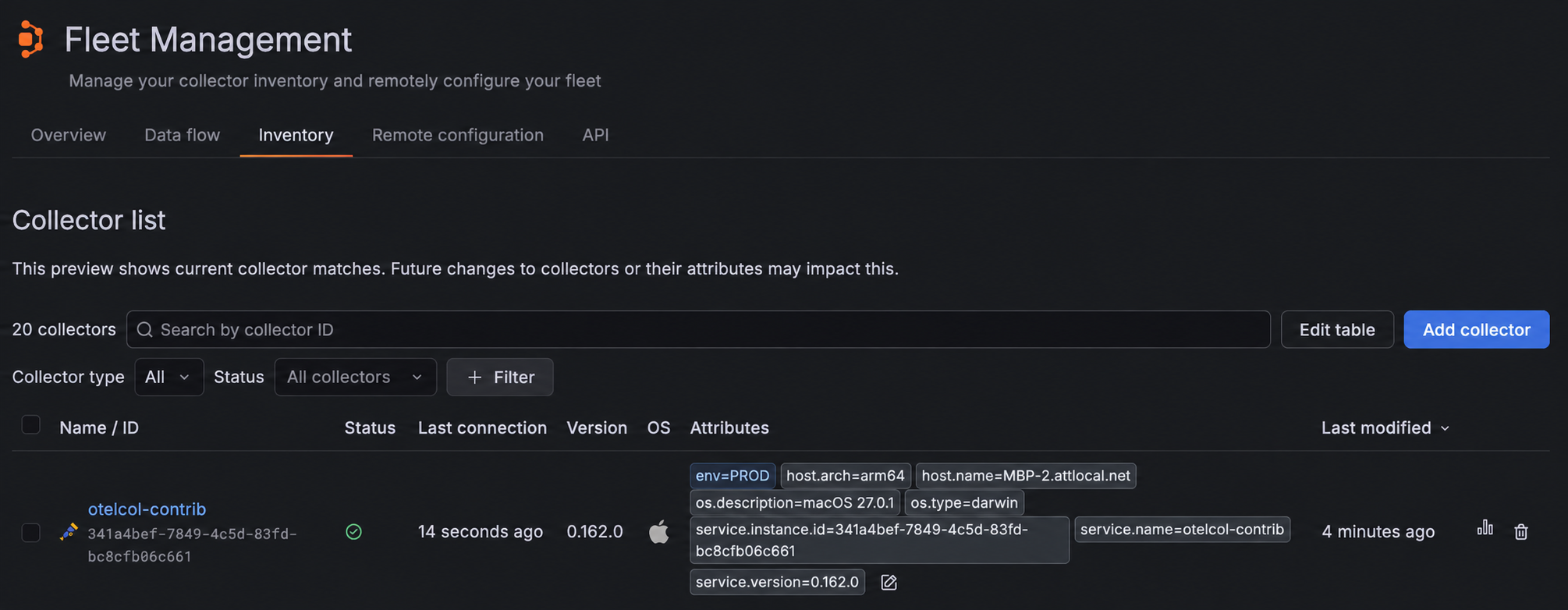
A collector is added to the Fleet Management Inventory tab, showing the
collector_typeyou configured (ALLOYorOTEL):![The Inventory screen in the Fleet Management interface in Grafana Cloud which shows that a new OpenTelemetry Collector called `otelcol-contrib` is registered with attribute `env=PROD`, has a healthy status, and was last modified a few minutes ago.]()
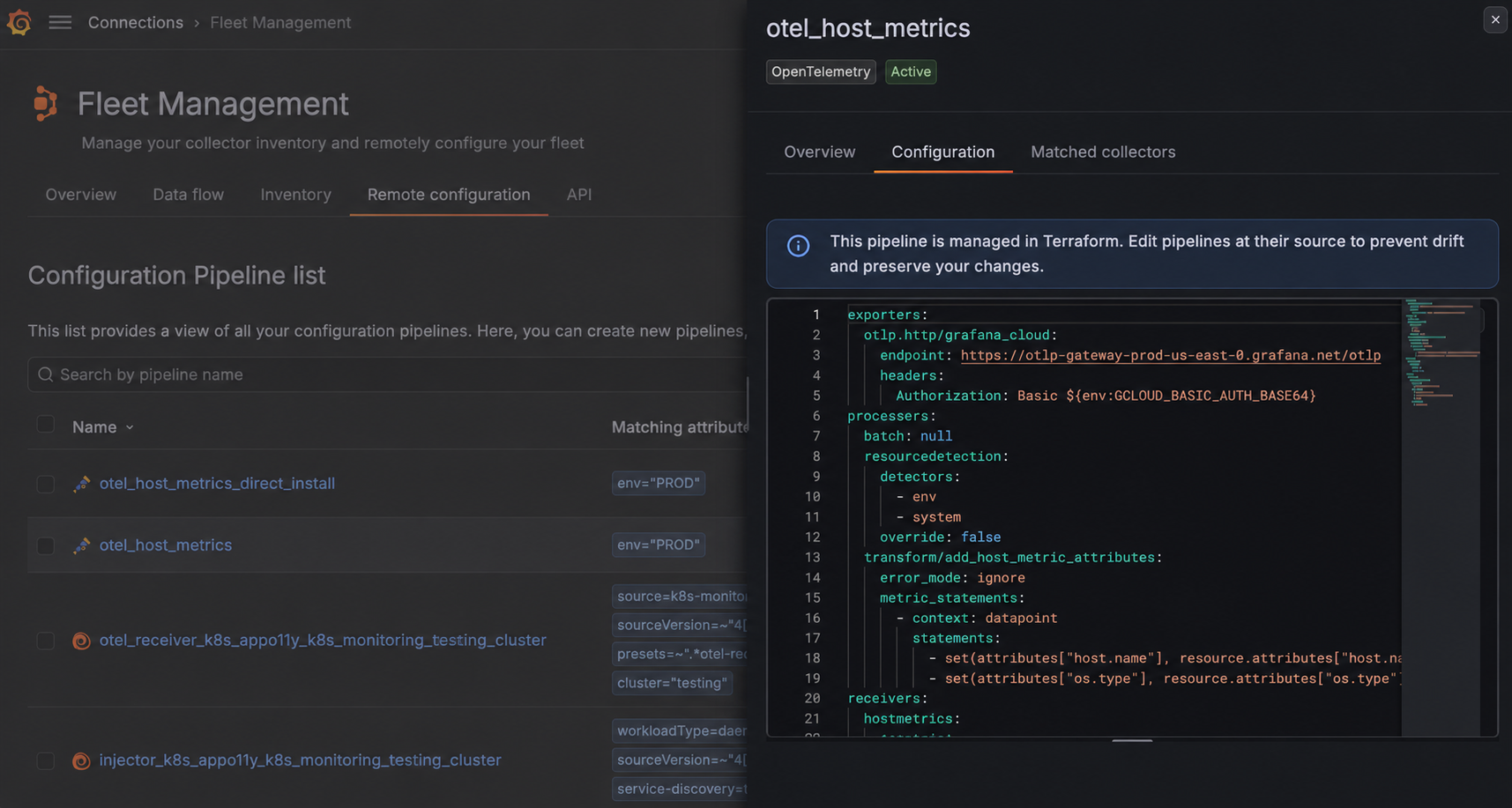
A pipeline is added to the Fleet Management Remote configuration tab:
![The Remote configuration screen in the Fleet Management interface in Grafana Cloud which shows that a new OpenTelemetry configuration pipeline called `otel_host_metrics` is active.]()
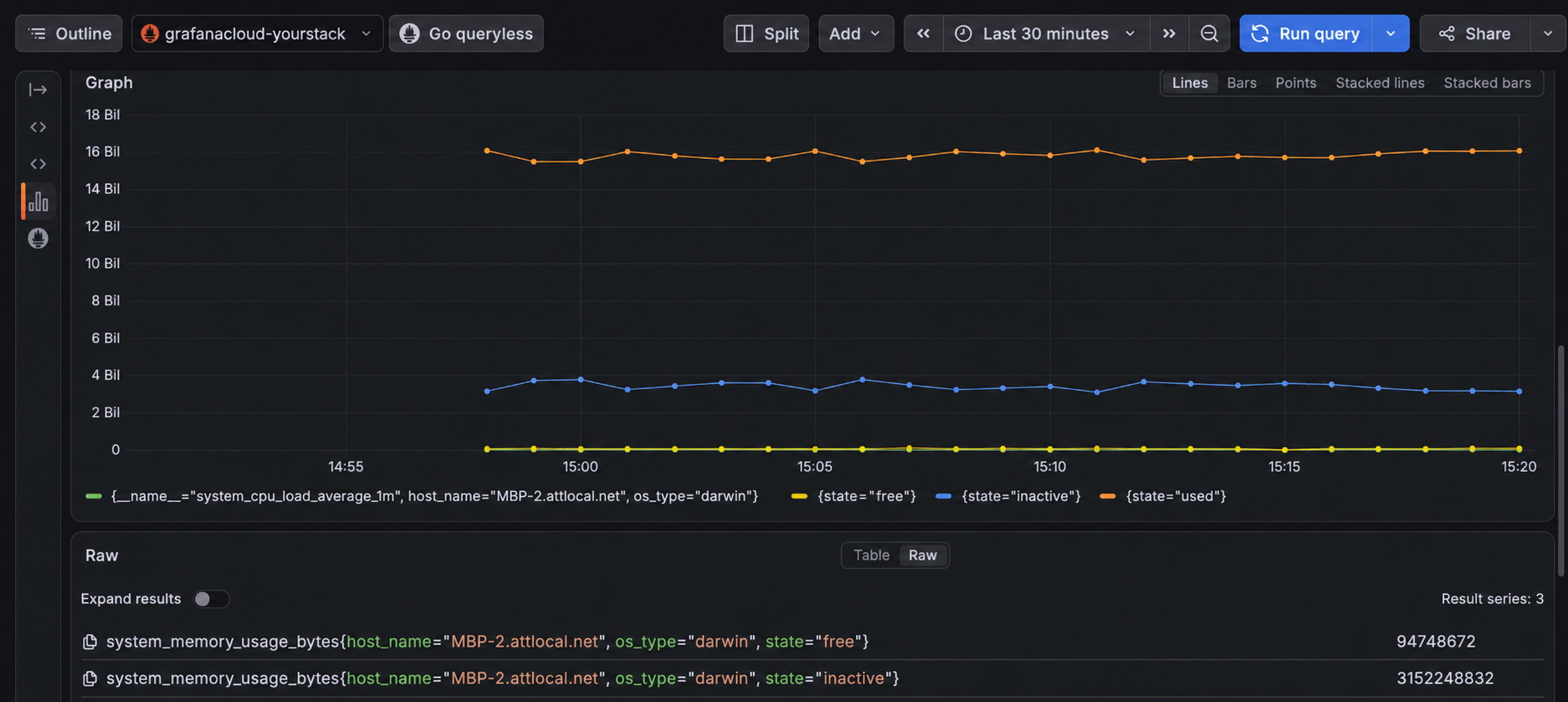
Telemetry is being exported to Grafana Cloud. For example, host metrics are visible in Grafana Cloud Metrics:
![A dashboard in Grafana Cloud which shows OTLP host metrics data, including a graph for memory usage.]()
Summary
In this guide, you created an access policy and a token for Fleet Management, registered an Alloy instance or OpenTelemetry Collector with remote attributes, and created a configuration pipeline based on collector type, all using Terraform.
To learn more about managing Grafana Cloud using Terraform, refer to the Grafana provider documentation.
Was this page helpful?
Related resources from Grafana Labs



