

Maintenance windows for Grafana SLO
Note
Maintenance windows is currently in public preview. Grafana Labs offers limited support, and breaking changes might occur prior to the feature being made generally available.
Use maintenance windows to schedule planned work for one or more service level objectives (SLOs). During an active maintenance window, Grafana SLO pauses error budget consumption and burn rate alerting for the selected SLOs.
Maintenance windows are available for all Grafana Cloud instances.
How maintenance windows affect SLOs
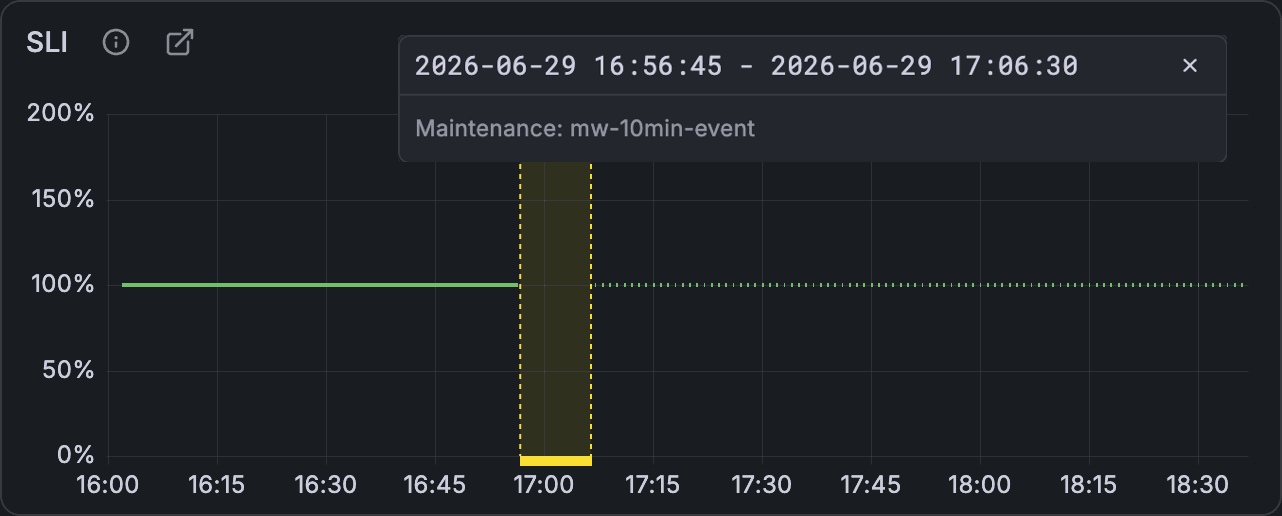
When a maintenance window is active, Grafana SLO omits generated SLI samples for the affected SLOs during the window. This means:
- Failures during the window do not reduce the selected SLOs’ error budget.
- Burn rate alerts that use those SLO recording rules do not fire during the window.
- Generated SLO dashboards annotate the maintenance period so you can distinguish planned work from normal operations.
- Source metrics in your data source continue to be collected normally.
Caution
During a maintenance window, Grafana SLO stops writing its generated recording rules, including the SLI samples, for the selected SLOs. This leaves a gap in those recorded metrics for the duration of the window, and Grafana SLO does not backfill the missing samples after the window ends. Queries that read these recording rules directly return no data for that period.
Before you begin
To create and manage maintenance windows, you need both:
- The
maint-windows:adminRBAC role, which grants full access to maintenance windows. By default, this role is assigned to the Grafana Admin basic role, and the Editor and Viewer basic roles receive the read-onlymaint-windows:viewerrole. An administrator can assignmaint-windows:adminto additional roles through Grafana RBAC to grant write access more widely. - Edit permission on the folder for the maintenance window. The folder selector only lists folders that you can edit.
SLO-specific roles, such as SLO Writer, do not grant permission to manage maintenance windows. Maintenance windows use their own maint-windows roles.
Create a maintenance window
To create a maintenance window:
- In the Grafana navigation menu, go to Alerts & IRM > SLO > Maintenance windows.
- Click New maintenance window.
- Enter a title and description.
- Set the start and end time.
- Select the Folder for the maintenance window. A default folder is preselected. To store it elsewhere, choose another folder. The list only includes folders that you can edit.
- Select one or more SLOs that this maintenance window should apply to.
- Review the maintenance window and click Save.
Note
Schedule maintenance windows in advance. For a few minutes after the start time, error budget consumption and burn rate alerting can still respond to SLI samples recorded just before the window began. To make sure they are paused before your planned work begins, set the start time a few minutes earlier. A window’s start time can’t be in the past.
Manage a maintenance window
You can view all maintenance windows from the Maintenance windows page.
Maintenance windows can be in one of the following states:
- Upcoming: The window has not started yet. You can edit or delete it.
- Active: The window is currently affecting the selected SLOs. To end it early, open the More menu for the window and click End.
- Ended: The window has finished. Completed maintenance windows are read-only for historical purposes.
Make scheduling changes before the window starts.
Limitations
Maintenance windows have the following limitations:
- Each maintenance window is a single fixed time range. Recurring schedules are not supported.
- A maintenance window can’t start in the past. Backdated maintenance windows are not supported.
- Maintenance windows affect Grafana SLO-generated recording rules for the selected SLOs. They also affect burn rate alerts and any custom alert rules that query those generated recording rules.
- Maintenance windows do not pause alert rules that use source metrics or recording rules outside Grafana SLO.
- Maintenance windows do not rewrite or backfill historical generated SLO data. They only affect SLO evaluation while the window is active.
Troubleshooting
You cannot create or edit maintenance windows
Verify that you have the maint-windows:admin RBAC role (assigned to the Admin basic role by default) and Edit permission on the folder for the maintenance window.
If you still cannot create or edit maintenance windows, contact your Grafana Cloud administrator or Grafana Cloud Support.
An SLO is missing from the SLO selector
Verify that the SLO exists and that you have access to view it.
Alerts still fire during a maintenance window
Allow a few minutes for a newly started maintenance window to take effect. For a short time after the start, alerts can still respond to SLI samples recorded just before the window began. If alerts continue beyond that, verify that the maintenance window is active and that the alert queries Grafana SLO-generated recording rules for one of the selected SLOs. Maintenance windows do not affect alert rules that use source metrics or recording rules outside Grafana SLO.
Was this page helpful?
Related resources from Grafana Labs



